Logging and tracking referrals
Every referral you send and every referral you receive belongs in ReferralPulse, even the ones that already happened. The history is what powers the dashboard, the dormant-partner reminders, and the suggestions about who to reach out to next. There are two buttons for new referrals, one to give and one to receive, a quick way to update status as deals close, and a voice path for when you are between meetings.
Where to find Referrals: Sidebar → My Network → Referrals.
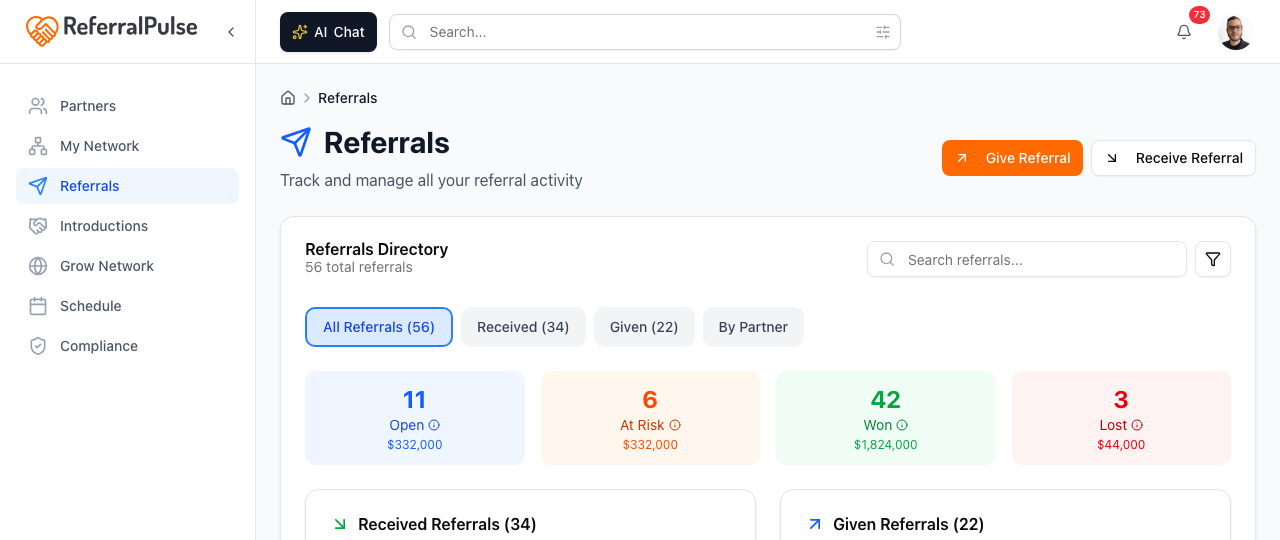
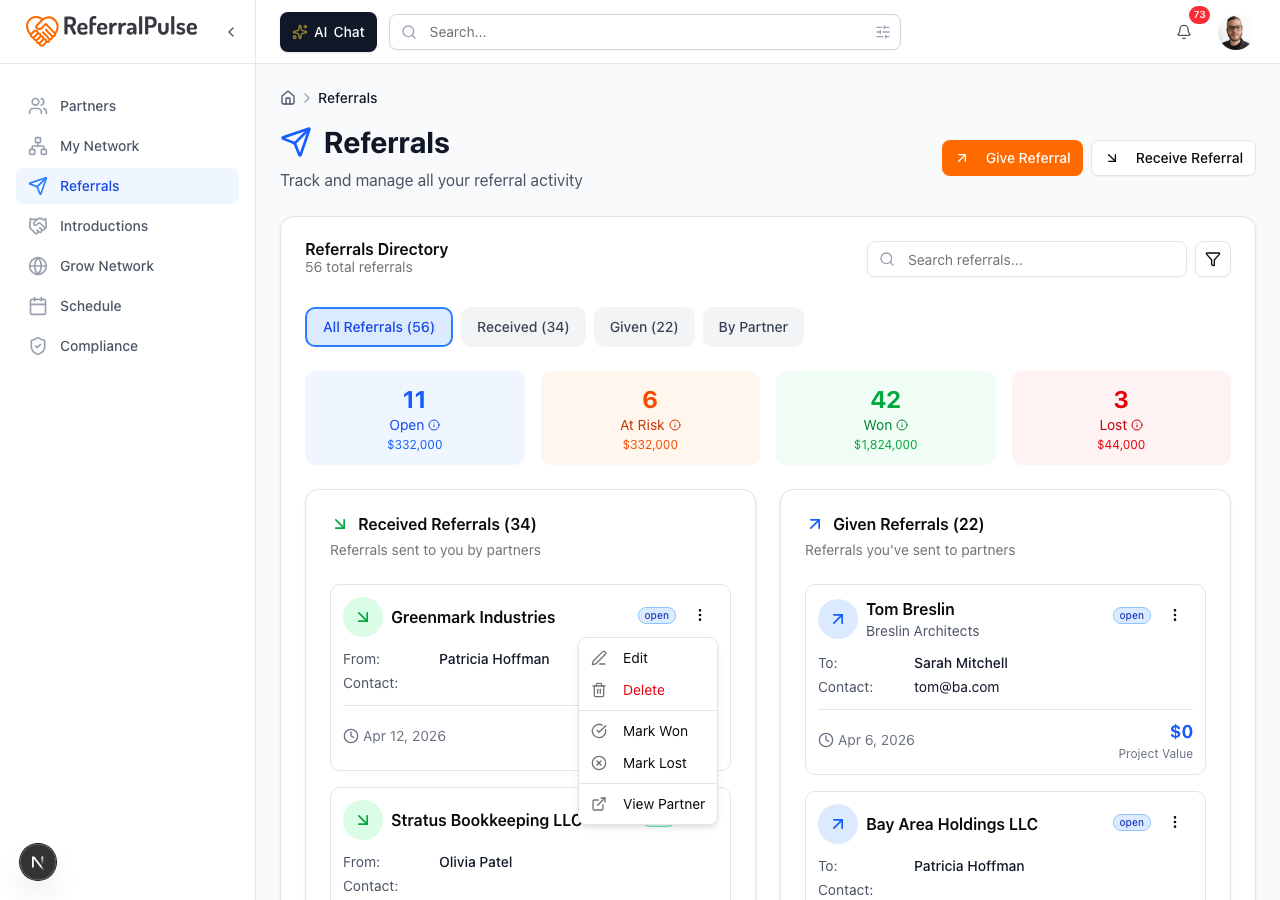
The page opens on the Referral directory, every referral you have logged. Two views sit in the card header:
- List. Every referral, newest first.
- By partner. The same referrals grouped under the partner they involve, most active first.
A row of chips underneath narrows the list, each carrying a live count: All, Received, Given, Open, At risk, Won and Lost. A search box finds a referral by client or partner name, and a Sort menu changes the order.
Give a referral
Where to find it: Sidebar → My Network → Referrals → Give referral button (top right of the page).
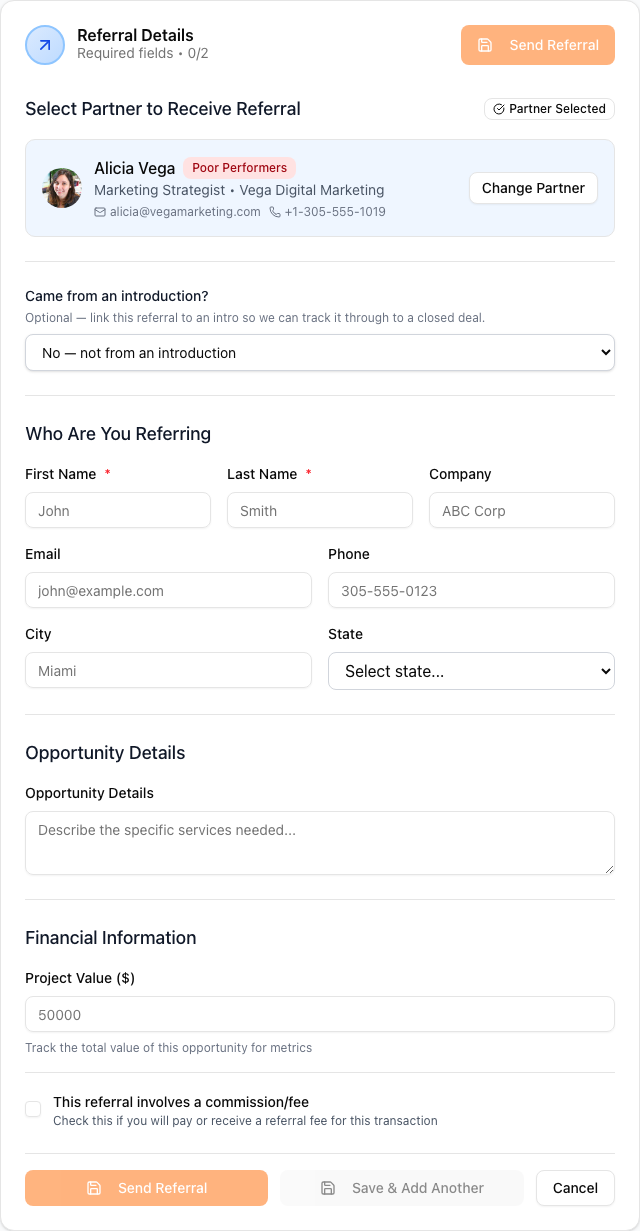
This is the path when you are sending a client to a partner. The form is a short stack of sections you work down.
- Click Give referral at the top of the page.
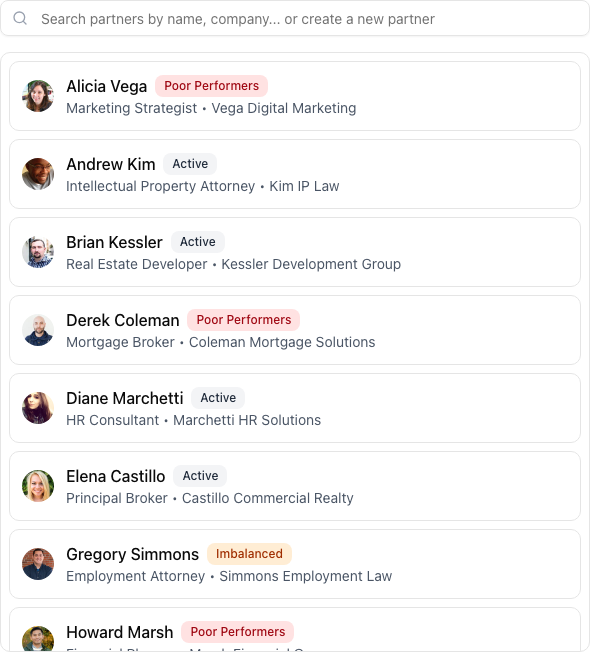
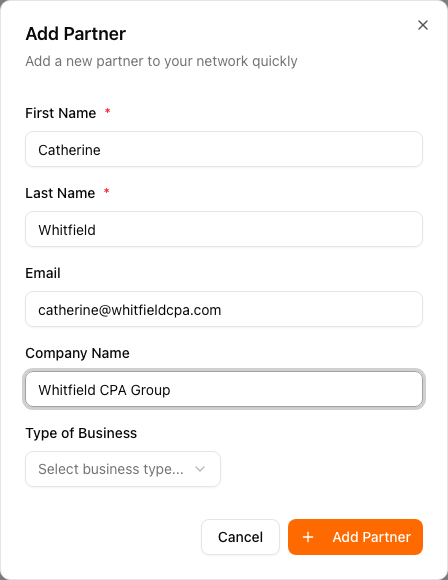
- Pick the Partner receiving the referral. Search by name or company. If they are not in your network yet, you can create them without leaving the form.
- Client. The person the work is for. First and last name are what matter, the rest is optional.
- Opportunity. A short description of the work, and the service it falls under.
- Value and commission. An optional project value, and a fee if there is one, as a percentage or a fixed amount.
- Notes. Anything the partner should know that does not belong in the description.
- Save.
If the partner has an email on file, saving offers to send them a note with the client's contact details. You review the draft before it goes out, you can edit it, and you can skip the email entirely.
If the referral came from an introduction, a picker appears under the partner as soon as you choose one. It lists intros involving that partner that are not yet linked to a referral, with who introduced you and when. Picking one ties the referral to the introduction, so the intro's outcome shows the deal it produced.
Receive a referral
Where to find it: Sidebar → My Network → Referrals → Receive referral button (top right of the page).
Use this when a partner sends a client your way. Same form, flipped: you pick the Partner who sent the referral, then the client's details and any commission you owe.
- Click Receive referral at the top of the page.
- Pick the partner who sent it.
- Fill in the client's name and whatever else you have.
- Save.
If the partner referred themselves as a client, tick This is a self-referral and their own details are used as the client.
After you save, the app drafts a thank-you email to the partner you can review and send. You can edit, send, save for later, or dismiss the draft.
Logging the past few months of received referrals when you first sign up gives the dashboard enough history to see who is actively sending you business. You don't need every referral, just enough to give the picture some shape.
Update a referral's status
Where to find it: Sidebar → My Network → Referrals → click any referral to open it, or use the menu on its row → Mark won, Mark lost or Mark declined.
Referrals don't all close on the day they're sent. There are two ways to update one as the situation develops.
The fast path is the menu on each row. It holds Convert to introduction, Mark won, Mark lost, Mark declined, View partner, and delete. One click changes the status without opening the referral.
The full path is to click into the referral itself. The detail view shows the client, the partner, the activity timeline, and full editing for every field, including the project value and commission amount once the deal closes.
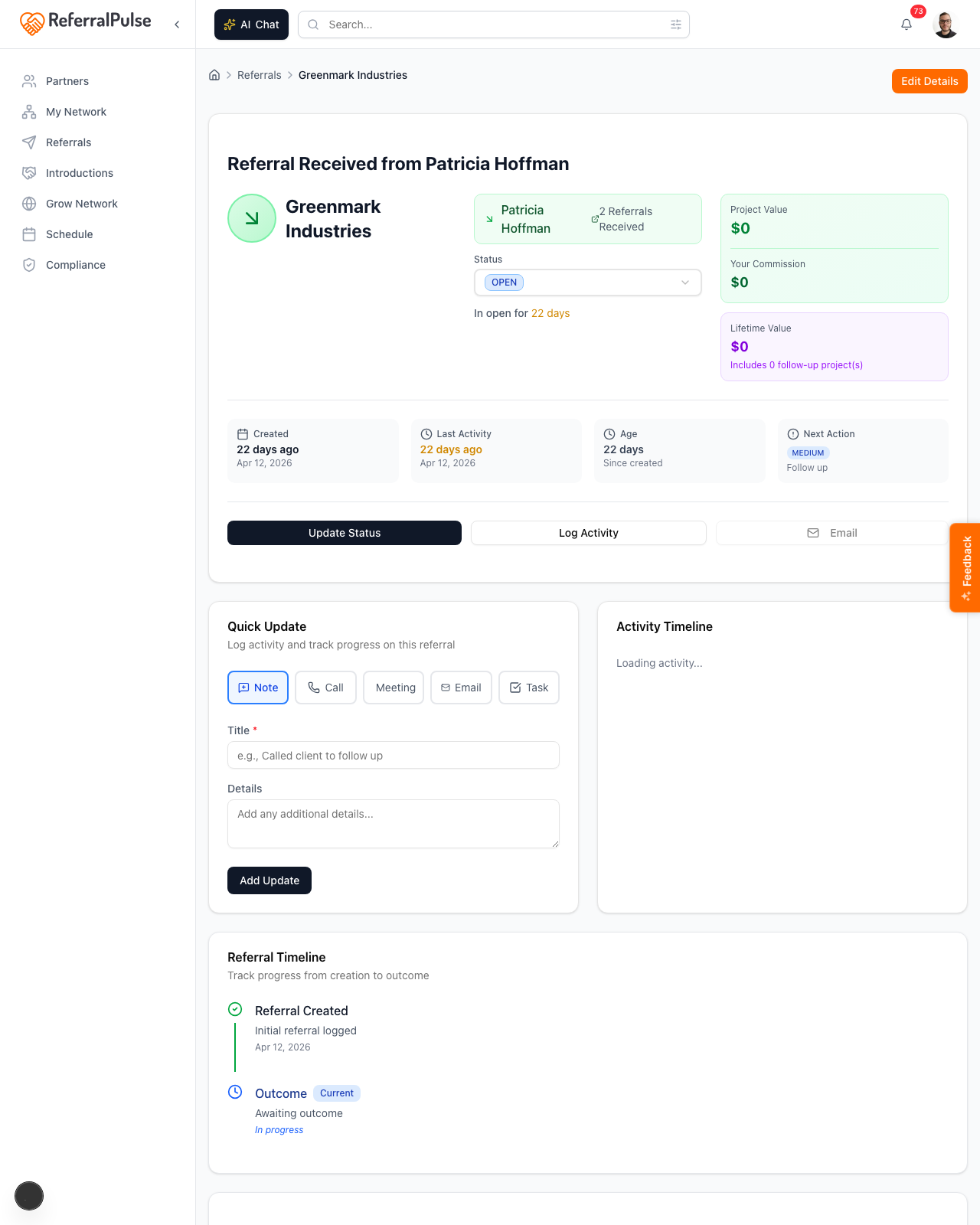
The commission labels on the detail page adjust to the referral's direction. On a referral you received, the payment dropdown reads Paid and Not Paid because you owe the commission to the partner who sent the client your way, and the amount is labeled Commission Due or Commission Paid. On a referral you gave, it reads Received and Not Received because the commission is coming to you, and the amount is labeled Your Commission.
When you mark a referral Won, fill in the actual project value and the commission amount if you owe or expect one. These numbers feed your won-this-month and at-risk totals on the dashboard.
Add an activity update
Where to find it: On a referral's detail page, scroll to the activity section and use the quick-update form.
You can log a note, call, meeting, email, or task against a referral to keep a record of what happened. When you add a note, call, meeting, or email, the Date field defaults to today, and you can backdate it to the day it actually happened. The picker won't let you choose a future date, and backdated entries sort into the timeline by the date you set, so the history reads chronologically even if you enter several at once. Tasks are forward-looking instead, so they take a due date and a priority rather than a backdate.
If you're catching up on a referral after the fact, backdate each note or call to the real date. The timeline will read in order even though you logged everything in one sitting.
By voice or in chat
Where to find it: The Ask button in the bottom right of any page (it carries your assistant's name). On iOS, the same chat opens from the Chat tab in the bottom navigation.
The fastest way to log a referral, especially right after a call, is to just describe it.
Sarah Chen referred a client named Mark Watts at ABC Corp to me, his email is mark@abc.com, project is around 25k, no commission.
The assistant figures out who the partner is, who the client is, what the opportunity is, and saves the referral as received. If you owe a commission or are receiving one, mention the percentage or dollar amount and it fills that in too.
Going the other way:
Send a referral to Marcus Johnson for a client called Lisa Pham, lisa@phamlaw.com, family law matter, urgent.
The assistant creates the referral as given, marks it urgent, and lets you know it's saved.
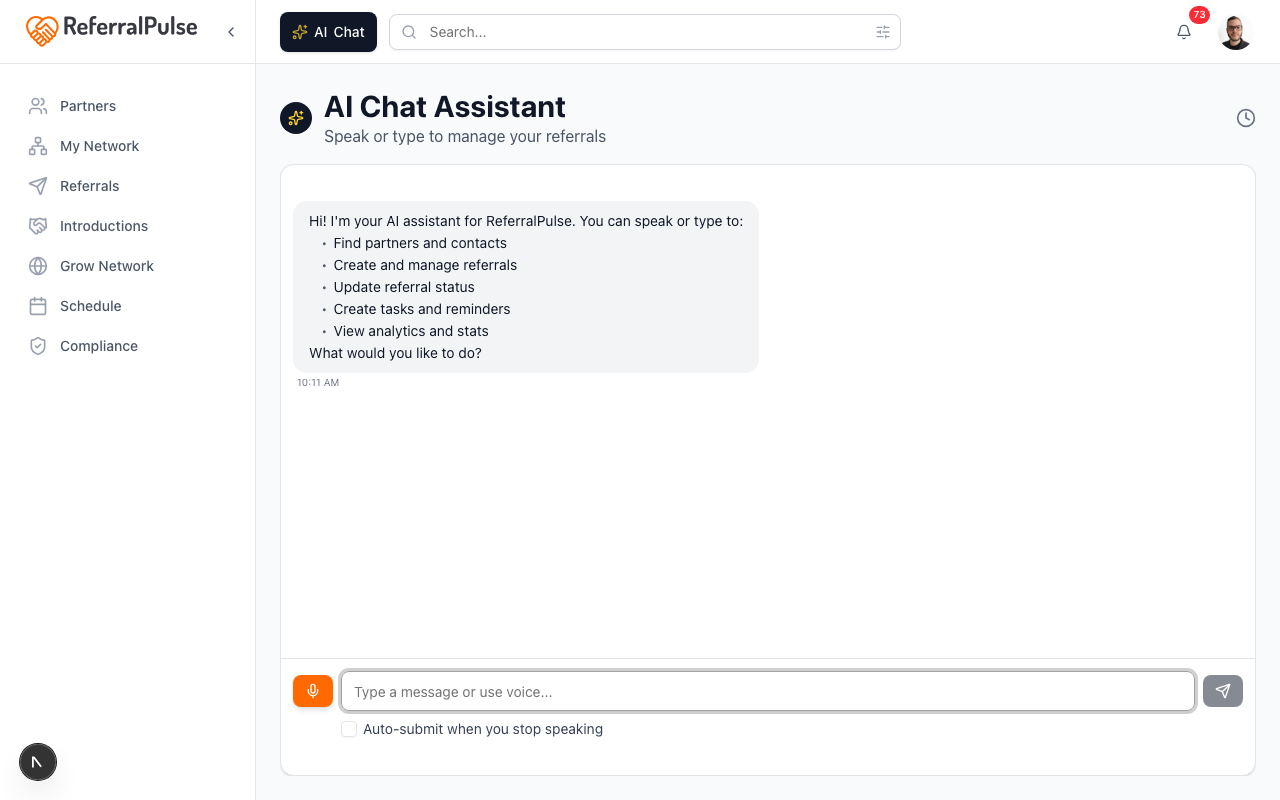
The assistant can also update existing referrals. Try "mark the Watts referral as won" or "what's the status of the Pham referral?" and it answers without you ever opening the list page.
Get more out of your assistant
Two pieces of referral data drive most of what your assistant can do for you in your network.
- Referral history. Every referral you log, sent or received, won or lost, becomes part of the picture your assistant uses to flag dormant partners (people who have gone quiet), surface reciprocity gaps (partners you give a lot to but rarely hear back from), and rank who to reach out to next. Even old referrals help. Logging a few from the last six to twelve months when you first set up the app is the single biggest thing you can do for the quality of the suggestions.
- Status accuracy. Referrals stuck on Open for months when they actually closed pull the at-risk count up and warp the won-this-month numbers. Use the Mark Won / Mark Lost / Mark Declined shortcuts on the list page to keep the picture honest.
If the dashboard's at-risk count looks inflated, it's almost always because there are open referrals from months ago that closed in real life but never got marked. The fastest fix is to scan the At Risk filter on the Referrals page and update statuses in a single sitting.
On the iOS app
Where to find it: Bottom navigation → Chat tab (microphone icon). Or tap the AI Chat button in the header from any screen.
On iOS the assistant is the primary way to log referrals. Tap the microphone and speak the way you'd describe the deal to a colleague:
Just got off the phone with Tom, he's sending me a client called Becky Reyes, she's looking at a commercial lease in Tampa, no commission, log it.
The assistant:
- Records it as a received referral, with Tom as the partner and Becky as the client.
- Pulls the city out of the description if you mention one, fills in the location.
- Confirms once saved with a link to the new referral's page.
If anything is missing (usually an email), the assistant asks for it before saving. You can also dictate updates like "mark the Reyes referral as won, project came in at 80 thousand" and the assistant updates the value, commission, and status.
Voice works hands-free. After a coffee meeting where two referrals came up, you can dictate both back to back in the car. The assistant batches them, asks for any missing emails at the end, and you're done before you reach the office.