Connecting your calendar (Google or Outlook)
Connecting your calendar does two things for you. It finds the people you meet with regularly and suggests the ones who belong in your referral network, and it brings your referral meetings into your dashboard, your daily briefing, and your partner timelines so the relationships stay current without any data entry. Your assistant does the watching; you decide who becomes a partner.
You can connect either a Google Calendar or a Microsoft Outlook calendar. The steps are the same on both, and you connect one calendar at a time.
Connecting your calendar
Where to find it: Top-right avatar menu → Settings → Integrations tab → the Calendar section. You'll see a Google Calendar row and a Microsoft Outlook row, each with its own Connect button.
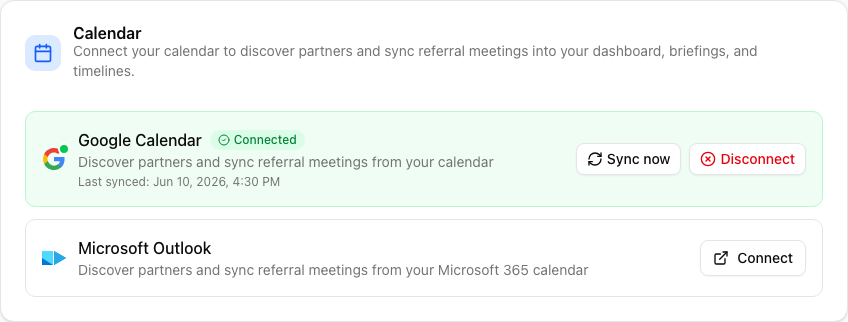
Click Connect on the calendar you use. You'll be sent to Google or Microsoft to sign in and approve access, then returned to ReferralPulse. The row flips to the green Connected state with a last-synced time.
Right after you connect, your assistant offers to scan your recent calendar so it can start finding partners. Approve the scan and you'll be taken straight to your suggestions. You can run a scan again any time with the Sync now button on the connected row.
One calendar is active at a time. If you connect a second calendar, disconnect the first one you no longer want feeding suggestions.
If you connect Outlook here for your calendar, that's separate from connecting your Outlook mailbox for email. Connecting both gives your assistant the fullest picture: who you meet with and who you email.
What you get once connected
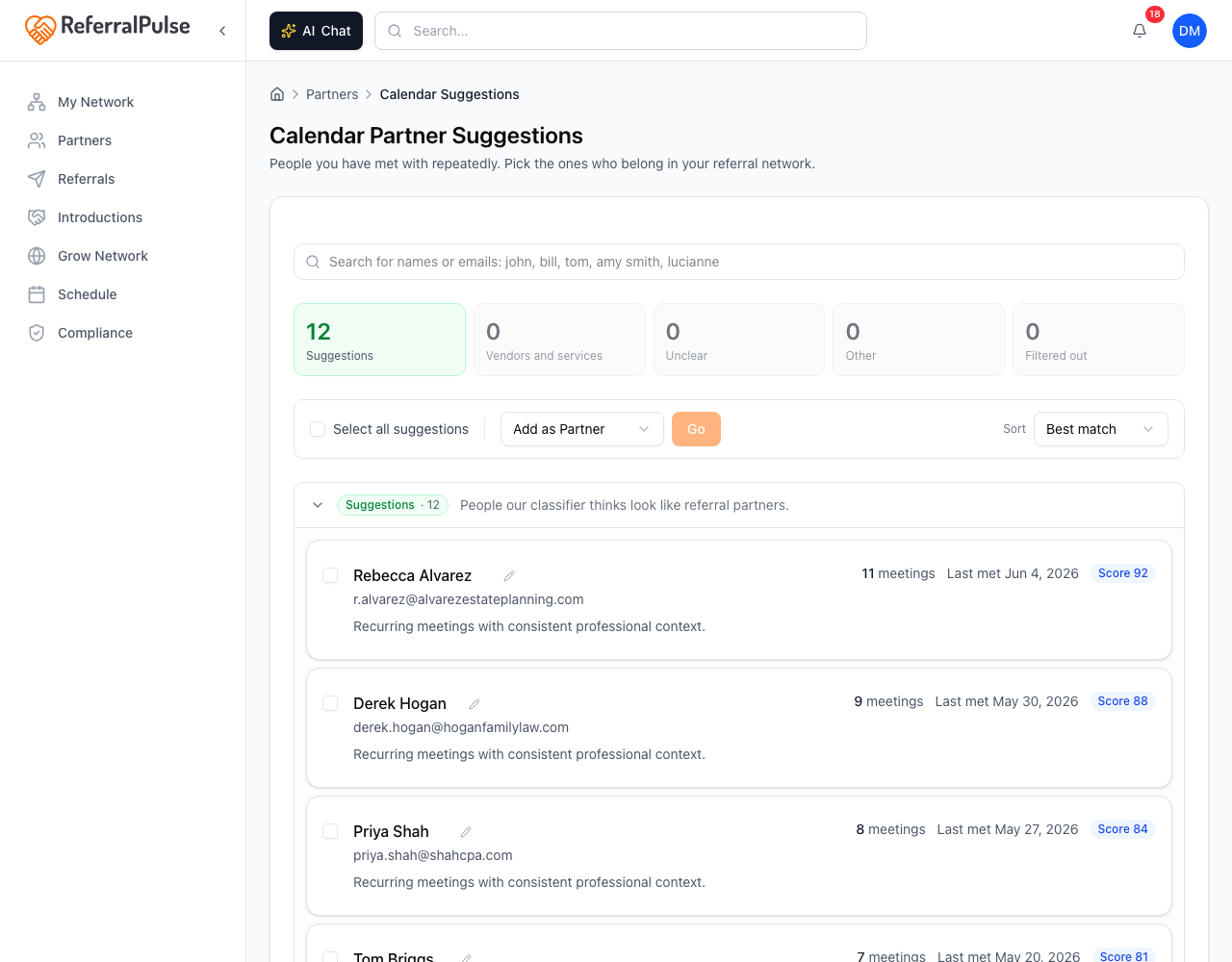
People you meet with repeatedly become partner suggestions. Your assistant looks for the people you've actually sat down with more than once and sets aside one-off, large-group, and internal calendar noise. Those names land on a suggestions page where you pick the ones who belong in your network. Nobody is added as a partner without you choosing them.
Where to find your suggestions: Sidebar → My Network → Partners → the Potential Partners from Calendar chip near the top of the list, shown with a count whenever you have suggestions waiting. It opens the Calendar Partner Suggestions page. Right after a scan, your assistant takes you here automatically.

On that page, each suggestion shows who the person is and a sense of how often you've met. Add the ones who are real referral relationships, and skip the rest. The ones you skip don't come back as noise.
Referral meetings flow into your dashboard and timelines. Meetings tied to your partners show up in your daily briefing and on each partner's timeline, so your history with them stays current on its own and your briefing can remind you who you're seeing and who you've been meaning to reconnect with.
The single highest-value moment is the first scan. Most people meet their best partner candidates in person before they ever think to add them to a tool. Run the scan once and you'll usually find several relationships already worth tracking.
Disconnecting your calendar
Where to find it: Settings → Integrations → Calendar → the connected row → Disconnect.
Disconnect asks you to confirm, then stops the partner discovery and meeting sync. The partners you already added and the meeting history already on your timelines stay put, since they're part of your records on this side. Reconnecting later picks up where you left off.
On the iOS app
Connecting a calendar (the Google or Microsoft sign-in) needs the web app, since the approval screen isn't built for iPhone. Once you've connected on the web, the suggestions and synced meetings show up the same on iOS. You can review and add partner suggestions from your phone after the scan runs.
Ask your assistant by voice "who am I meeting with today," and it reads your synced calendar so you can prep on the way in, without opening your calendar app.