What shows up on Inbox Review
Once your email is connected, your assistant reads new messages in the background and turns the ones that look like partner activity into suggestions. They land on Inbox Review, its own row in the sidebar directly under Home, for you to accept or dismiss. The row only appears once you have connected a mailbox. Nothing is written to your network without your okay.
This article is a reference for every kind of suggestion you can see on that page, so you know what each one means and what accepting it does. If you spot something the assistant should be catching that isn't listed here, let us know.
How the page is organized
Suggestions are grouped by type so a busy day does not turn into a wall of mixed cards. Each group has a count, a colored icon and a short label, and the same labels appear as chips above the list so you can narrow to one type. A search box beside them searches by name, company or subject.
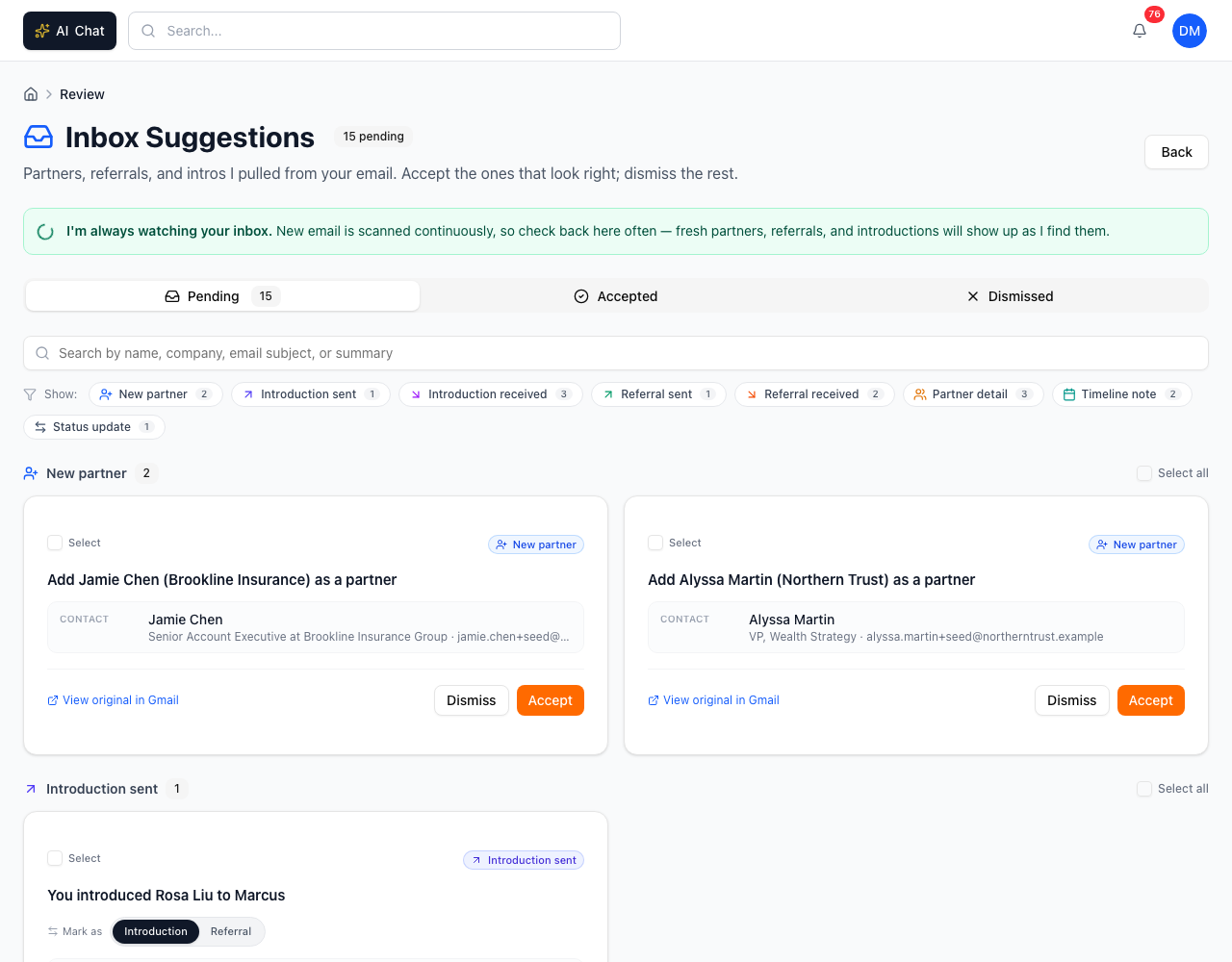
Three views split the list:
- Pending. Everything your assistant has surfaced that you haven't decided on yet. This is where you spend your time.
- Accepted. What you've already approved. Useful for double-checking a decision or finding the original email a record came from.
- Dismissed. What you said no to. Visible in case you change your mind or want to remember what you skipped.
Every card has the same anatomy, whatever type it is: a one-line summary at the top, the partner it is tied to when there is one, an evidence section with the fields your assistant pulled, an optional quote from the email, a confidence badge reading High, Medium or Low confidence, and a link to open the original message in your mailbox. Dismiss and Accept sit at the bottom. The screenshots under each type below show it filled in.
The ten types of suggestions
New partner
Label on the page: New partner
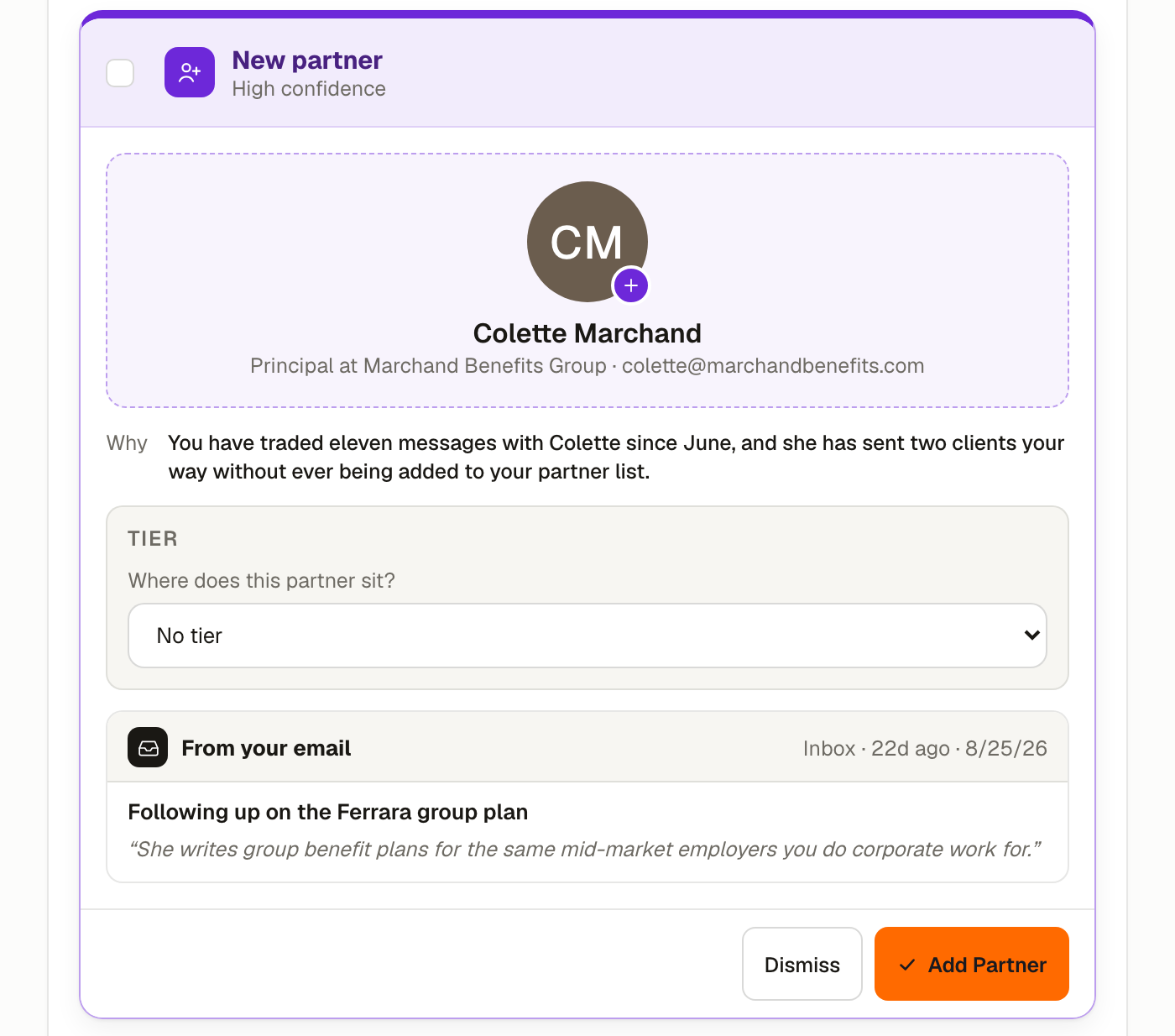
You see this when someone you've been corresponding with looks like a potential referral partner but isn't in your network yet. The assistant picks this up from the email address, signature, and the shape of the conversation (introductions, referrals exchanged, professional context).
Accepting creates a partner record with whatever name, company, title, and contact details the assistant could pull from the email and the sender's signature.
Dismissing opens a small popover where you pick a reason: Not a real partner, Already in network, Don't want as partner, or Wrong info. You can also click Other... to type a short note, or Skip and dismiss to dismiss without labeling. The first three reasons teach the assistant to stop surfacing this sender, and after a few matching dismissals it learns to skip similar senders automatically.
Introduction sent
Label on the page: Introduction sent
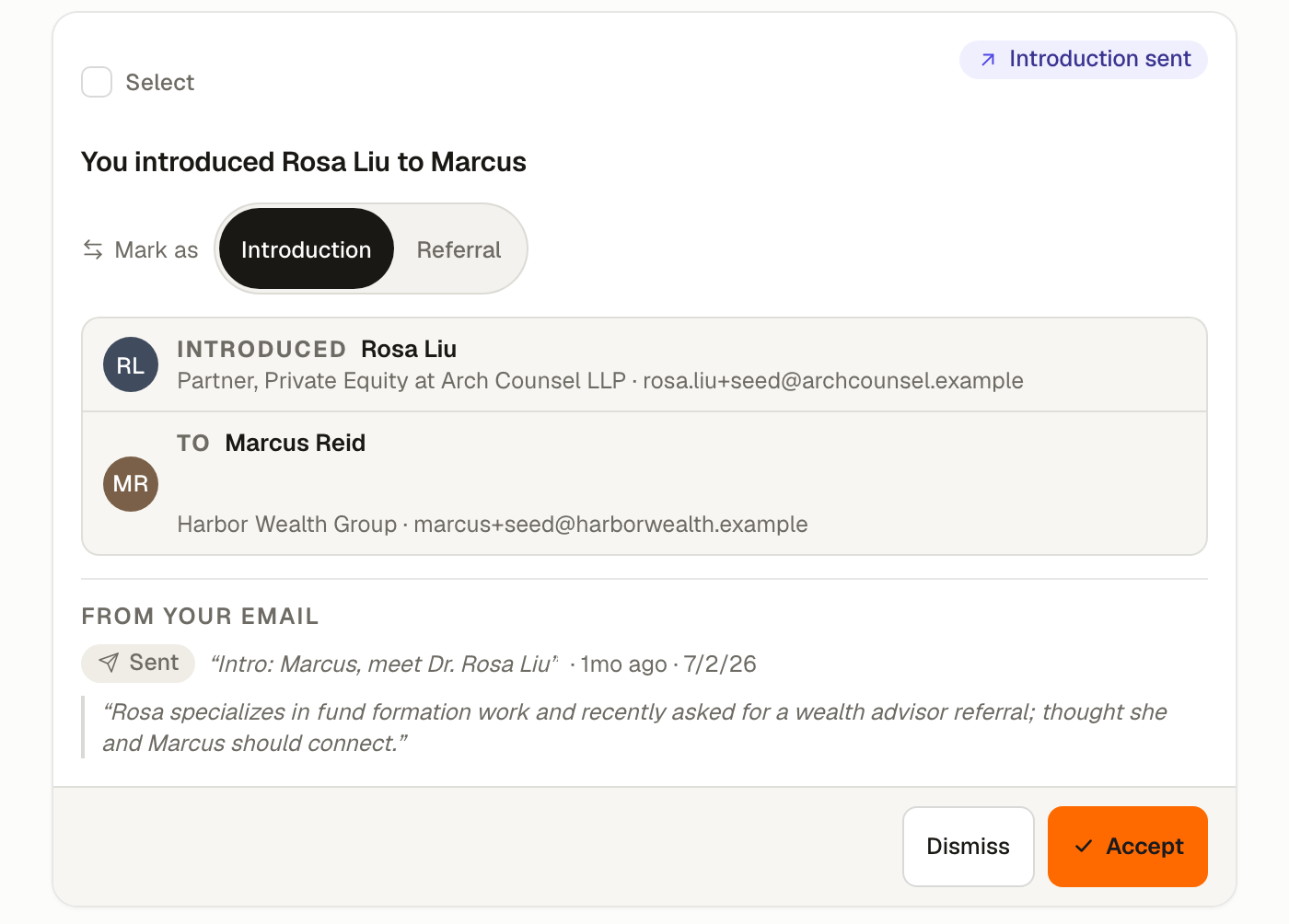
You see this when one of your sent emails reads like you introduced two people to each other. Classic phrasings: "meet X", "I wanted to introduce you to Y", "looping in Z".
Accepting creates an introduction record on your Introductions page, attributed to you as the connector, with the two people identified and the context the assistant pulled from your message.
Dismissing opens the popover with: Not actually an intro, Already logged, Wrong people identified.
In-app referral
Label on the page: In-app referral
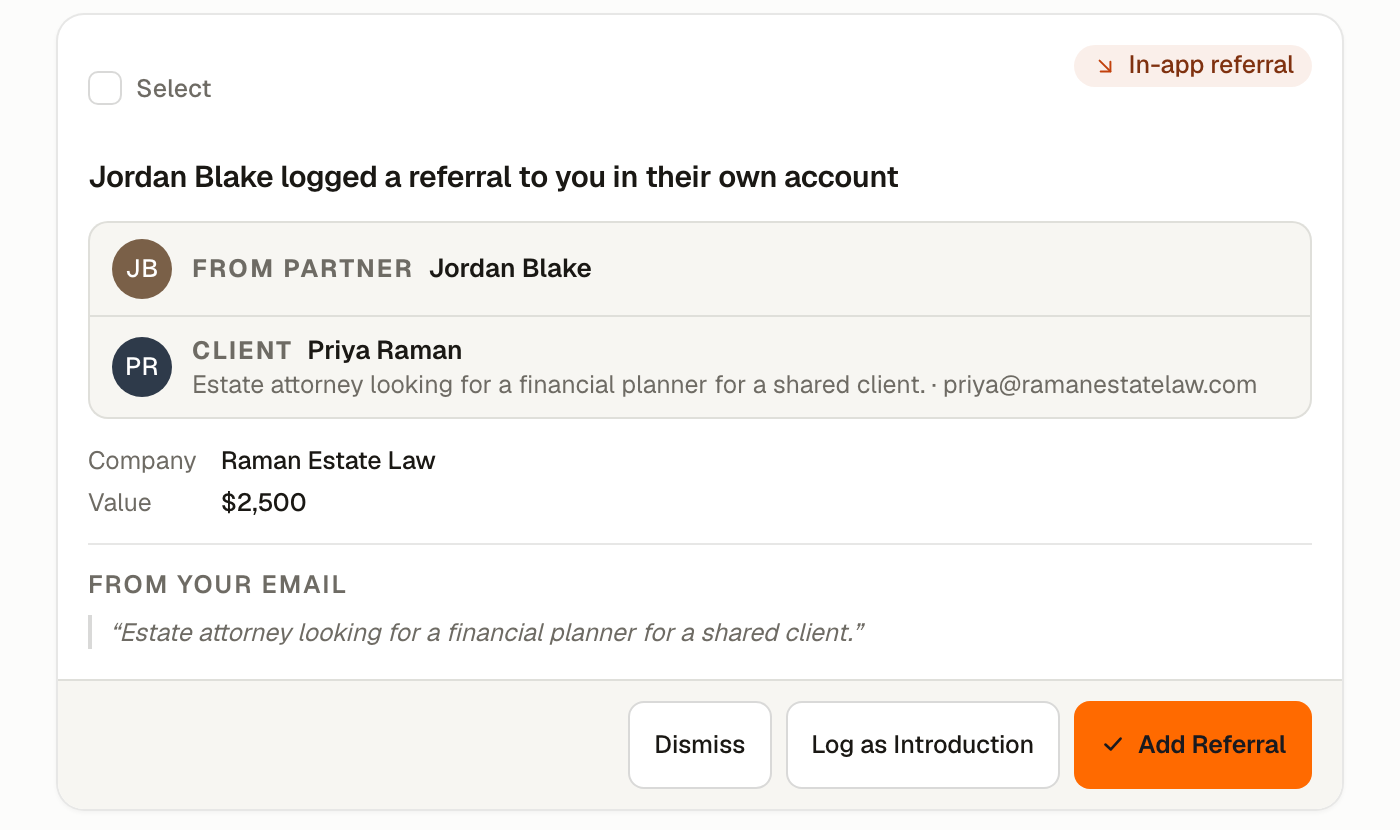
You see this when a partner who is also on ReferralPulse logs a referral to you inside the app. It reads like a received referral, but it has a second outcome you can pick.
Accepting adds the referral to your account, mirrored from theirs, so both sides stay in step. The card also offers Log as Introduction for the case where what they logged as a referral was really an introduction. Choosing that creates an introduction with them as the connector instead, and no referral is created.
Dismissing works the same way as a received referral.
Introduction received
Label on the page: Introduction received
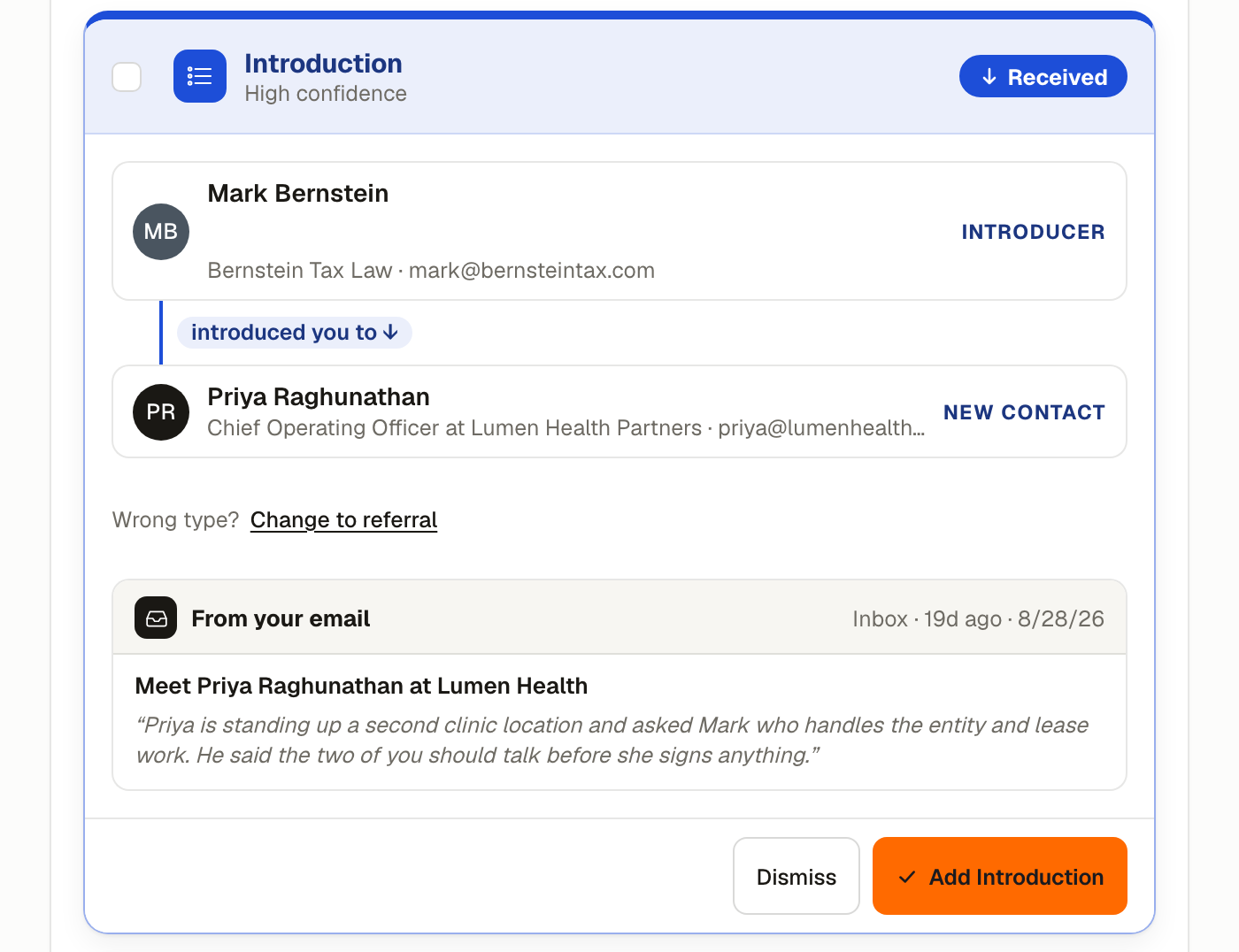
You see this when one of your received emails reads like someone introduced you to a new contact. Same phrasings as above, just on the receiving end.
Accepting creates an introduction record with the partner who introduced you as the connector and the new person as the introduced party. The new person is also added to your network if they aren't there already.
Dismissing offers the same three reasons as Introduction sent.
Referral sent
Label on the page: Referral sent
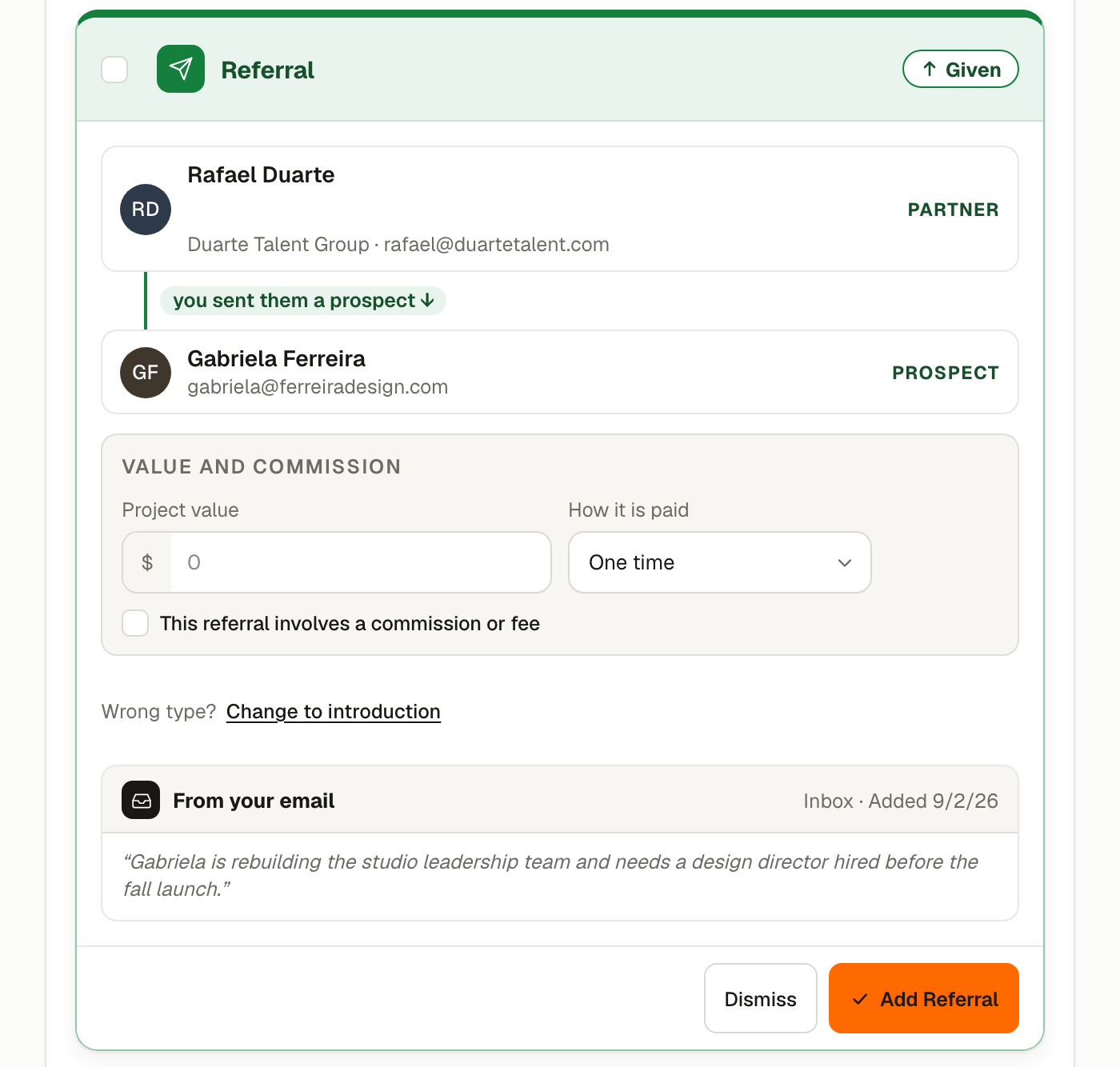
You see this when one of your sent emails looks like you handed a prospect (or a lead) to a partner. The assistant looks for service descriptions, contact handoffs, and explicit referral language.
The person you referred is labeled Prospect on the card, because at this point they have only been introduced to the work, not signed for it. Accepting is what turns them into a client record.
Accepting creates a given referral on your Referrals page, pre-filled with the prospect's name, email or phone, the service or matter type, urgency, and an estimated value if the assistant could infer one. On the Referrals page that person is the client on the referral.
Dismissing opens the popover with: Not a real prospect, Already logged, Wrong partner attribution.
Referral received
Label on the page: Referral received
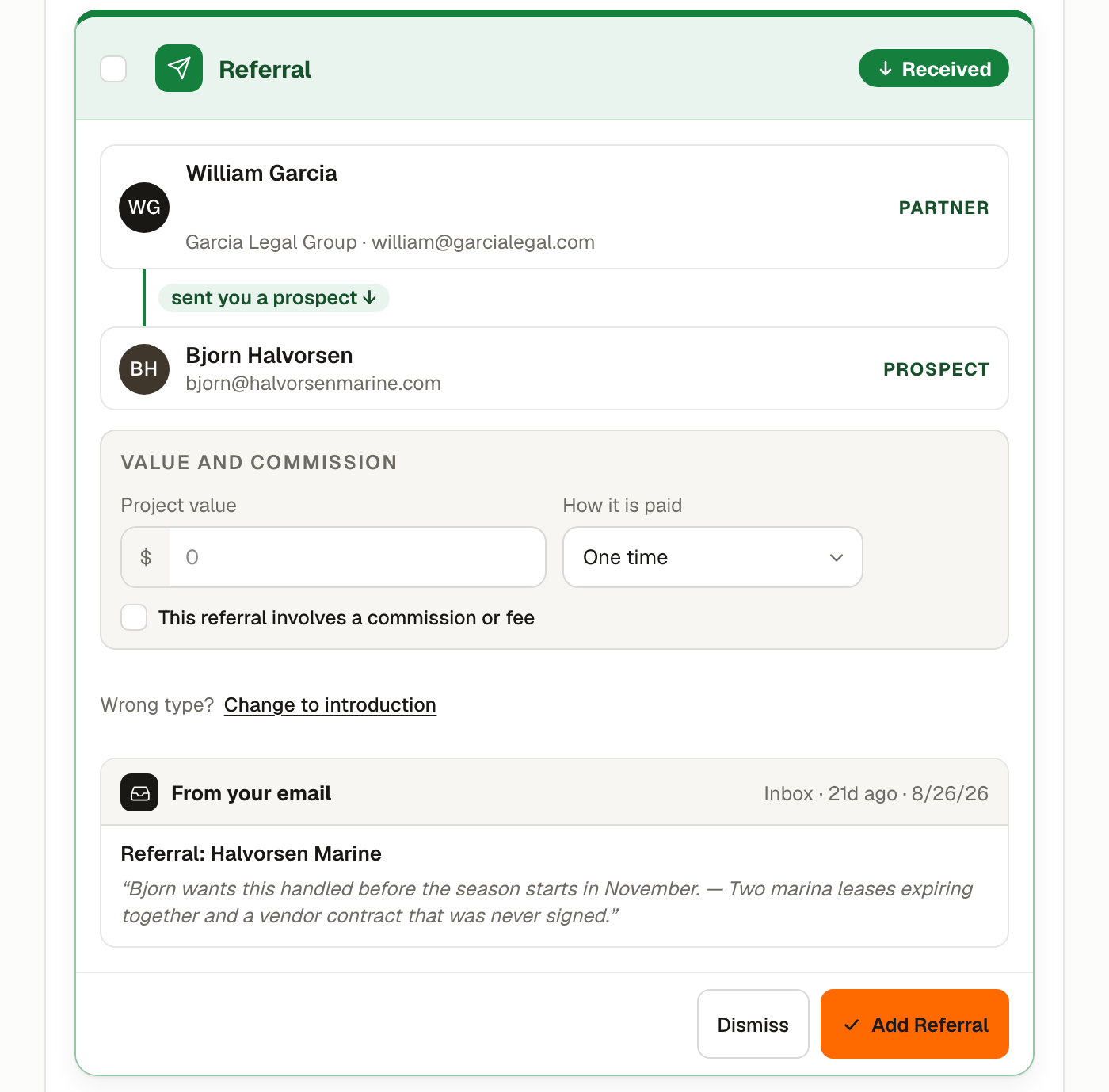
You see this when one of your received emails looks like a partner sent you a prospect. The card labels that person Prospect, the same way a Referral sent card does.
Accepting creates a received referral attributed to the sending partner, with the same client and service fields pre-filled.
Dismissing offers the same three reasons as Referral sent.
Two small links sit on every introduction and referral card, for the times your assistant read the email wrong.
Wrong type? offers Change to referral on an introduction and Change to introduction on a referral. The card switches in place and accepting it logs the right kind of record. A referral always involves a partner, so if the card has none you pick one, or add someone new, as part of the switch.
Wrong way round? offers Change who did what. It opens a short list headed Which Is True? with the other ways the same people could be read, written out as plain sentences such as "You introduced Adaora Nwosu to Vanessa Torres" or "Adaora introduced you to Vanessa Torres". Pick the true one and the card redraws with everyone in the right role. This is the fix for a reply that got read backwards: you introduced two people, one of them answered, and the card says they introduced you. Nothing about the people or the email changes, and you can change it back the same way. A referral a partner asked you to handle for themselves has no other way round, so the link does not appear on it.
Partner detail
Label on the page: Partner detail
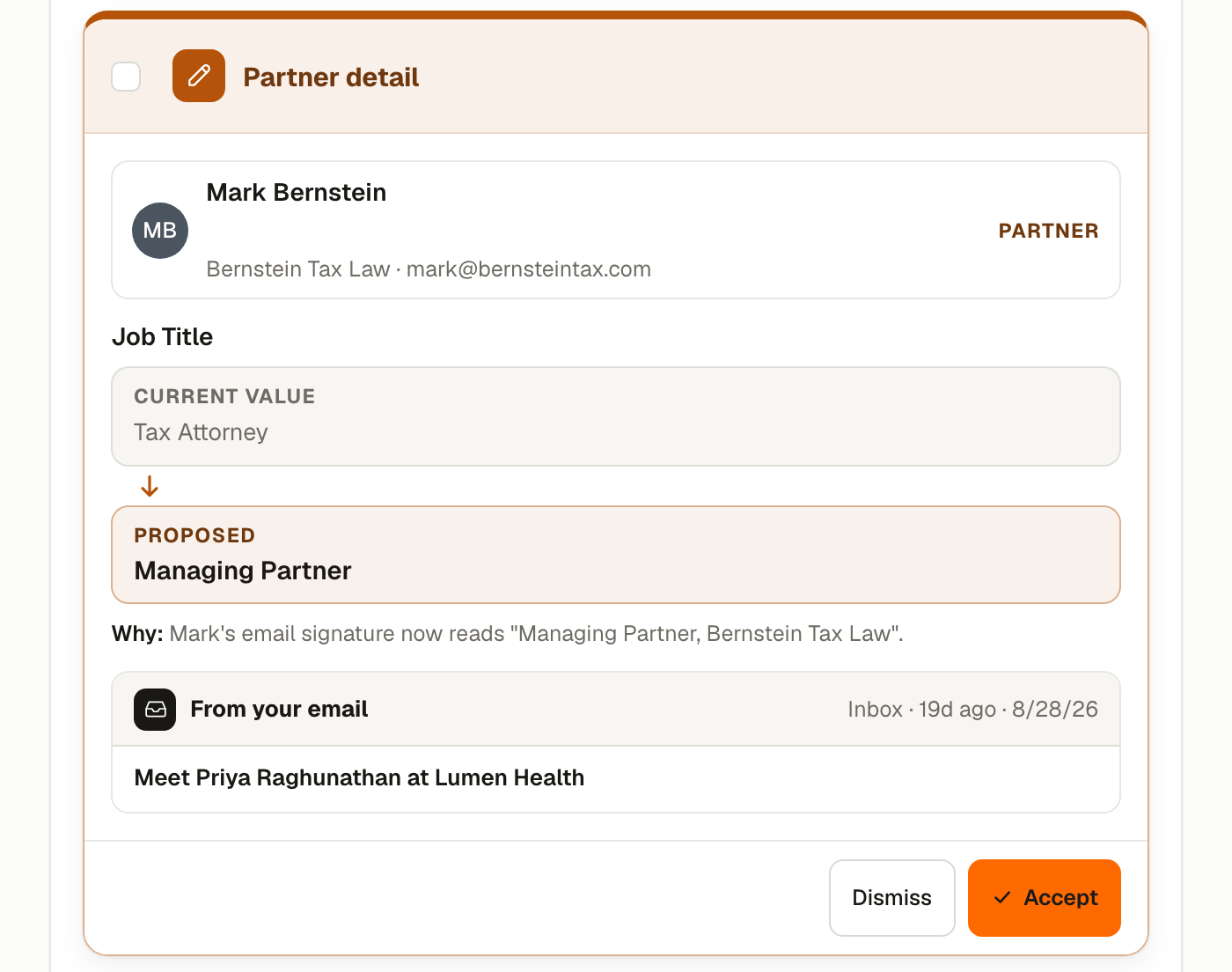
You see this when an email reveals a new fact about an existing partner: a new phone number in their signature, a job change mentioned in the body, an updated firm name, a switched email. The assistant only surfaces a detail if it's different from what your network already has on file.
The card shows the field name, the proposed new value, and whether accepting would fill an empty field or overwrite an existing one. A short quote from the email is included as evidence.
Fixing the proposed value before you accept
Your assistant reads the value out of an email, and sometimes it is close but not right: a job title that came through as "Ph.D.", a company name with the wrong suffix, a phone number missing its extension. You do not have to accept it as written or dismiss it and type the fact in by hand.
Click Edit beside Proposed. The value becomes a text field you can type in, and a small Edited note appears once it differs from the suggestion. Then accept the card the usual way. What you typed is what gets saved to the partner, and the Accepted view shows your version.
- Reset puts the suggestion back. Cancel closes the field if you have not changed anything.
- On a list field such as Networking Groups, separate items with commas.
- The card checks what you type. An email has to be a full address, a website has to be a web address, a LinkedIn link has to be on linkedin.com, and a phone number needs its area code. The reason shows under the field and the accept buttons wait until it is fixed.
- An email address that another partner already has, or that is your own, is refused when you accept, and the card comes back with the reason and your typing still in place.
- Replace and Append work the same way on an edited value as on the suggested one.
An edit travels with the card. If you select several cards and accept them together from the bar at the bottom, an edited card saves what you typed and the others save their suggestions.
When you get Replace and Append instead of Accept
Most cards have a single Accept. Partner detail cards sometimes have two buttons instead, Replace and Append, and which you get depends on the field.
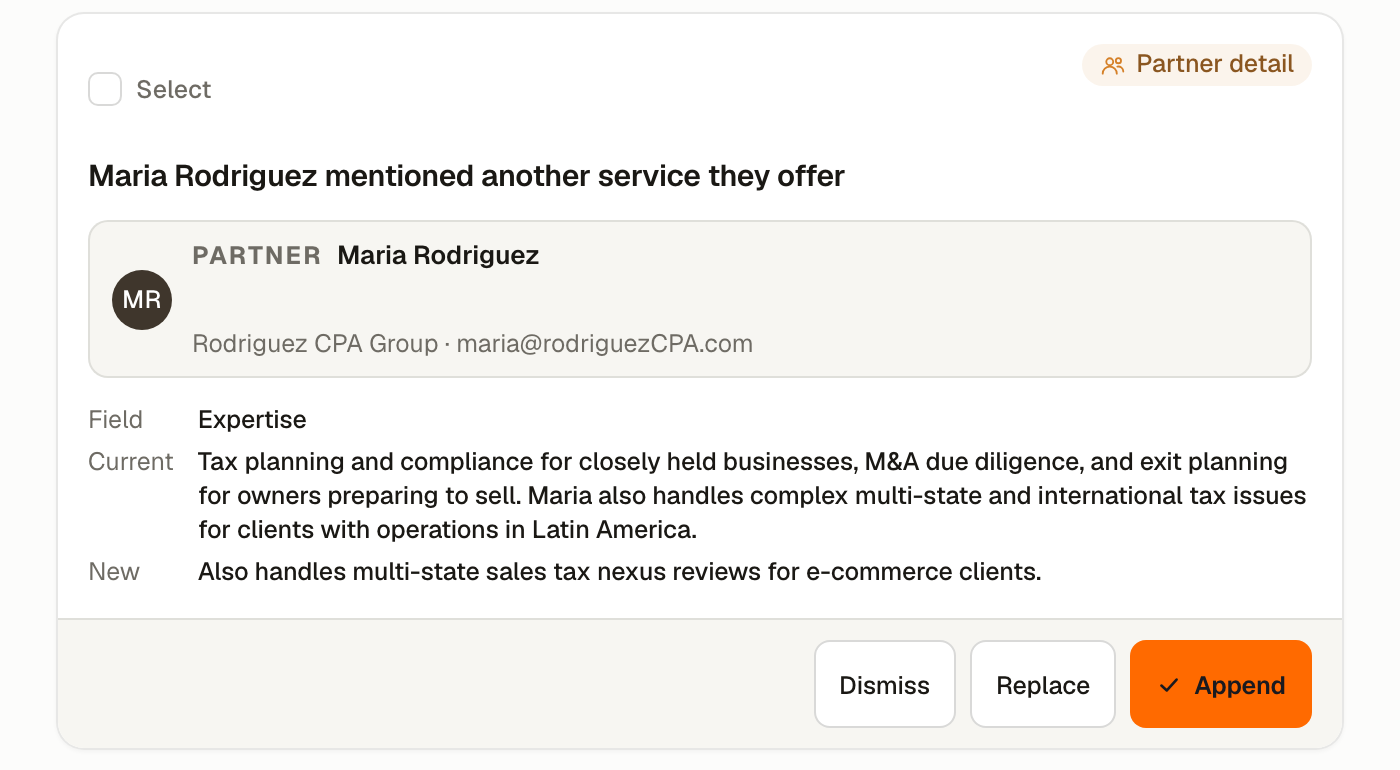
You see the pair when both of these are true:
- The field accumulates. Free-text fields like Expertise & Specialties, Services Offered, Ideal Client Profile, Call Me When, Relationship History and Company Overview all grow over time. So do the list fields: Business Specialties, Desired Partner Types, Languages Spoken and Networking Groups.
- It already has something in it. There is nothing to append to an empty field, so the first value is always a plain accept.
What each one does:
- Append adds the new detail to what is already there and keeps both. This is the right choice almost every time, because a partner who mentions a second specialty has not stopped doing the first.
- Replace overwrites the field with just the new value. Use it when the old text was wrong or out of date, not when it is merely incomplete.
- On a list field the button reads Add to List rather than Append, and it adds the entry without disturbing the others.
Single-value facts never offer the choice. Name, email, job title, company, phone, city, state and where you met can only be one thing at a time, so appending would corrupt them and only a plain accept is offered.
When you are not sure, Append. Nothing is lost, and tidying up a field that has one line too many takes seconds. Recovering a paragraph that Replace overwrote means going back to the original email.
Accepting writes the change to the partner's record.
Dismissing opens the popover with: Info is wrong, Field shouldn't change, Already up to date.
Timeline note
Label on the page: Timeline note
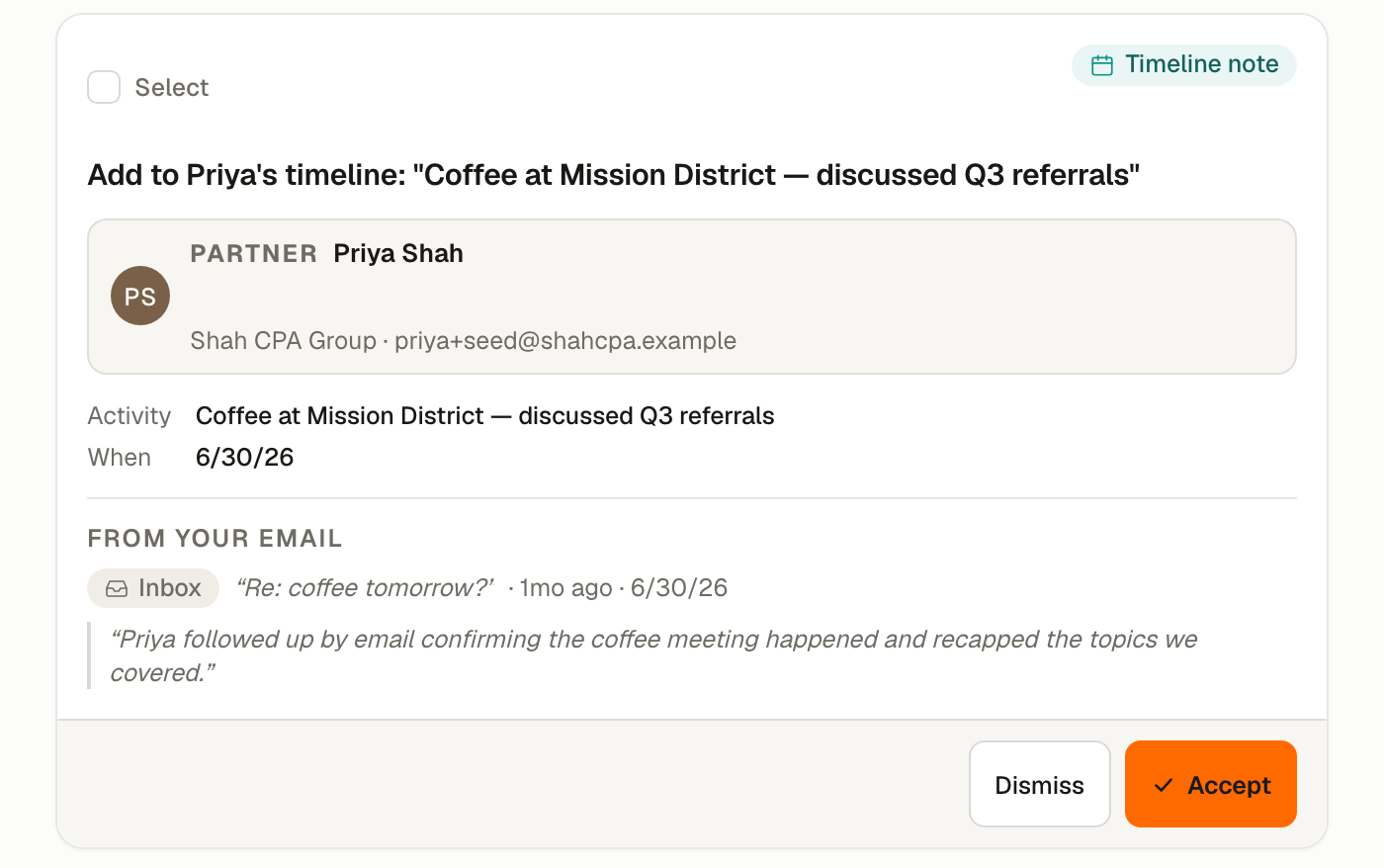
You see this when an email mentions something personal or relationship-worthy about a partner that's worth remembering: a vacation they took, a life event, a milestone, a shared interest that came up. These are the little human details that make your next conversation warmer.
Accepting adds the note to that partner's timeline. (High-confidence notes are added to the timeline for you automatically and never reach this page; only the less certain ones show up here for your okay.)
Dismissing opens the popover with: Not an activity, Wrong partner, Already logged.
Status update
Label on the page: Status update
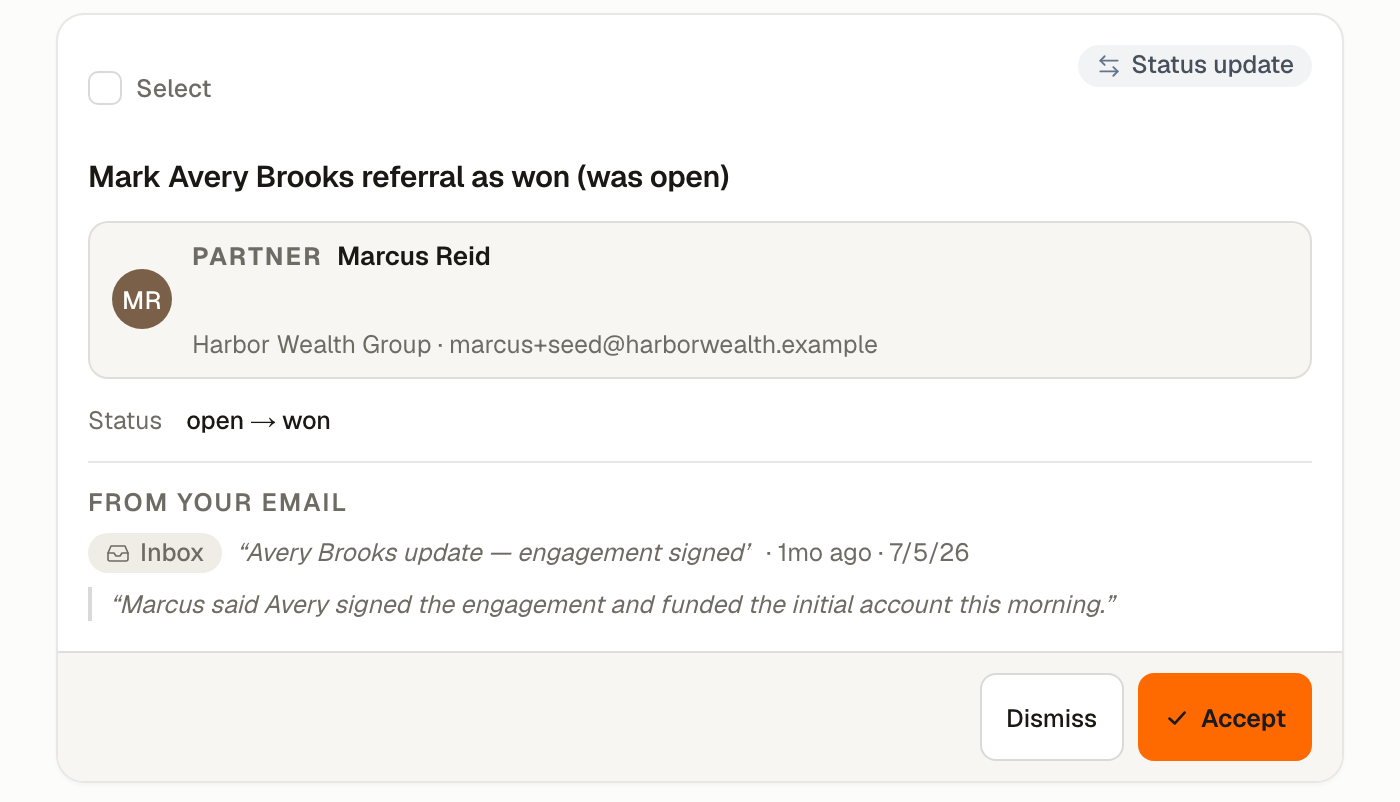
You see this when an email indicates a referral has moved forward. A "thanks, we signed them up" message tied to a referral you sent, a "the deal closed" reply from a partner, a "we couldn't help them" decline. The card shows the current status and the proposed new status as an arrow (Open → Won, Open → Lost). Your assistant matches the email to the right referral by the client's name or the client's company, so "we won the Acme deal" finds the Acme referral even when the message names the company rather than the person.
Accepting updates the referral's status and (if you're both on the app) syncs the change to the partner's mirrored referral.
Dismissing opens the popover with: Wrong status, Wrong referral, Status didn't really change.
Commission paid
Label on the page: Commission paid
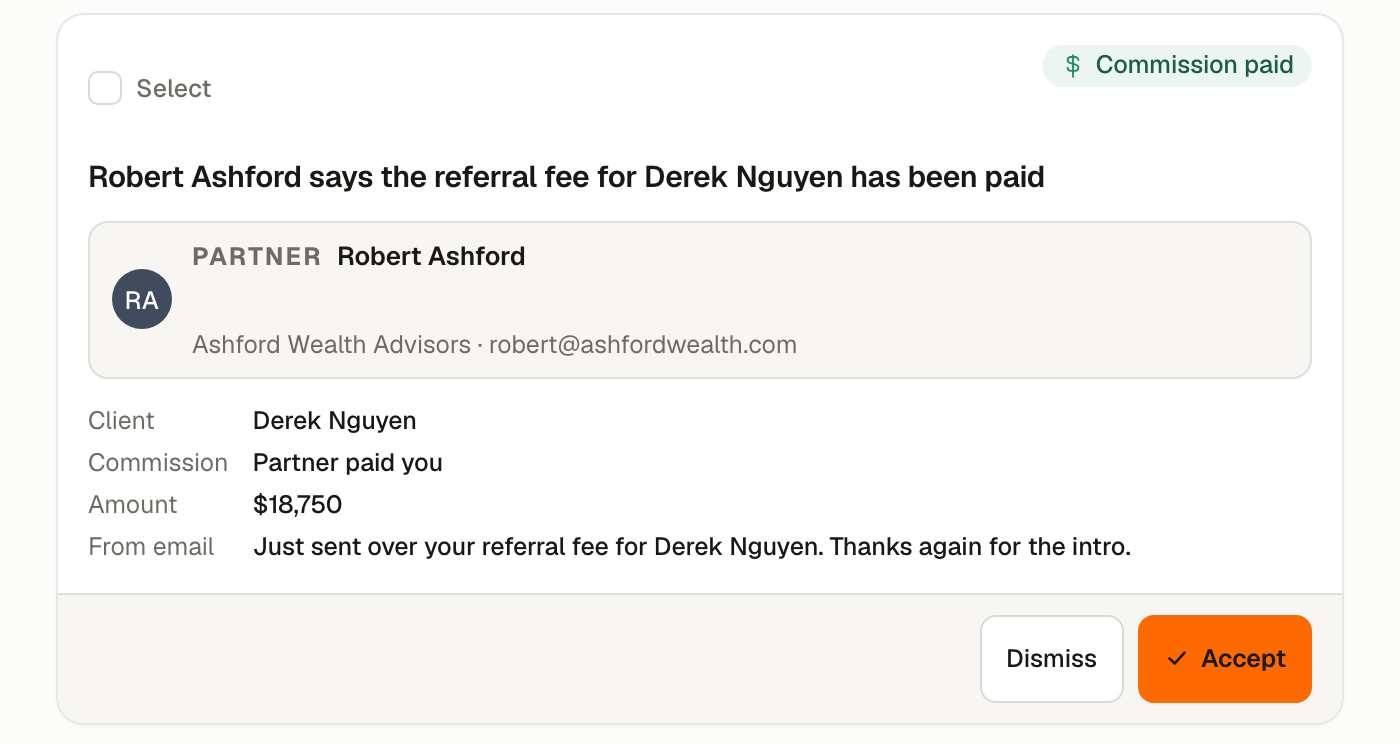
You see this when an email reports that a referral fee changed hands: a partner writing "just sent your referral fee for the Smith matter", or you telling a partner "paid you the commission on the Acme deal". Your assistant matches it to a won referral by the client's name or company, and only surfaces one when that referral carries a commission that is still unpaid. The card names the client, shows whether the partner paid you or you paid them, includes any dollar amount from the message, and quotes the line that prompted it.
Accepting marks that referral's commission settled, stamps the date, and (if you're both on the app) tells your partner the payment moved. Undoing it puts the referral back the way it was.
Dismissing opens the popover with: Not a commission payment, Wrong referral, Not actually paid.
You only see this once your Commission Practice is set to Sometimes or Always. See Commissions and referral fees for the full picture.
What never reaches the Review page
This article covers what shows up. A few things are filtered out before they get here, so you don't have to dismiss them one by one:
- Marketing, newsletter, and automated mail. Calendar invites, OTP codes, receipts, "no-reply" senders, mailing-list traffic, and similar transactional messages are dropped by the prefilter before the classifier runs.
- Suggestions from senders you've taught to skip. When you dismiss something with Not a real partner, Not actually an intro, or similar suppression reasons more than once for the same sender, your assistant learns the pattern and stops surfacing that sender. You can see and undo those rules on the Inbox rules page.
- Duplicates of records you already have. If the assistant detects that the partner, introduction, or referral in question is already on your account, the candidate is silently merged into the existing record rather than queued as a new suggestion.
Bulk actions
In the Pending view, each card has a checkbox and every group has a select-all control in its header. Select a few and a bar appears with Accept selected and Dismiss selected, each showing the count. Dismiss selected opens the same reason popover, but with two general reasons (Not relevant, Already logged) instead of the type-specific chips, since a bulk selection can span multiple types.
The Partner detail group is the one exception. Because a partner detail can either fill a blank field or replace an existing value, selecting cards in that group surfaces its own action row with Append (or Add to List) and Replace buttons alongside Dismiss, rather than the shared bar.
Bulk dismiss is the fastest way to teach your assistant to ignore an unwanted source. Filter the list by New partner, search for the company or domain you don't care about, select all matching cards, and dismiss with Not a real partner. The next time a message from that sender lands, your assistant skips it.
On the iOS app
The iOS app has its own version of this queue in the Review tab. Suggestions look the same and the accept/dismiss controls work the same way. The web Review page and the iOS Review tab read from the same list, so a card you accept on your phone in the car disappears from your laptop when you check it later.
If you ask your assistant by voice "what's new in my inbox" or "anything I need to review", it reads back the count of pending suggestions and offers to walk you through them one at a time. Saying "accept" or "skip" advances the queue without needing to tap.