Transcription rules
By default, every meeting on your calendar that includes a partner is transcribed automatically when auto-transcribe is on. Transcription rules are how you carve out exceptions: meetings you don't want transcribed, even though they otherwise would be. Internal team meetings, opposing counsel calls, sensitive client conversations, anything where you'd rather your assistant stay home. Your assistant captures audio only and never records video.
Rules tell the system what to skip. Everything you haven't built a rule for keeps getting transcribed.
Where to find it
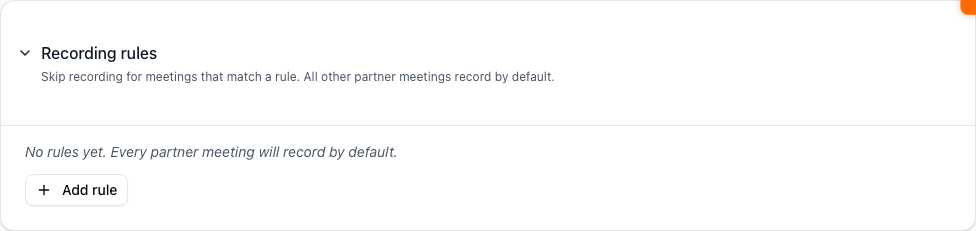
Where to find it: Sidebar → Meetings → Meetings. On the Upcoming chip, the Transcription rules panel is the first card. Click it to expand.

If you don't see any meetings, transcription may be turned off in your settings. Open Settings → Integrations → Meeting Transcription and flip Enable Meeting Transcription to on (it also needs a connected calendar).
What a rule is
A rule is one condition that, when matched, skips transcription. Three rule types are supported:
- Meeting title contains keyword. Case-insensitive substring match on the meeting title. A keyword of
internalskips any meeting with the word "internal" anywhere in the title. - Attendee email or domain. Either an exact email match against any attendee or organizer, or an
@domain.comsuffix that matches any attendee from that domain. A pattern of@opposing.comskips meetings where anyone fromopposing.comis invited. - Specific partner. Skips any meeting where this partner is matched as an attendee. Pick the partner from a dropdown of your existing network.
A rule that's switched off doesn't apply, even if it would otherwise match. You can toggle a rule off without deleting it, useful when you want to skip transcription for a partner this week but plan to transcribe next week.
Add a rule
Where to find it: Transcription rules panel → Add rule button.
The form is short. Pick the rule type, enter the pattern, and optionally label and annotate it.
- Click Add rule at the bottom of the panel.
- Pick a rule type from the Rule type dropdown.
- Enter the pattern in the field below it. For title-keyword and email-domain rules, this is a free-text input. For partner rules, it's a dropdown of your existing partners.
- Optionally fill in Label (the human-readable name for this rule, defaults to a generated label) and Note (a one-liner reminding future-you why you set this up).
- Click Add rule to save.
The new rule appears in the panel above the form, switched on by default.
Add a note to every rule. Six months from now you'll forget why a rule exists, and a one-line Note like "Internal team standups, no need to record" saves you from second-guessing whether to delete it.
Edit or disable a rule
Where to find it: Transcription rules panel → row for the rule.
Each rule row has:
- Switch on the left. Toggle off to disable the rule without deleting. Toggle on to bring it back.
- Label in bold, with the rule description below in smaller text.
- Note below the description if you set one.
- Trash button on the right. Permanently deletes the rule.
If you want to change a rule's pattern (the keyword, the domain, the partner), delete it and add a new one. There's no in-place edit for the pattern.
Disabling beats deleting. If you're not sure whether you'll want this rule again, switch it off and leave the row. Deletion is final.
Override a rule on a single meeting
Where to find it: The list of upcoming meetings below the Transcription rules panel. Each meeting row has a transcription toggle.
Rules apply by default, but the per-meeting toggle lets you flip the decision for one meeting only. This is the right tool when a partner has a "skip" rule but you want this one specific call transcribed (or vice versa).
The toggle on each meeting row shows the current decision, Will transcribe or Skipped, plus the reason in muted text. Click it to open a small menu: Transcribe this meeting, Skip this meeting, or Use default (apply rules) to clear your override. For a recurring meeting, each choice offers Just this one or All future occurrences.
If you find yourself overriding the same rule three or four times, the rule is probably wrong. Open the panel and rebuild the rule with a more precise pattern, or delete it.
Get more out of your assistant
The two fields that decide whether a rule applies are the meeting title (set by whoever scheduled the meeting) and the attendee list (everyone on the invite). If you find rules aren't matching when you expect:
- Title rules are case-insensitive but otherwise exact. A rule matching
internalwon't match a meeting titledIn-Person Syncbecause the word doesn't appear. - Email domain rules match any attendee or the organizer. If a partner forwards their meeting from a different email address, the rule may not fire on that occurrence.
- Partner rules match by the partner record in your network. If a partner has multiple email addresses and only one is in their record, meetings with the other address won't match the rule.
Transcription rules apply to upcoming meetings, not meetings already in progress. Add a rule before the meeting starts, and your assistant will skip the next occurrence.
On the iOS app
Where to find it: Bottom navigation → Profile tab → Meetings.
On iOS the rules panel renders as a stacked list with the same controls. Adding a new rule works the same way (pick type, enter pattern, save). Toggling rules on and off is a single tap.
You can also ask your assistant in the Chat tab to manage rules conversationally:
Don't record my meetings with Sarah Chen.
The assistant adds a partner rule for Sarah and confirms once it's set up. Saying "start recording Sarah's meetings again" removes or disables the rule.
The voice path is the fastest one when you remember a sensitive meeting on your way into the office. Tell your assistant what to skip, and the rule is in place before the meeting starts.