Your calendar and tasks
The Calendar page is your single view of every partner meeting and every follow-up you owe someone. Meetings come from your connected calendar, tasks come from anywhere in the app where one was created, and both render together so you can plan a week without flipping between screens. Times shown are Eastern.
Browse your calendar
Where to find it: Sidebar → Meetings → Calendar.
The page opens in Week view on desktop and Agenda view on a phone. The controls row gives you the view switcher (Month, Week, Day, Agenda), the date navigator with a Today button and the range it lands on, and three filter chips with live counts: Meetings, Tasks and Show done.
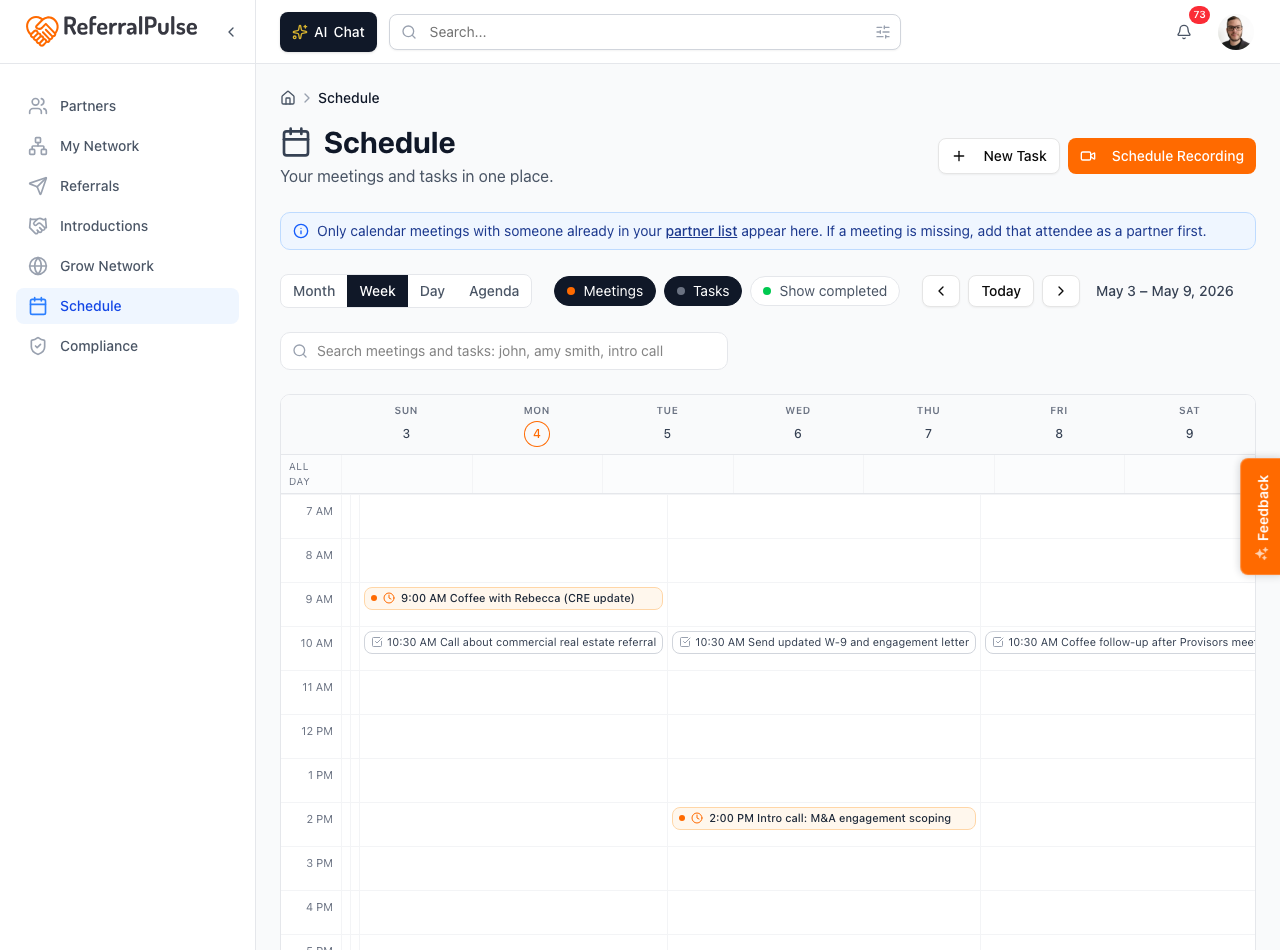
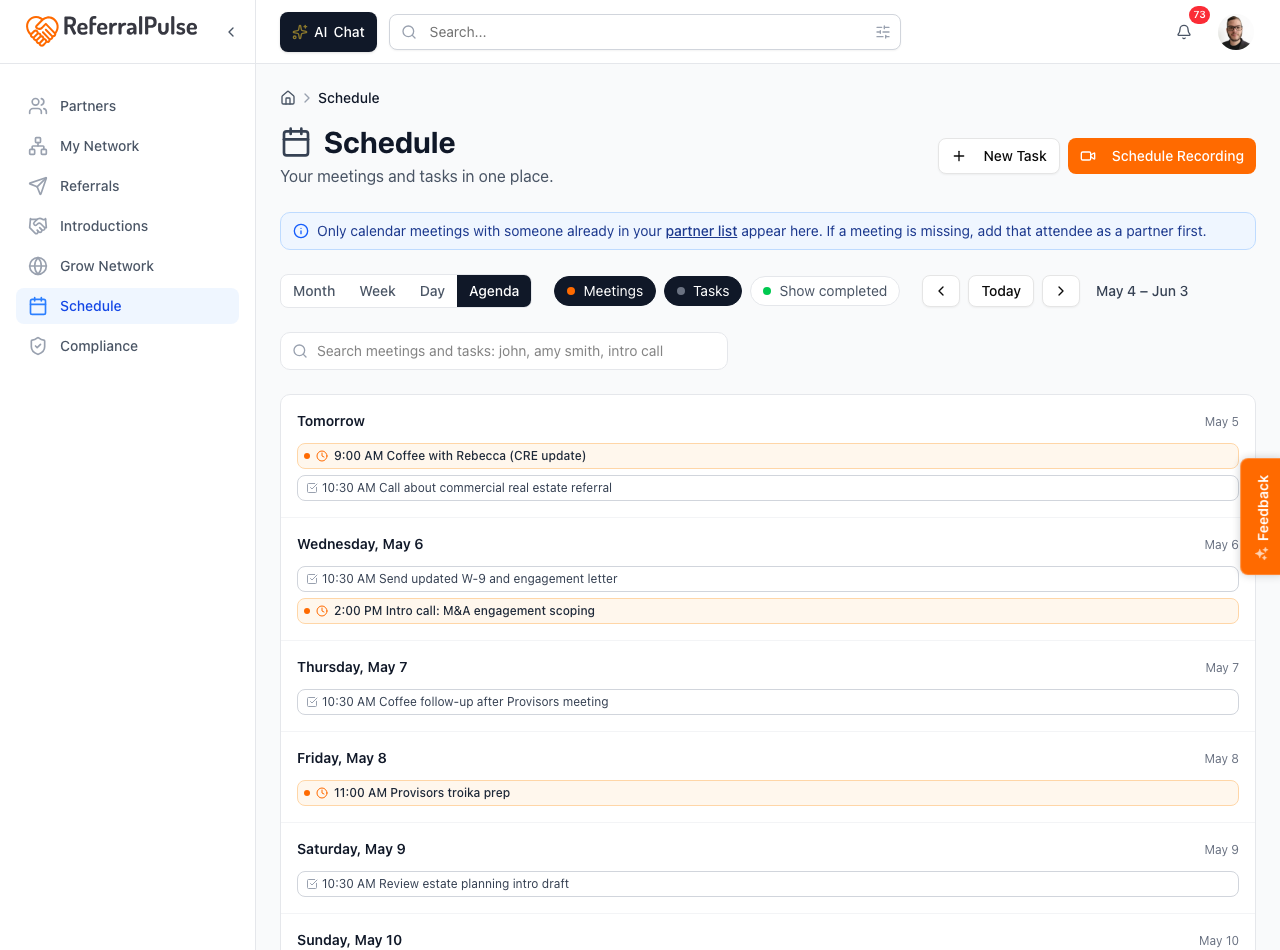
The four views are:
- Month. A grid of the whole month. Click a day to drill into it.
- Week. Seven columns for the current week. Best for planning the week ahead.
- Day. A single-day timeline. Best for the morning view.
- Agenda. A scrollable chronological list. Best on a phone, and best when you just want to know what is next.
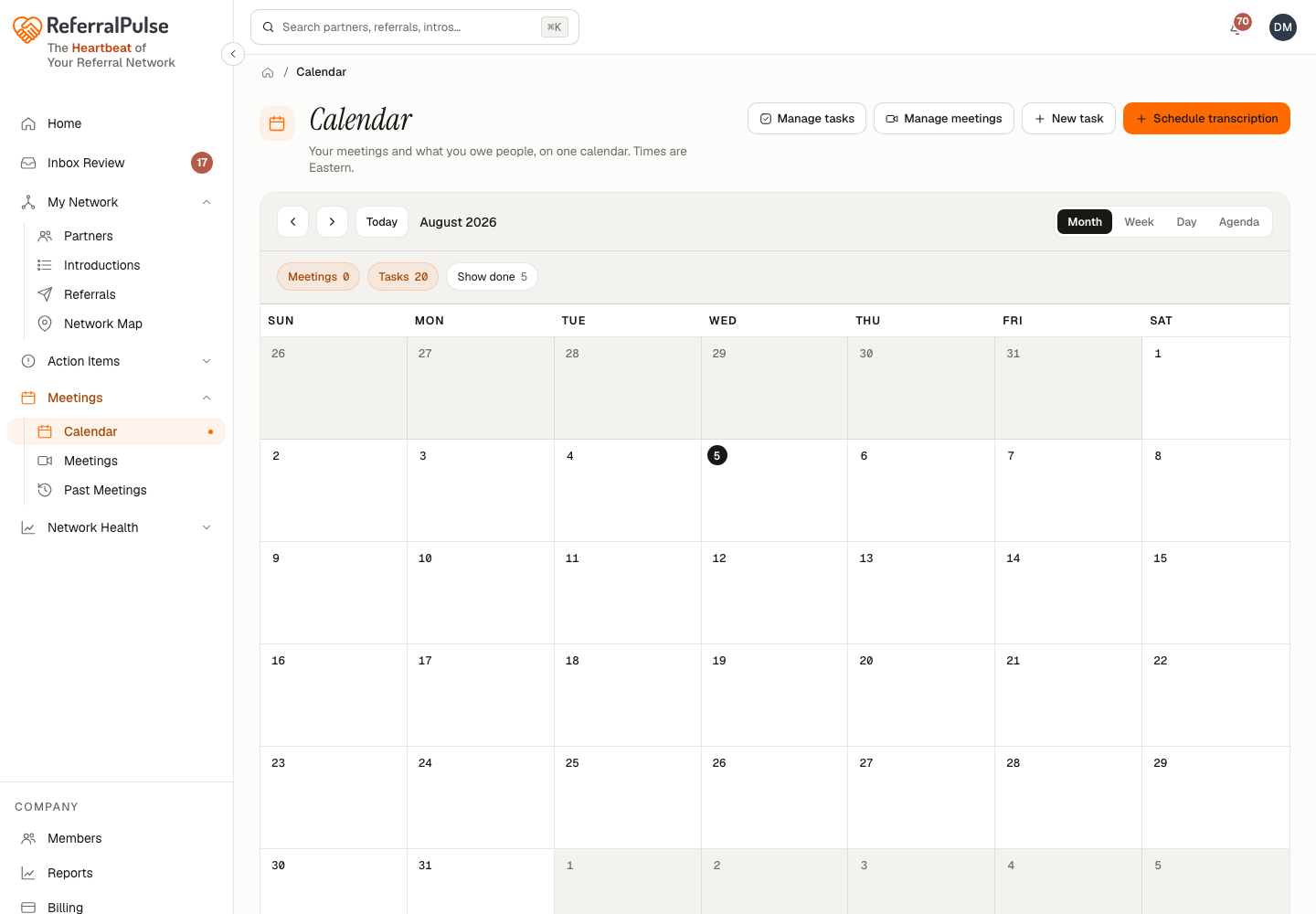
Two links at the top of the page leave the calendar for the full screens behind it: Manage tasks opens your task list, and Manage meetings opens the meetings page. The filter chips are different: they only hide and show things on the calendar itself.
Only calendar meetings with someone already in your partner list show up here. If a meeting is missing, the most likely reason is that the other attendee is not a partner yet. Add the partner, then reload.
Read your prep before a meeting
Where to find it: Sidebar → Meetings → Calendar → click a meeting with a partner. The prep sits at the top of the meeting page under Your prep for this meeting. On the day of the meeting, your home page has a Prep button beside it on Today's meetings. The day before, it shows in your home page list as Read your prep for and the partner's name.
When a meeting on your calendar is with a partner, your assistant writes you a short prep before it, so you walk in knowing who they are, where things stand and what to ask for. The same prep shows on the meeting page, on the recording's page afterwards, and in the Prep tab when you Take notes, so you can read it and take notes on one screen.
A prep for a first meeting covers How You Connected, Who They Are, Where You Can Help Each Other, Your Ask, Questions To Ask and Listen For. A prep for someone you have met before covers How You Connected, Since You Last Met, Open Promises, What You Can Offer, Your Ask, Worth Asking, Listen For and Personal. A section only appears when there is something real to say in it.
What your assistant pays attention to:
- How you got connected. Where you met and who introduced you. When nobody has thanked the person who introduced you, the prep suggests doing it.
- Where they are. It notes when you are in different states. It will not suggest introducing a partner to someone whose work is local, like a real estate agent or an estate planning attorney, in another state.
- How they fit your network. It tells you whether this person fills a gap in your network or does the same work as partners you already have.
- How long since you last met. For someone you know, the prep opens with it.
- ProVisors. When you and the partner are both ProVisors members, the prep treats the meeting as a ProVisors one-to-one and uses their groups and roles when a Photo List has them. On a first meeting it suggests asking how long they have been in ProVisors.
Beside the prep, Redo prep (when it shows) writes it again, for example after you add someone on the invite as a partner. Tune your preps opens Settings → Assistant, where you can tell your assistant in your own words what every prep should cover or skip. See Settings.
Fill in How we met and Introduced by on a partner's page. Both go straight into the How You Connected part of every prep with that partner.
Keep your list on top of the call
Where to find it: Sidebar → Meetings → Calendar → click a meeting with a partner. Your call window sits beside the prep on a computer and below it on a phone.
Your call window holds the few things you want to cover on the call: your ask, a promise you owe, and a couple of good questions. Under Pick What Shows During the Call, tick any line of the prep to add it to the window, or untick it to take it out. In the window itself you can drag items into your own order, use Leave off on one you don't need, Add your own line, and type in Notes as you go. Your notes go into the meeting summary after the call.
When the call starts, click Pop out. The window floats on top of Zoom or Teams, so you see your list without switching screens. Tick an item when it comes up. If your assistant is transcribing the call, it ticks items off on its own as it hears them, and they move under Covered. Minimize shrinks the window to a slim bar. Pop out works in Chrome and Edge on a computer. In Safari or Firefox, the page tells you to open it in Chrome or Edge.
On a phone, a small pill with the partner's name and how many items are left (for example "Robert · 3 left") sits at the bottom left of every screen while the meeting is on. Tap it to open your list.
Why these questions
Your assistant follows one referral conversation with each partner and moves through it a stage at a time, so each call picks up where the last one left off. Under Questions to Ask, it picks a few questions for this call from where you are with that partner.
The conversation has four stages:
- Get to Know Them. For everyone. Who they are, what they are good at, their goals, their concerns and what they plan to do about them. A first meeting stays here.
- Ask for Referrals. For partners who send you work. What would make them comfortable referring you, and the ask itself.
- Land the Introduction. Once a partner promises you an introduction. Who it is, what they will say about you, and the best way to connect.
- Win Their Business. For partners who are your client or could become one. What they need from your service and what it would take to go ahead.
Which stages apply comes from how you are treating the partner, the line at the top of the prep (for example "Treating Robert as a strong referral source, not a client"). Click Change there and the questions change with it.
- Why these? beside Questions to Ask shows the four stages and where this partner is in them.
- The i button on a question tells you why it is on this call, for example that you don't have the partner's goals on file yet. What they say goes on their profile after the call.
- Don't ask again drops a question for good with that partner.
Get an alert when the call starts
You will usually join from Zoom or your calendar, not from ReferralPulse. So when your assistant starts transcribing a call, you get an alert: "Your call with Robert is starting." Click it and the meeting page opens with an Open Live Window button, one click and your list sits on top of the call. Calls your assistant is not transcribing get no alert.
- On your computer: under Your call window, click Alert me on this computer when the call starts and allow notifications when your browser asks. Do this once in each browser you use. If alerts are blocked for the site, the page tells you, and you can allow them in your browser's site settings.
- On your phone: the ReferralPulse app gets the same alert. Tapping it opens the meeting.
Turn the realtime meeting assistant off
Untick Realtime meeting assistant under Your call window to turn it off for all your meetings, not just this one. With it off, there is no alert when a call starts, no Pop out, no pill on your phone, and nothing gets ticked off during the call. Your assistant still transcribes the call and writes the summary afterward. Tick the box again, or use the switch in Settings → Meeting transcription, to turn it back on.
Set your list up the day before. Tick the two or three prep lines you most want to raise, and drag your ask to the top. When the alert comes, one click puts exactly that list over the call.
Create a task
Where to find it: Sidebar → Meetings → Calendar → New task (top right). Also reachable from any partner page, any referral page, and from the follow-ups pulled out of a meeting recording.
Tasks are how you track what you owe people. Each one can be linked to a partner, a referral or a meeting, so completing it flows the activity back to the right relationship. The form asks for a title, an optional description, a priority, an optional due date, and the partner, referral or meeting to link it to.
Tasks created from the follow-ups in a recorded meeting arrive already linked to that meeting and that partner. Open the meeting, turn an action item into a task, and it lands on your calendar with the link in place. No retyping.
Schedule a meeting transcription
Where to find it: Sidebar → Meetings → Calendar → Schedule transcription (top right).
For a meeting that is not on your calendar yet, like an ad-hoc video call you set up over text, use Schedule transcription. Give it the meeting link, the start time and the partner on the call, and your notetaker will join. See Meeting recordings and notes for the full walkthrough.
Work through your tasks
Where to find it: Sidebar → Tasks → the Tasks chip. The Manage tasks link on the Calendar goes to the same place.
Tasks live in the same queue as your assistant's drafted emails and your account alerts, so there is one list to clear rather than three. The Tasks chip narrows it to your own to-dos, with All, Open and Completed underneath. Group by Urgency to see what is overdue, due today, due this week or later.
The Calendar is better for planning, Tasks is better for clearing. If you catch yourself in calendar view squinting at a task list, switch. If you catch yourself in the queue trying to work out where something fits in your week, switch back.
By voice or in chat
Where to find it: The search box at the top of any page, or press ⌘K. On iOS, the Chat tab in the bottom navigation.
Your assistant can create and look up tasks, and can answer questions about what was said in your recorded meetings.
Add a task to call Robert Ashford about the M&A engagement on Friday.
What's on my plate this week?
Mark the call-Sarah task as done.
What meetings do I have today?
What did Demetrio say about his law clients in our meeting yesterday?
In my call with Sarah last week, what was her idea about the tax strategy?
Answers come from your task list, your calendar and your meeting recordings, without you opening the page. Tasks get linked to the partner or referral you mention.
When you ask about a specific recorded meeting, your assistant reads the whole transcript to answer. Questions like "what did we decide about pricing?" or "what was Tom's concern about the timeline?" get answered from what was actually said.
Get more out of your assistant
Your calendar and your task list are how your assistant sees what is already on your plate.
- Connect your calendar. Without it the meetings half of the page is empty and your assistant cannot see what is coming. Read-only access is enough.
- Add the other attendee as a partner. Meetings only appear here when the other person is in your partner list. If you keep meeting someone the app does not know, add them so the meeting threads back into the right relationship.
- Link tasks to the right partner or referral. Created from inside a partner or a referral, the link is automatic. Created from the Calendar, set it in the form so the activity flows back.
- Record your meetings. With a transcript, your assistant can answer specific questions about what was discussed. Without one, it only knows the meeting happened.
On the iOS app
Where to find it: Bottom navigation → Schedule tab, or through the briefing's upcoming meetings.
The mobile calendar defaults to Agenda, which is the cleanest on a phone. Filters and search work the same, and a plus button adds a task. Voice is the natural way on the go:
Remind me to call Tom Friday morning about the Pham referral.
Your assistant adds the task with the partner and the referral both linked, sets the priority and confirms once saved. You can also ask about past meetings:
What did Sarah say about the estate plan in our meeting last Tuesday?
Agenda is the same view that feeds the upcoming meetings card on your home page. If something looks wrong there, opening Agenda usually shows you why faster than scrolling the calendar.