Settings
Settings is the one place that controls what the app connects to, how your assistant sounds, what reaches you and how visible you are to other members. Most of it you set once. Apps & accounts is the section you will come back to.
Where to find it
Where to find it: Top right avatar → Settings. Direct URL: /dashboard/settings.

The sections sit in a rail down the left, in three groups:
- Connections: Apps & accounts, Email signature, Meeting transcription.
- Your assistant: Assistant, Notifications, Referrals.
- Account: Privacy & security, ProVisors, Billing.
Three fuller screens live behind the panels and open in their own pages: Partner tiers, Inbox rules and Push notifications.
Apps & accounts
Where to find it: Settings → Apps & accounts.
This is the most-used section. Three groups stack down the page: CRM & practice management, Calendar and Mailbox.
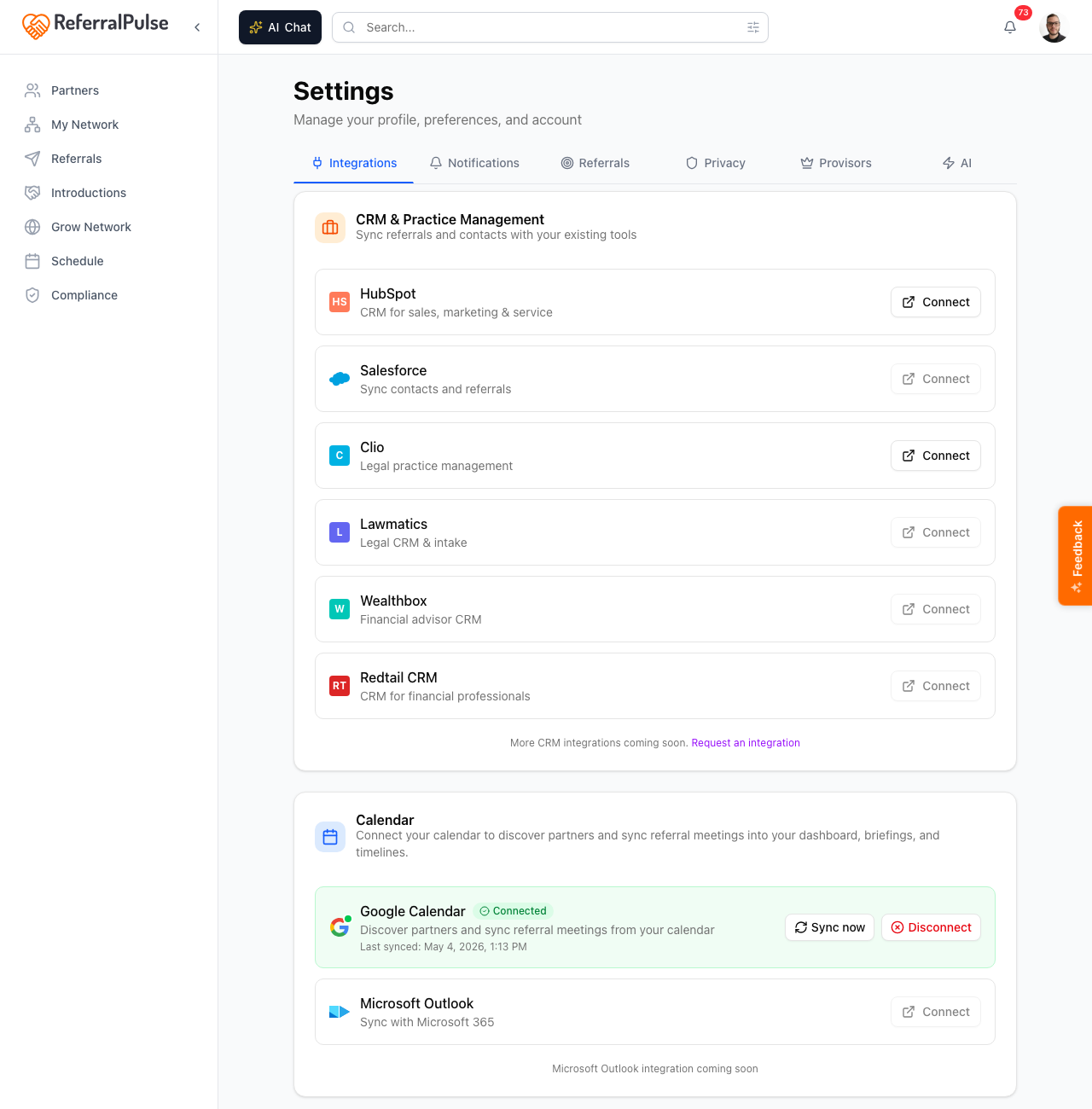
- CRM & practice management. Connect HubSpot, GoHighLevel or Clio to pull contacts across and sync referrals. Once connected, the card shows the account, the last sync and a way to disconnect.
- Calendar. Connect Google Calendar or Microsoft Outlook so the app can find partners on your meetings and thread them into your briefings and timelines.
- Mailbox. Connect Gmail or Microsoft Outlook so partner email tracks against the right relationship. One mailbox at a time. Once connected you can choose which folders to scan and pull in past partner email.
An Inbox rules link at the bottom of the section opens the list of things your assistant has learned to skip while reading your inbox.
Connect a CRM and its contacts become a source the next time you import partners. You do not have to bring everyone across, just the people who are real referral relationships.
Email signature
Where to find it: Settings → Email signature.
Paste your signature straight out of Gmail or Outlook, or write one here. It gets appended to every email you send from ReferralPulse, whether that goes through your connected mailbox or the app's own address. Gmail and Outlook do not apply your signature to messages sent on your behalf, so the app adds it.
Meeting transcription
Where to find it: Settings → Meeting transcription.
Turn this on to let your notetaker join meetings on your calendar and capture what was said. It captures audio-only transcripts and summaries, never video. You can set the display name it joins under, how its tile looks, and whether every partner meeting on your calendar is transcribed automatically.
For the rules about consent and which meetings are eligible, see Transcription rules.
Assistant
Where to find it: Settings → Assistant.
- Assistant name. What your assistant is called across chat and voice. Name it whatever you like. The name follows through the whole app, including the button on the Network Map and the notes it leaves you.
- Conversational tone. Professional, Casual, Friendly or Formal. This sets how your assistant sounds both when it talks to you and in the emails it drafts on your behalf.
If the drafts feel stiff, move the tone from Professional to Friendly and send the next two as they come. One change at a time is the only way to tell what actually helped.
Notifications
Where to find it: Settings → Notifications.
What reaches you, and where: email, in the app, and on your phone. The CC me on emails I send to partners toggle puts your address on the cc line of drafts sent on your behalf. If you have a mailbox connected it is greyed out, because Gmail and Outlook already file a copy in your Sent folder.
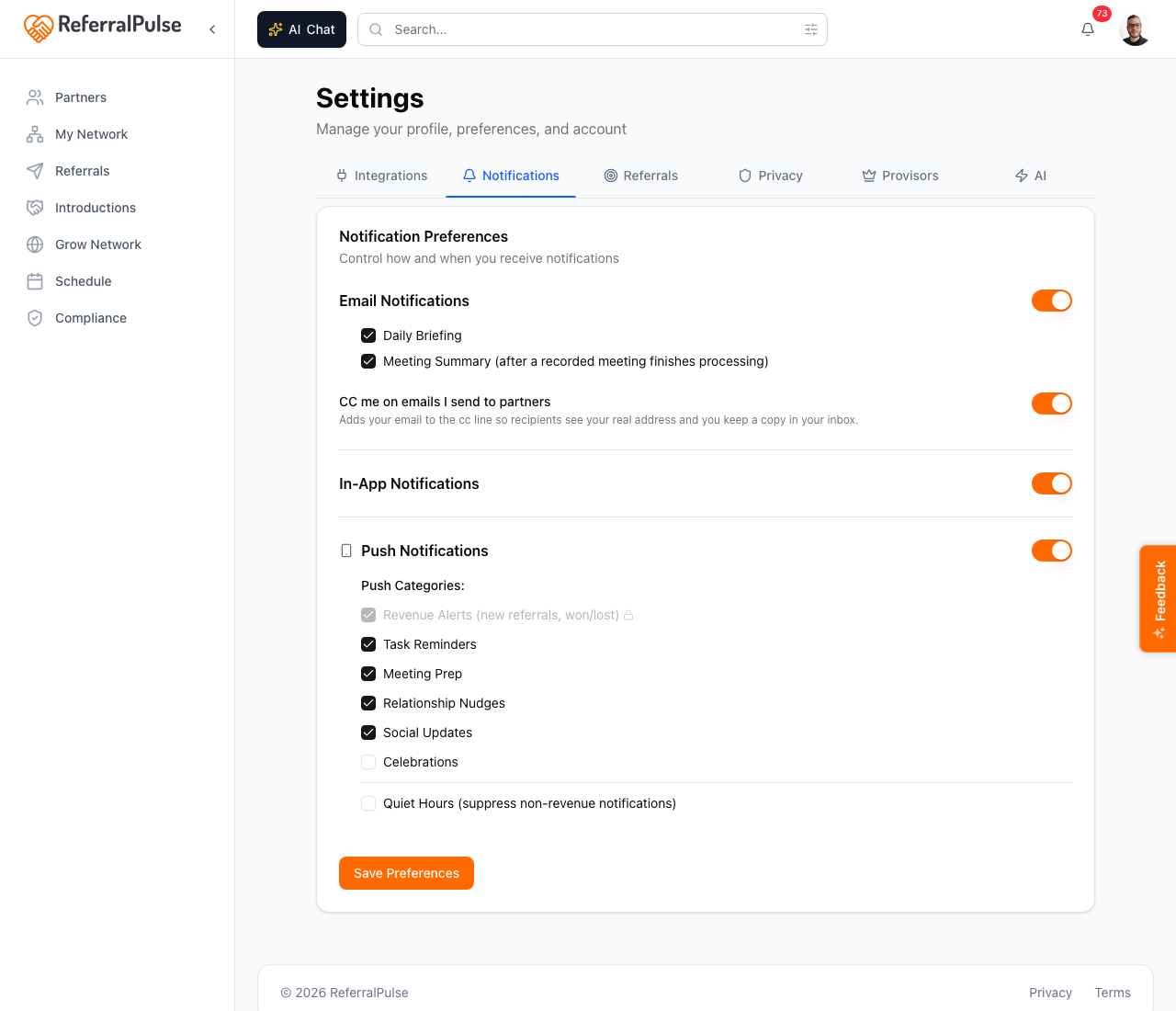
A Per-device push settings link opens the fuller push notifications screen, which is where the categories and quiet hours live.
Referrals
Where to find it: Settings → Referrals.
Short but important, because your commission practice decides how much compliance the rest of the app shows you.
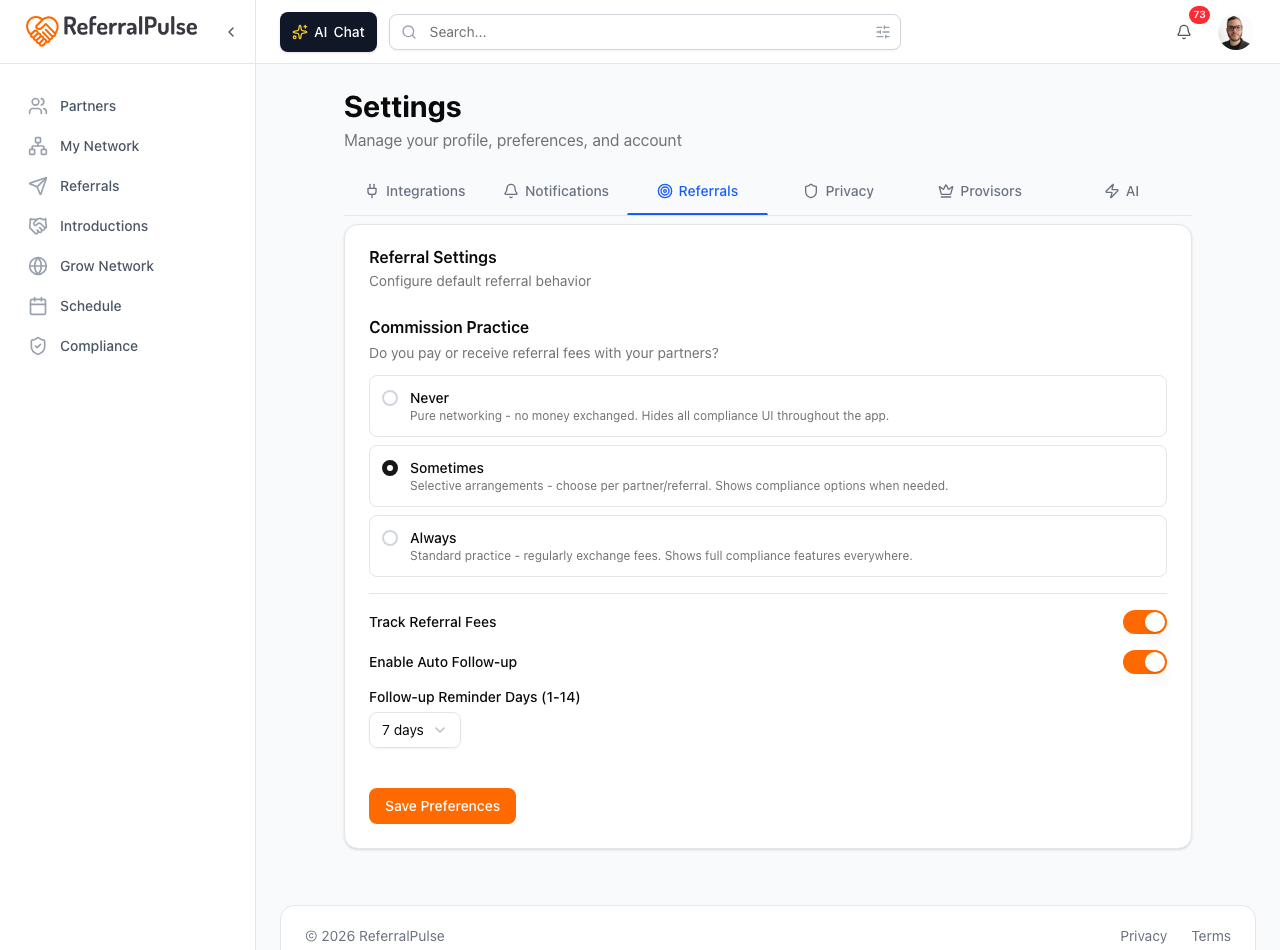
- Never. Pure networking, no money changing hands. Hides the compliance workspace entirely.
- Sometimes. Selective fee arrangements. Compliance options appear once you flag a referral as commissioned.
- Always. Standard practice. Compliance features show up throughout.
Below that, toggles for tracking referral fees and for automatic follow-up, plus how many days your assistant waits before nudging you about a referral that has not moved.
For the whole picture of how fees are tracked, paid and reported, see Commissions and referral fees.
Most attorneys and CPAs land on Sometimes even when they think they are Never. One referral fee a year is Sometimes. Get it right and the right prompts appear at the right moment.
Privacy & security
Where to find it: Settings → Privacy & security.
Three profile visibility cards control who can find you:
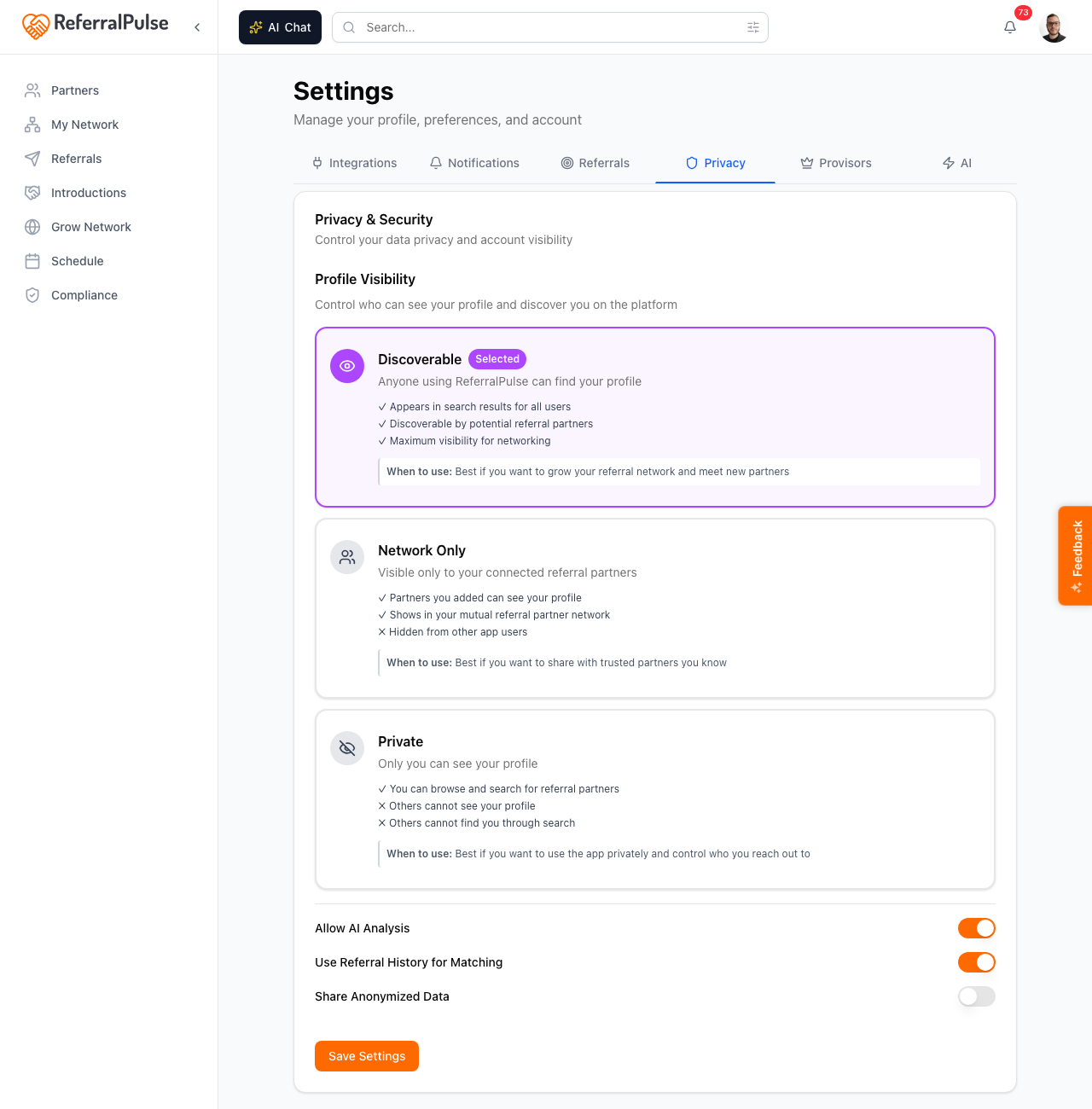
- Discoverable. Anyone using ReferralPulse can find your profile. Best if you want to grow your network and meet new partners.
- Network only. Visible only to your connected referral partners. Best if you want to share with people you already know.
- Private. Only you can see your profile. Best if you want to use the app privately and control who you reach out to.
Three toggles below control what your assistant may work from:
- Let my assistant analyze my data. Powers meeting summaries, partner insights and the drafts written for you.
- Use my referral history for matching. Lets your assistant learn from past referrals when it suggests who to connect.
- Share anonymized data. Contributes de-identified patterns that improve matching for everyone. Off by default.
A Password card lets you change how you sign in. If you only use Google sign-in, it says so rather than showing you a form that cannot work.
A Delete account card sits at the bottom. It removes everything tied to your account, including partners, referrals, introductions and meeting notes, revokes any Google or Microsoft access, and destroys stored email data. It cannot be undone.
If you would rather competitors did not find you by browsing but you still want your assistant working, set visibility to Network only and leave the assistant toggles on. Those toggles change what your assistant does for you, not what other people can see.
ProVisors
Where to find it: Settings → ProVisors.
Turn on the ProVisors tools, the toggle at the top of the card, is the whole setup. Off, and no ProVisors features appear anywhere. On, and the ProVisors entry appears in your account menu with meeting prep, the Upload a Photo List page and the troika tools, and the Elevator pitch and the Zoom bio you paste into the chat at the start of a meeting open up underneath, both of which feed your pre-meeting prep and intro emails. There is nothing to submit and nothing to wait for.
If you ticked I'm a ProVisors member while setting up your account, this is already on. The checkbox in setup and this toggle turn on the same tools, so you only ever need one of them.
The toggle takes effect on its own, so you do not have to press Save after flipping it. The pitch and the bio below it do need Save.
Billing
Where to find it: Settings → Billing.
Your plan and your invoices. If you own a company account, billing for the whole company lives in the sidebar under Company → Billing instead. See Your company account.
Partner tiers, inbox rules and push
Three settings screens are big enough to have their own pages:
- Partner tiers. Your own ladder of partners, from new contacts up to your inner circle. See Partner tiers.
- Inbox rules. What your assistant has learned to skip while reading your inbox. See Inbox rules.
- Push notifications. Categories and quiet hours for your phone. See Push notifications.
On the iOS app
Where to find it: Bottom navigation → Profile tab.
On iOS the same options stack vertically on one screen. Tap a section to open its controls. The most common reason to open Settings on a phone is push notifications, which has its own screen.
Push categories set on iOS and on desktop are the same settings. Change them wherever you happen to be.