How to add a referral partner
There are six ways to add a partner to your network, and on most of them ReferralPulse fills in the partner's profile for you so you don't have to retype anything. The fastest paths are calendar candidates (people you actually meet with) and pasting a LinkedIn URL. On the iOS app you can add a partner by voice without opening any form.
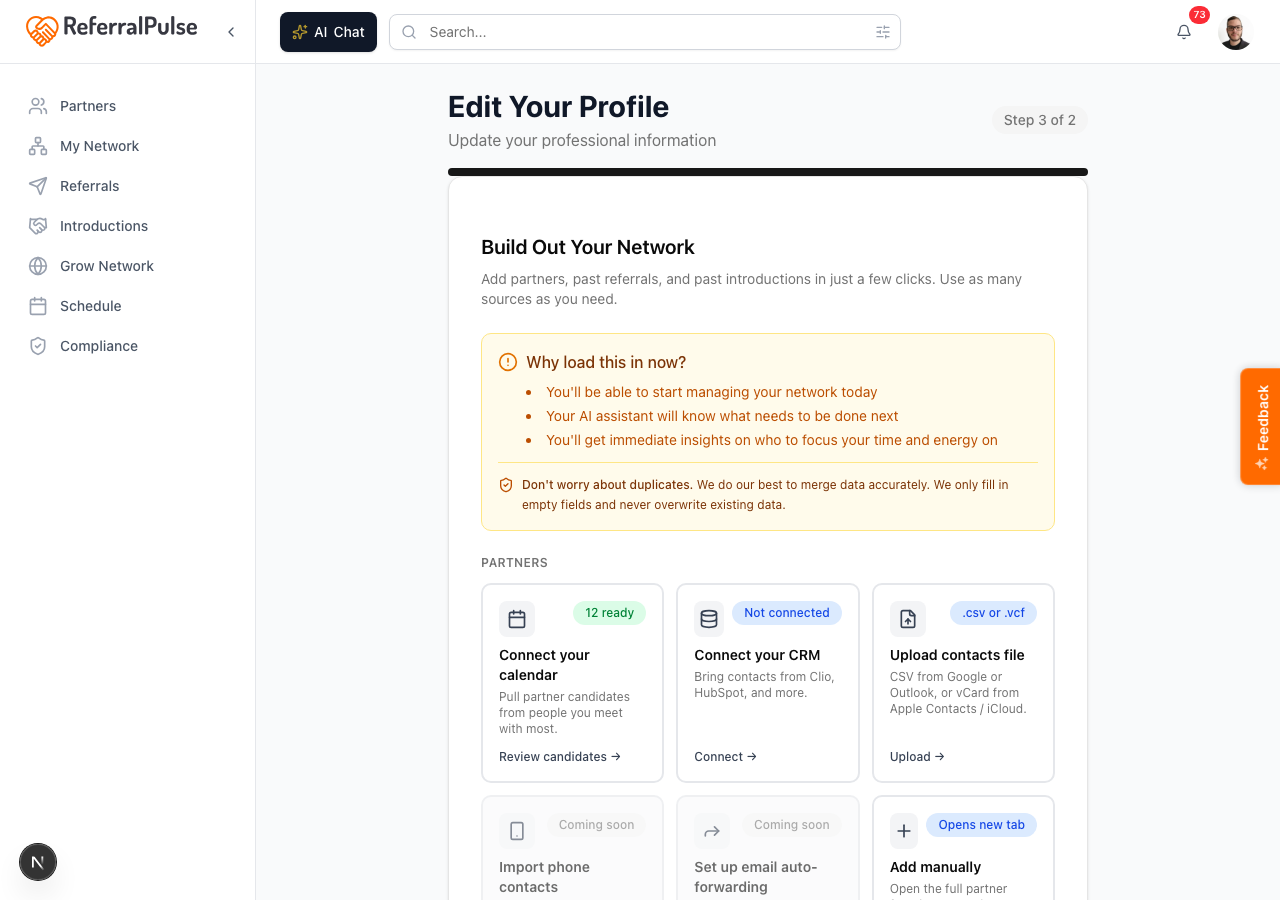
The first four methods (calendar, CRM, file upload, manual) all live in Build Out Your Network, which you reach from the Partners page.
Where to find Build Out Your Network: Sidebar → Partners → Import partners (top right).
From your calendar
Where to find it: Sidebar → Partners → Import partners → on Build Out Your Network, click the Connect your calendar card. Once your calendar is connected, the same card lets you click Review candidates.
If you connect your calendar, ReferralPulse scans the people you meet with most and surfaces them as candidates you can add as partners with one click. This is usually the highest-value path because the candidates are already people you have a real relationship with.
- Open Build Out Your Network and click Connect your calendar if you haven't already.
- Once the scan finishes, the card shows a count of suggestions like 12 ready.
- Click Review candidates on the same card.
- Tick the people you want to add. Their names, emails, and meeting history are already filled in.
- Use the Add as Partner action at the top of the list to add them in bulk.
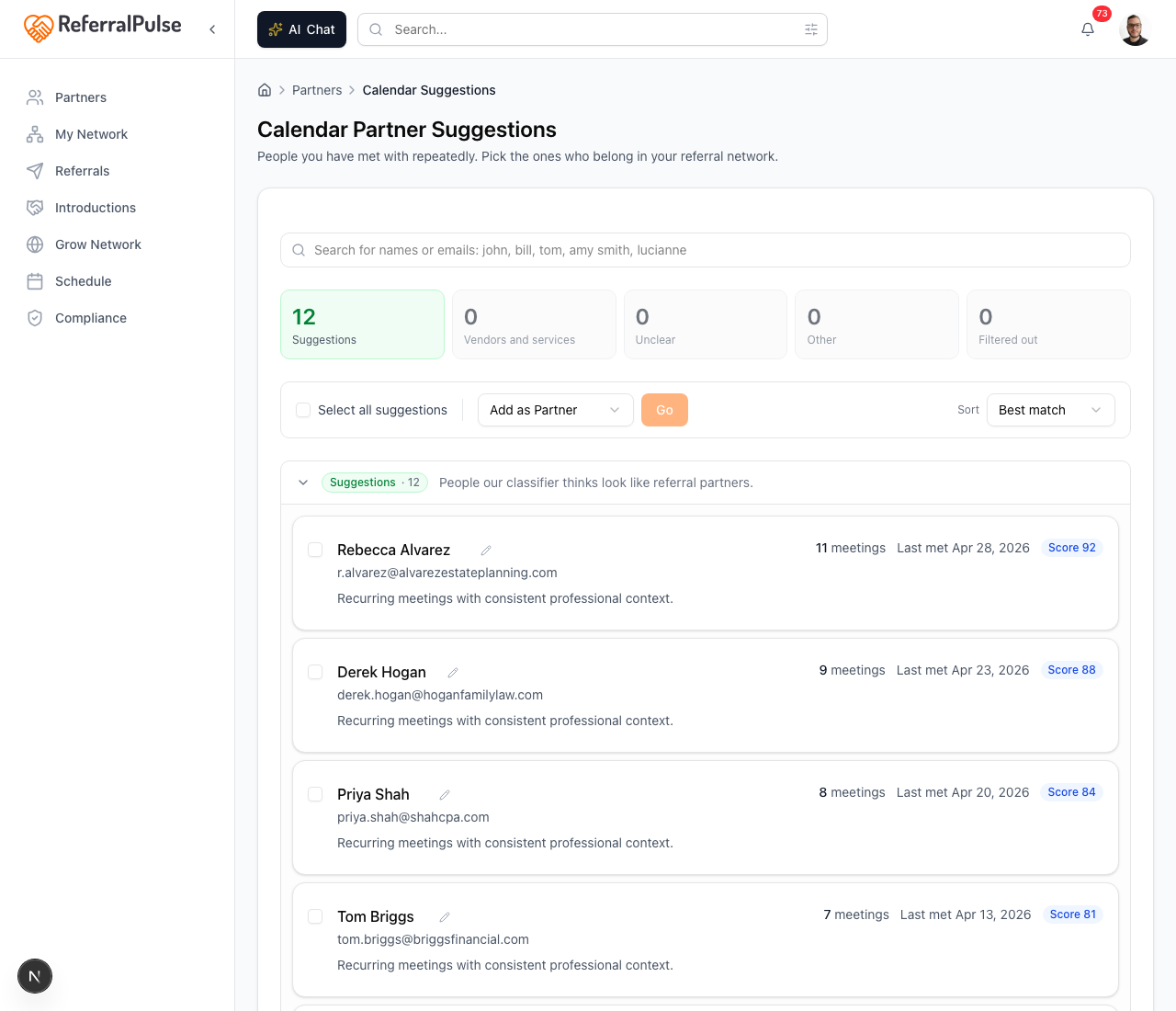
The candidate count climbs as you reconnect calendars or attend more meetings. If your number looks low, give the scan an hour and check again, or connect a second calendar from the same card.
Connect your CRM
Where to find it: Sidebar → Partners → Import partners → on Build Out Your Network, click the Connect your CRM card. Once a CRM is connected, the same card lets you click Choose contacts.
If you use Clio, HubSpot, or another supported CRM, you can pull contacts directly. ReferralPulse keeps the contact records linked, so updates in your CRM flow through.
- From Build Out Your Network, click Connect your CRM.
- Authorize the integration in the panel that opens.
- Once connected, click Choose contacts on the same card and pick the contacts you want to bring in as partners.
You don't have to import everyone. Pick the contacts that are actual referral relationships and skip clients, prospects, and one-off contacts. You can always pull more later.
Upload a contacts file
Where to find it: Sidebar → Partners → Import partners → on Build Out Your Network, click the Upload contacts file card → Choose file (.csv or .vcf).
If your contacts live in Google, Outlook, or Apple Contacts, export them and upload the file. CSV (.csv) and vCard (.vcf) are both supported.
- Export your contacts from the source app. For Google: Contacts → Export → Google CSV. For Outlook: People → Export contacts. For Apple Contacts / iCloud: select contacts → File → Export vCard.
- From Build Out Your Network, click Upload contacts file → Choose file (.csv or .vcf).
- Drop the file in the dialog. ReferralPulse auto-maps columns to the right partner fields. Review the mapping and click Import.
The CSV import only requires first name, last name, and email. Everything else is optional. Importing 200 sparse contacts is fine, your assistant will help you fill them in over time as you log meetings, referrals, and notes.
Add manually
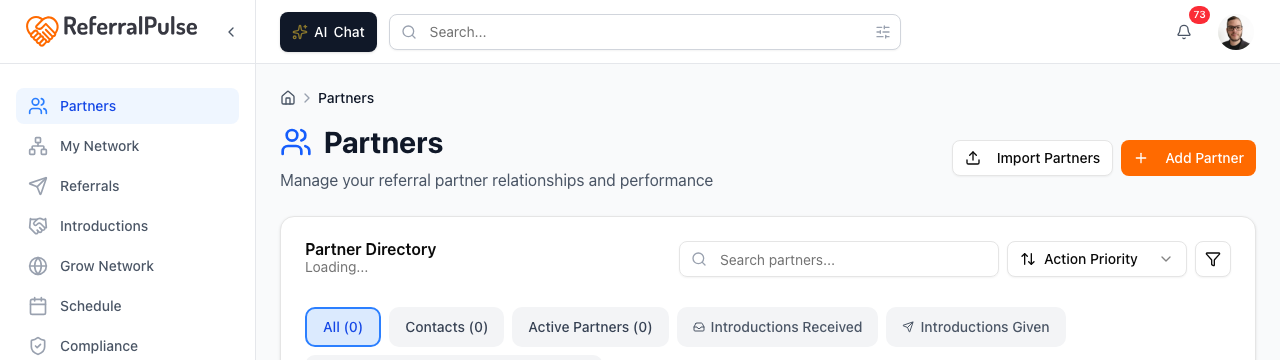
Where to find it: Sidebar → Partners → Add Partner (top right). It opens as a drawer over the list, so you keep your place. The Add manually card on Build Out Your Network opens the same drawer.
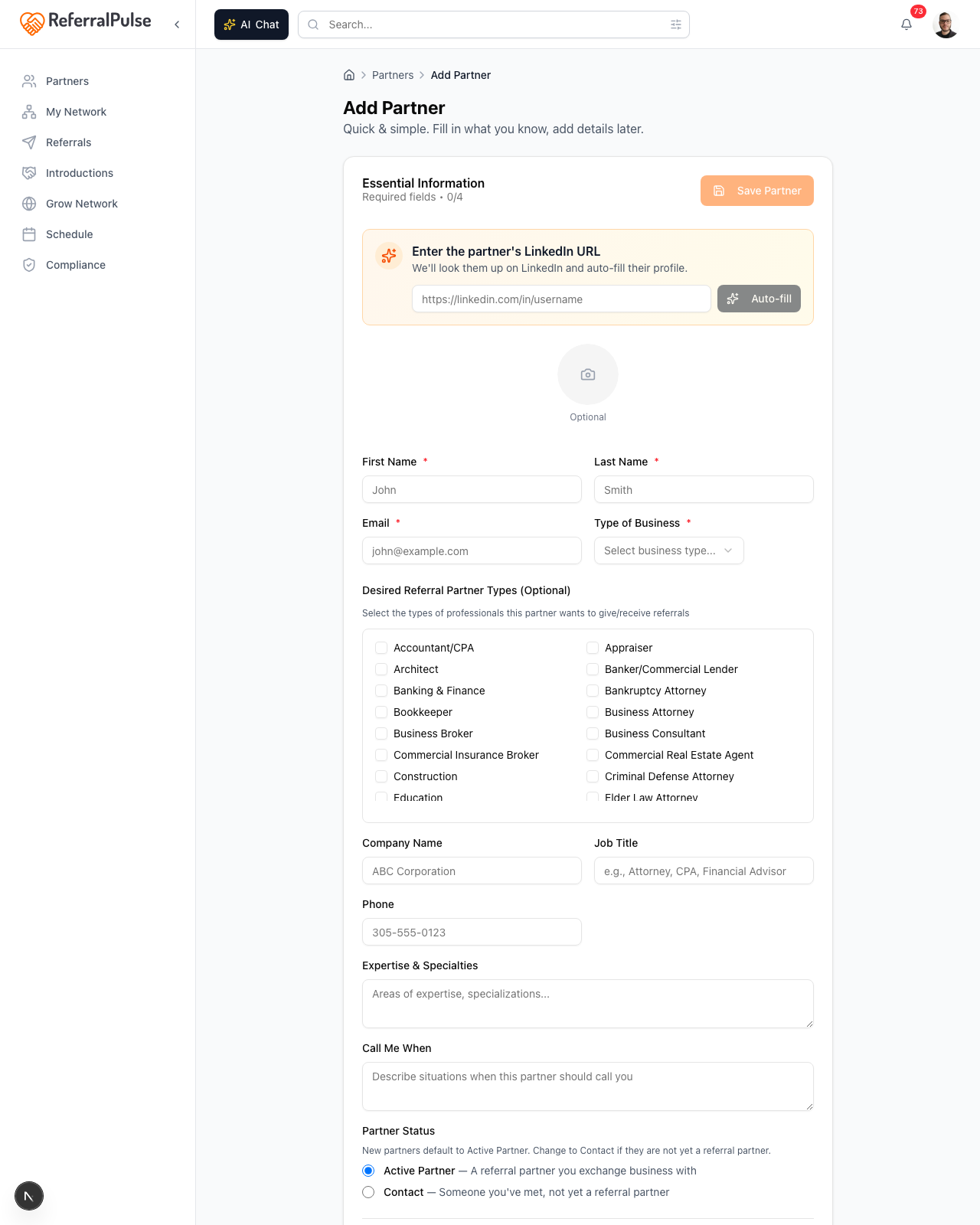
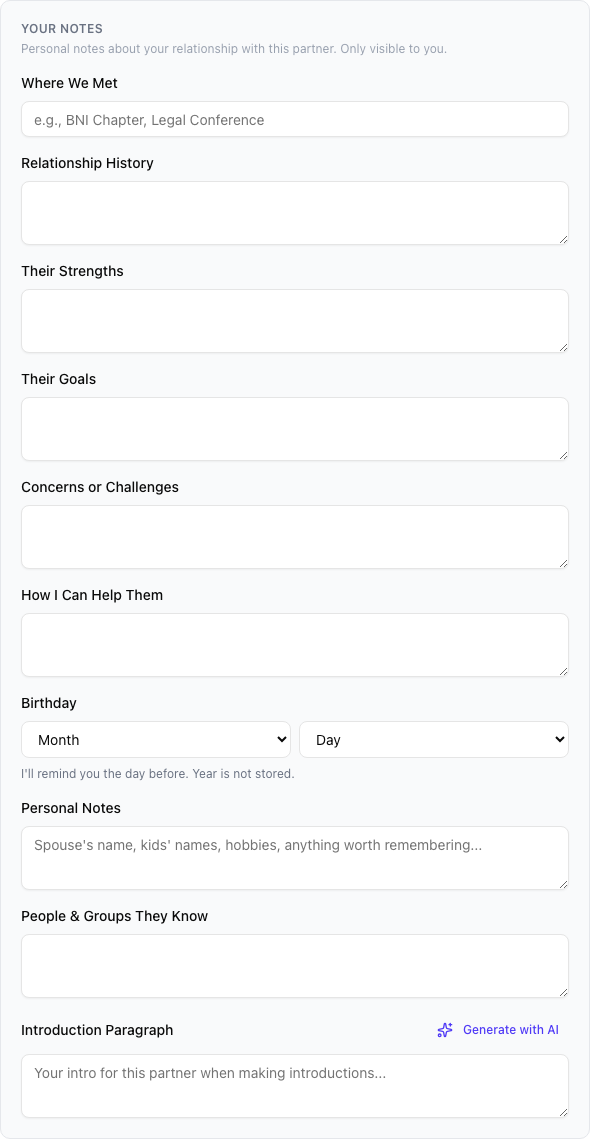
When you want full control, or the partner is not anywhere else, use the drawer. Its sections are the same ones you will later edit on their detail page: Essentials, What they do, Partners they want to meet, Affiliations & languages, Your relationship, How you introduce them and Your private notes.
Only a name is required. Everything else can wait, and there are two ways the drawer fills itself in for you.
Start with their email
The drawer opens on the Email field, because it is the one field that can fill in the rest. Type the address and move to the next field. If that person is already on ReferralPulse, or you already have a record of them, a line under the field says which it is and fills in what you are allowed to see. Nothing you have already typed gets overwritten.
If nothing matches, you have lost nothing. Carry on to the LinkedIn field just below it.
Email is what links this partner to their record everywhere else in the app, in your inbox, on your calendar, and on every referral. It is worth having even when the lookup comes back empty.
Paste a LinkedIn URL
The LinkedIn URL field sits directly under the email and its result line, on screen from the moment the drawer opens. Paste the partner's profile URL (e.g. https://linkedin.com/in/sarahchen) and click Fill in from LinkedIn. The drawer fills in name, headline, company, location, and profile photo from their public profile. The read takes about twenty seconds, and it only fills boxes you have left blank.
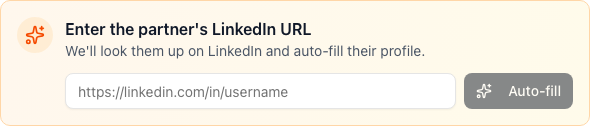
Even if the LinkedIn read doesn't get everything, it almost always gets the name, company, and headshot right, which is the most tedious part. Anything it could not answer is ringed in gray so you can see what is left. Fix the rest by hand and save.
Working through the drawer
The sections run top to bottom, and you can save at any point:
- Essentials. Name, email, phone, company, title and type of business. The name is all that is required. Email is what links this partner to their record everywhere else in the app, so it is worth having.
- What they do. Expertise, specialties, who their ideal client is, and their company. A sub-section covers the company itself.
- Partners they want to meet. The kinds of professional this partner wants referrals from. Setting their type of business pre-selects a sensible starting set for you to confirm or change. This is the field that decides who the app suggests introducing them to.
- Affiliations & languages. Networking groups they belong to, and the languages they practise in.
- Your relationship. Tier, where you met, how you know them, and a sub-section for referral fees and commissions if you have an arrangement.
- How you introduce them. The paragraph in your own voice that every intro draft is built from. There is a button that writes a first version for you to edit.
- Your private notes. Birthday, family, hobbies, concerns, how you can help them. Never shared with the partner.
Ask several partners to update their profile
Where to find it: Sidebar → Partners → Ask to Update Profile (top right). It carries the number of partners you can still ask next to it. To invite several partners to the app instead, tick them in the list and choose Email → Invite to the App.
If you've already added partners, you can ask several of them at once to update their profile. No account is needed on their side.
- Click Ask to Update Profile at the top of the Partners page.
- Tick the partners you want to ask, or click Select all.
- Edit the note (optional but recommended). The same note goes to everyone you tick, or use Personalize and send on a row to write one person their own.
- Click send (the button shows the count, like Send 5 requests).
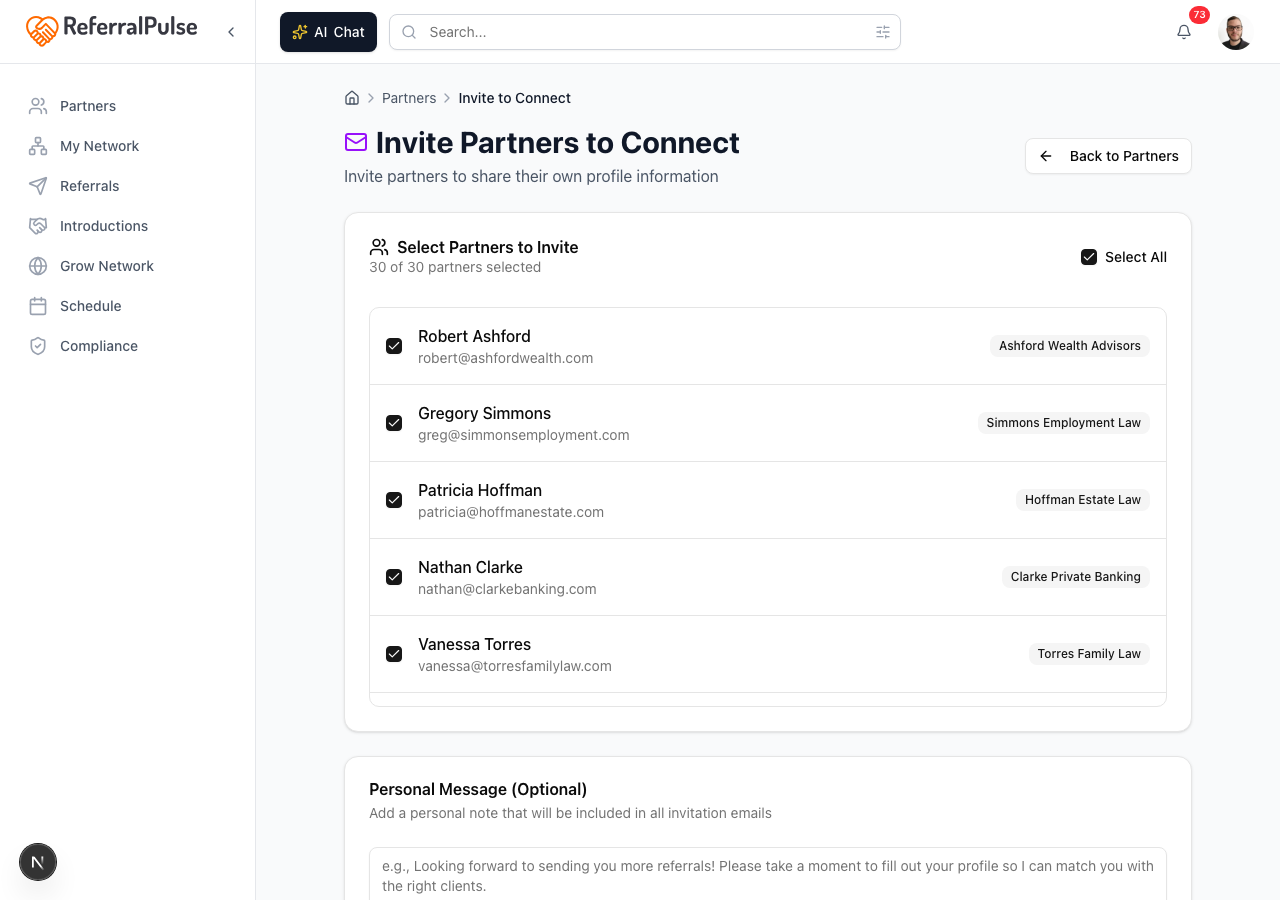
This isn't really a way to add new partners, it's a way to follow up on partners you've already added. Add the partner first, then come here to invite them.
By voice or in chat
Where to find it: The Ask button in the bottom right of any page (it carries your assistant's name) (dark button to the left of the search bar). On the iOS app, the same chat opens from the Chat tab in the bottom navigation.
The fastest way to add a partner, especially between meetings, is to just tell the assistant. Open the AI Chat panel, then type or speak:
Add Sarah Chen as a partner. She's a CPA at Smith and Co in Tampa, met her at a Provisors meeting last Tuesday.
The assistant fills in everything it can from what you said (name, profession, company, city, where you met) and saves the record. If something is unclear, it asks you to confirm before saving. You don't open a form, you don't tap fields.
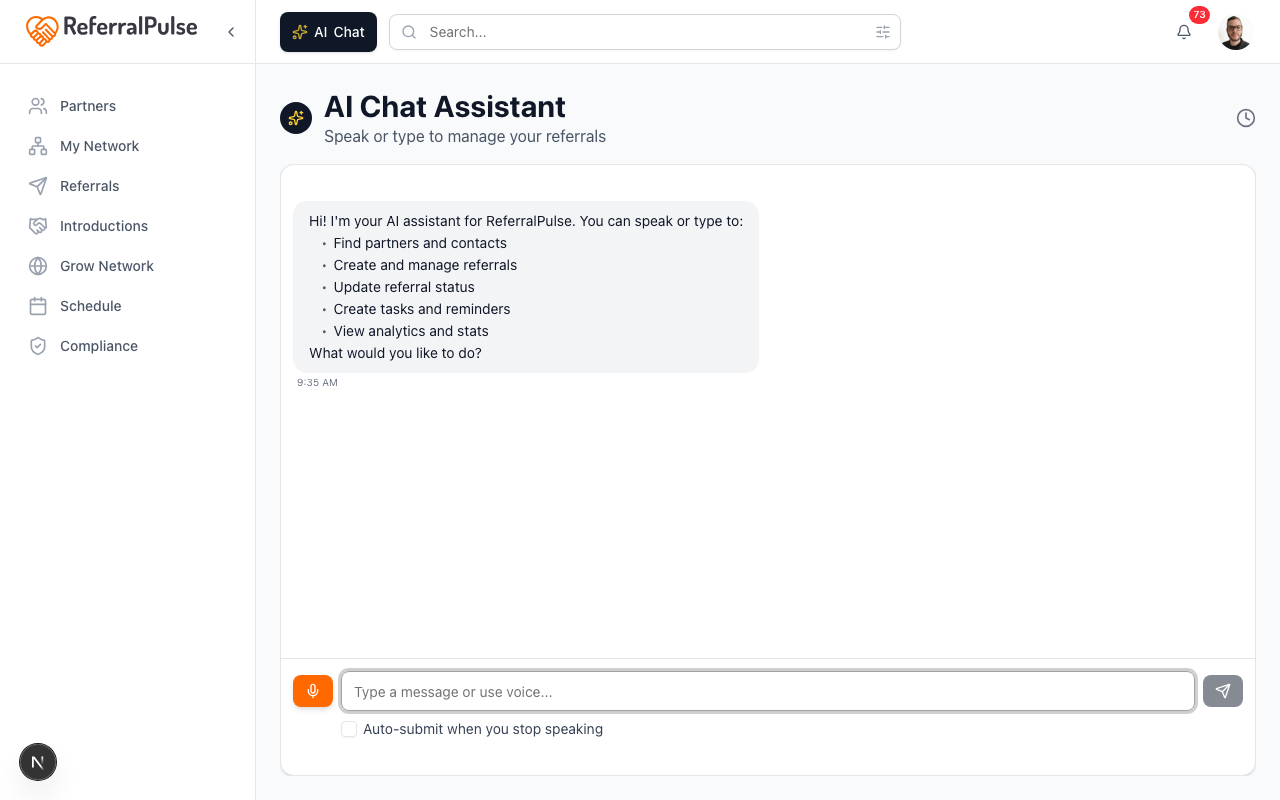
The assistant is smart about distributing details. "She's the family-business specialist at Smith and Co" goes into the expertise field. "Her son just started college" goes into personal notes. You don't need to think about which field is which, just describe the partner the way you'd describe them to a colleague.
Coming soon
Two more methods are on the way. You'll see them in Build Out Your Network labeled Coming soon:
- Import phone contacts. Scan a QR code on your phone to bring in your device contacts directly, no export step.
- Set up email auto-forwarding. Forward future referrals, intros, and connection invites to a dedicated address and ReferralPulse will create or update the relevant partner records automatically.
Get more out of your assistant
Two fields on each partner drive most of what your assistant can do for you in your network. Fill them in even if you skip everything else.
- Type of business. This is what the partner does. It's the first signal the assistant uses when deciding which partners to suggest for an introduction, when surfacing dormant partners worth re-engaging, and when matching meeting candidates to your existing network.
- Desired Referral Partner Types. This is who the partner wants to receive referrals from. It's the field that drives gap-finding (which professions are missing from your network), partner recommendations (who you should add next), and intro-pair suggestions (who in your network would benefit from meeting whom). When you change a partner's type of business, the form pre-checks a sensible starter set of desired types, but the recommendations are only as good as the choices you confirm.
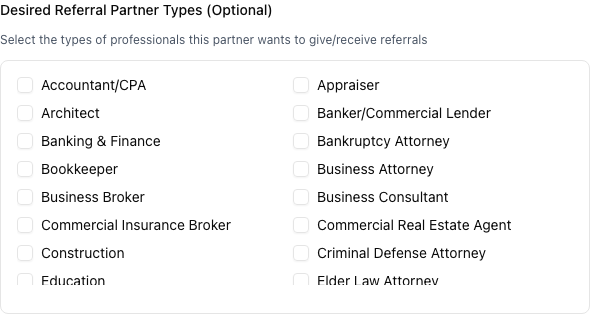
If your network feels noisy or the assistant's suggestions feel off, the fastest fix is to revisit Desired Referral Partner Types on your top 10 partners. A few minutes there usually beats hours of fiddling with anything else.
On the iOS app
Where to find it: Bottom navigation → Chat tab (microphone icon). Or tap the AI Chat button in the header from any screen.
On iOS the assistant is your primary way to add partners. Tap the Chat tab and speak:
Add Marcus Johnson as a partner, financial advisor at Northstar Wealth, met him at the chamber breakfast on Thursday.
The assistant:
- Creates the partner with the name, profession, company, and the meeting note.
- Asks you for the email if you didn't include one (email is required to save).
- Confirms once saved, with a link to the new partner's profile.
Voice works hands-free in the car. You can dictate three or four partners in a row and the assistant batches them, then asks for any missing emails at the end. Faster than any form.