Growing your network
Adding the partners you already work with is step one. Step two is growing the network: asking the partners you already trust to recommend their best contacts, finding other ReferralPulse members through search, managing the connection invitations that flow in and out, and visualizing what your network actually looks like so you can see where it's strong and where it has gaps. Each of these lives where you already work, and your assistant can drive most of it by voice or chat.
Where to find it
There's no single "grow" page anymore. The work happens in four places:
- Ask Your Network lives under Introductions and is where you ask trusted partners for a recommendation.
- Global search (the search box in the header) is where you find other ReferralPulse members to add.
- Invitations lives under Partners and is where you accept or track connection requests.
- Partners → Map in the sidebar is where you see the network you already have.
Ask your network for a recommendation
Where to find it: Sidebar → Introductions → Ask Your Network. Direct URL: /dashboard/introductions/requests.
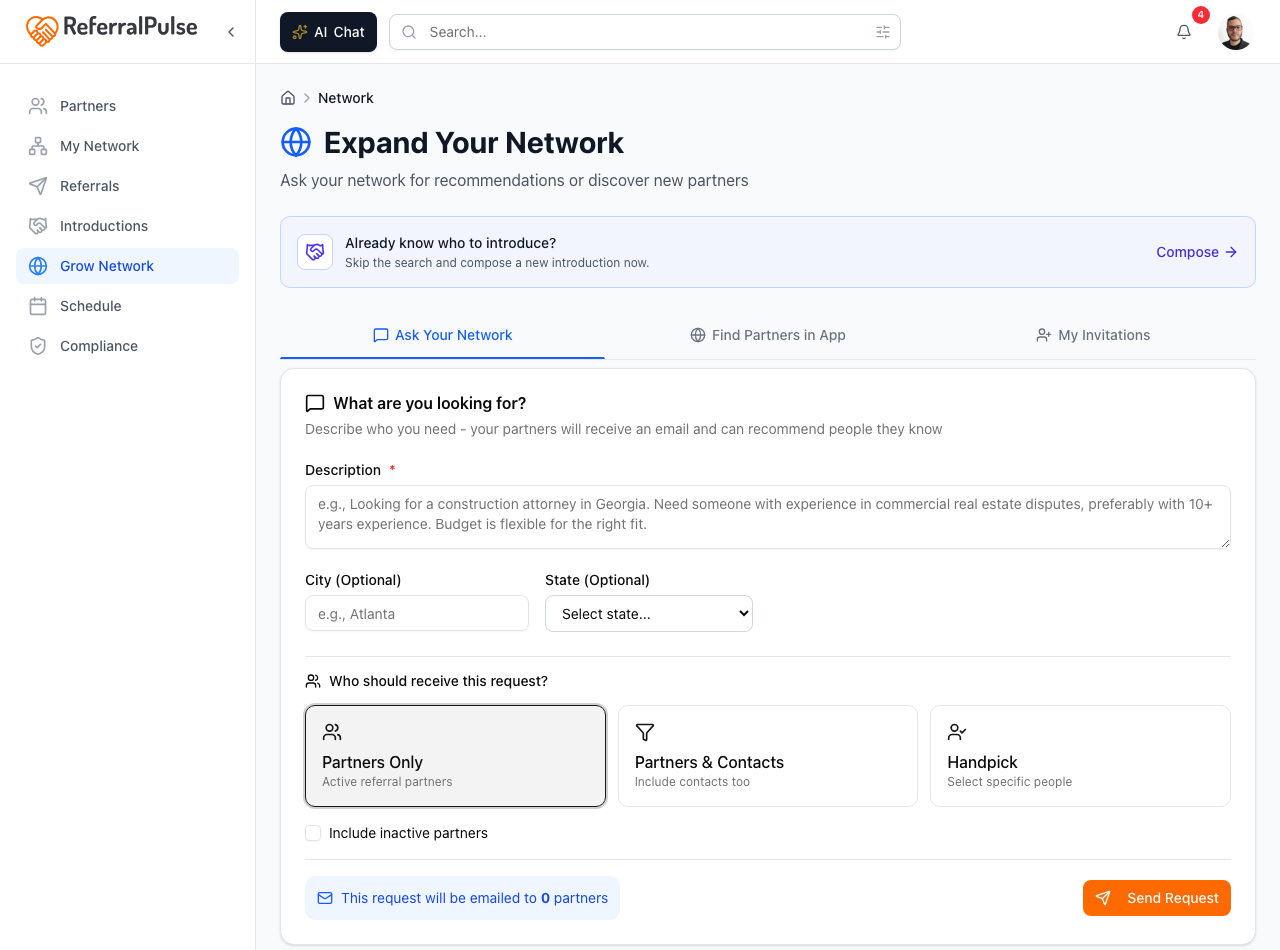
This is the highest-quality way to find a new partner: ask the partners you already trust who they'd recommend. Describe what you're looking for, choose who to ask, and the request goes out by email. They reply through ReferralPulse with names and contact info.
- Open Ask Your Network from the Introductions area.
- In the Description field, describe who you need: profession, specialty, location, anything that matters. The placeholder shows an example like "A client needs a forensic accountant in Georgia with experience in commercial disputes." Write at least a sentence or two.
- Add a City and State if location matters.
- Choose who should receive the request. You can Handpick specific people (search by name or company and tick them) or send by tier instead. A summary line tells you how many people the request will reach.
- Click Send Request. Each person you picked gets an email asking for their recommendation.
- Replies come back into the My Past Requests list on the same page. Click View responses on any request to see who's answered, and tick a request off when it's fulfilled.
The clearer the description, the better the recommendations you get back. Two extra sentences naming your target client size, geography, or specialty produces far better matches than one vague sentence. Treat this like writing a tight job spec.
Find partners already on ReferralPulse
Where to find it: The search box in the header (top of any dashboard page). On a phone, tap the search icon in the top right.
Global search is how you discover other professionals on ReferralPulse and add them. Type a name, a specialty, a location, or a kind of client, and the results group what was found:
- In Your Network. Partners you already have, in case you were looking for someone you've met.
- On ReferralPulse. Other members who've made their profiles visible. Each card has an Add Partner button to bring them into your network and an Invite to Connect button to send them a connection request. If they accept, your relationship card on their side starts populating.
Search by specialty rather than name. "CPA" or "estate attorney" with a city returns the local specialists who are also on ReferralPulse. If no one matches, the search offers to add the person you typed as a brand-new partner.
Manage connection invitations
Where to find it: Sidebar → Partners → Invitations. Direct URL: /dashboard/partners/invitations.
When another ReferralPulse user invites you to connect, the invitation lands here under Connection Requests. Review who they are and what they do, then Accept, Decline, or open Details. When you accept, they become a connected partner and updates flow both ways.
The same page has a Sent Requests card showing the connection requests you sent that are still pending, so you can see who hasn't responded yet.
Visualize your network
Where to find it: Sidebar → Partners → Map tab. Direct URL: /dashboard/my-network.
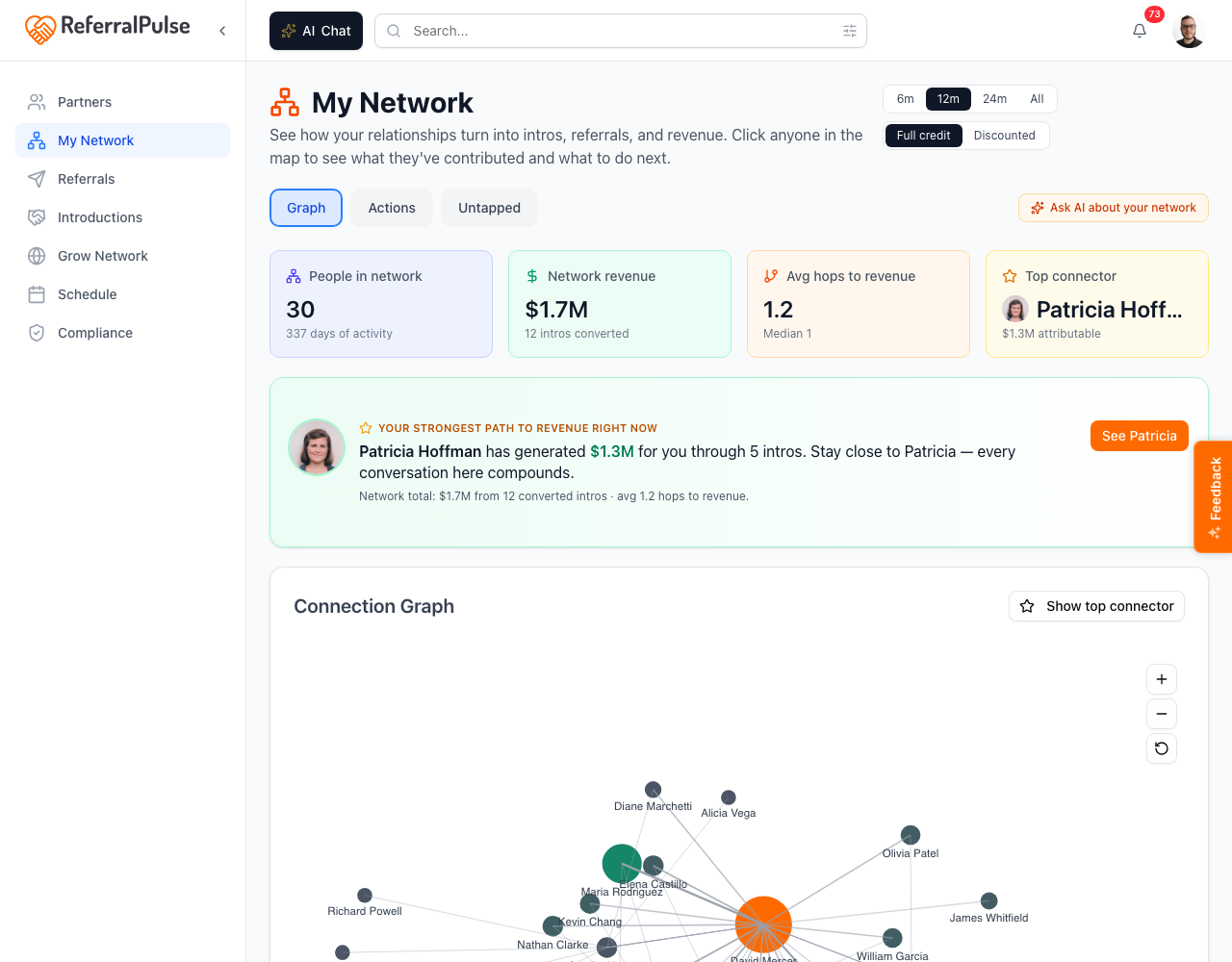
The Network Map is the visualization layer. Four figures across the top cover people in your network, network revenue, average hops to revenue and your top connector. Below them is the connection graph, where every partner is a node and every intro and referral is a line. Click any partner to see what they have contributed and what to do next.
The header has a few controls:
- Chat with your assistant about your map. Opens the assistant with your network already in context. Ask things like "Who connects me to the most other people?" or "Which partners have I been neglecting?"
- Time window. Defaults to 12m, with 6m, 24m and All alongside.
- Attribution. Full credit gives every link in a chain credit for downstream revenue, Discounted weights closer connections more heavily.
You can narrow the graph itself with the perspectives: Everyone, Intros I made, Intros I received, Referrals I gave and Referrals I received, plus a Revenue only toggle.
A callout names your strongest path to revenue right now, with a See what to do link into Pulse, which is where the "what should I do about it" work lives. Pulse ranks the moves worth making this week: the partner to ask for more intros, the stalled intro to unstick, the quiet relationship worth a note.
The map tells you the shape of your network, Pulse tells you what to do about it. If you only have five minutes, spend them in Pulse.
By voice or in chat
Where to find it: The Ask button in the bottom right of any page (it carries your assistant's name), or the button on the Network Map itself.
The assistant can drive most of this section.
Find a real estate attorney in Atlanta on ReferralPulse.
Ask Patricia, Sarah, and Marcus for a recommendation for a structural engineer in Tampa.
Send a connection request to David Park.
Who in my network connects me to the most other people?
What did Sarah say about taxes in our meeting yesterday?
The assistant uses the same search and connection flows you'd use by hand, plus it can pull insights from the network graph and answer questions about what was discussed in your recorded meetings.
Get more out of your assistant
The recommendations on the Network Map and in Pulse, and the quality of the matches you get back from Ask Your Network both depend on the same fields that drive partner suggestions elsewhere in the app:
- Type of business on each partner.
- Desired Referral Partner Types on each partner (the field that says who they want to be referred to).
- Referral and intro history between you and the partner.
When these are sparse, the suggestions are generic. When they're filled in, the suggestions get specific and useful.
The single fastest way to improve the quality of every suggestion is to fill in Desired Referral Partner Types on your top ten partners. Five minutes there shapes every recommendation downstream.
On the iOS app
Where to find it: Bottom navigation → My Network, or tap the search icon in the header to find new partners.
The mobile experience is voice-friendly for asking your network for recommendations. Tap the Chat tab and dictate:
Ask my Tampa attorneys if they know a good commercial litigator. I need someone for a client by next week.
The assistant identifies which partners qualify, drafts the email asking for the recommendation, shows you the draft to confirm, and sends.
The graph view is also available on mobile but easier to read on a tablet or laptop.
Voice is great for connection requests too. "Send a connection request to David Park, the CPA I met at the chamber breakfast" works as long as David has a public ReferralPulse profile.