Every email is a draft until you approve it
ReferralPulse will never send an email to a partner, a referred client, or anyone else in your network without you reading it first. Every partner-facing email your assistant produces, thank-yous, status updates, introductions, follow-up nudges, referral notifications, opens as a draft you can read, edit, send, save for later, or throw away. You always have the last word, and it will never read like a generic template.
This is a deliberate design choice. The relationship in your network is yours, your name is on every message, and a tone-deaf email costs more than a missed one. So the assistant writes, but you sign.
Where drafts show up
You will see drafts in five places. Each one looks slightly different, but the rule is the same in every one: nothing leaves your account until you click send.
By default, the emails you send Cc your own address so you keep a copy in your inbox. If you've connected a mailbox (Gmail or Outlook), that Cc-to-self is left off, since the message already lands in your provider's Sent folder. You can add or remove recipients on any draft before sending.
After you log a referral you sent
When you save a new referral on the Send Referral form and the partner has an email on file, a dialog opens with a draft notifying the partner about the client. The dialog title is Introduce [Client] and [Partner]? when the client also has an email on file, or Notify [Partner] about the referral? when they don't.
The draft is pre-filled with a subject and body the assistant has written from the referral details. Both fields are fully editable. At the top of the dialog you'll see the recipients listed (To and Cc) so you know exactly who the email goes to.
Two buttons at the bottom: Send email to send it as written, or Skip to close the dialog and not send anything. If you skip, the draft is not saved anywhere. The referral is logged either way.
If the client has an email on file, you'll see a segmented choice at the top of the draft: Introduce [Client] and [Partner] for a two-way intro that loops the client in, or Heads up to [Partner] for a one-way notification. Picking a different option rewrites the draft to match.
After you log a referral you received
When you save a referral on the Receive Referral form, the assistant queues a thank-you draft to the partner who sent it. The draft opens in an editor with the dialog title set to the action it represents, like Thank Mary for the Henderson referral.
You can edit the subject and body, click Save Draft to keep your edits without sending, Later to dismiss the dialog and leave the draft in your Tasks queue, or Send Email to send it. If you click Later, the draft sits in the queue until you come back.
From Tasks
Tasks is the catch-all for drafts your assistant builds in the background, the ones it surfaces because it noticed something worth your attention. Examples:
- A partner you give referrals to but rarely hear back from, with a draft asking how things are going.
- A referral that's been sitting open for a long time, with a draft to the partner asking for a status update.
- A meeting that just wrapped, with a draft thanking the partner and recapping next steps.
- A partner whose birthday is this week, with a short personal note.
Where to find it: Sidebar → Tasks, then the Actions chip. You can also get there from the bell icon in the header. Drafts sit in the Queue card, and the chips under the card header narrow them to Pending, Sent, Snoozed or Dismissed. Review & send on any row opens the same draft editor, with Save Draft, Later and Send Email, plus the Tell your assistant what to change line at the bottom of the message itself.
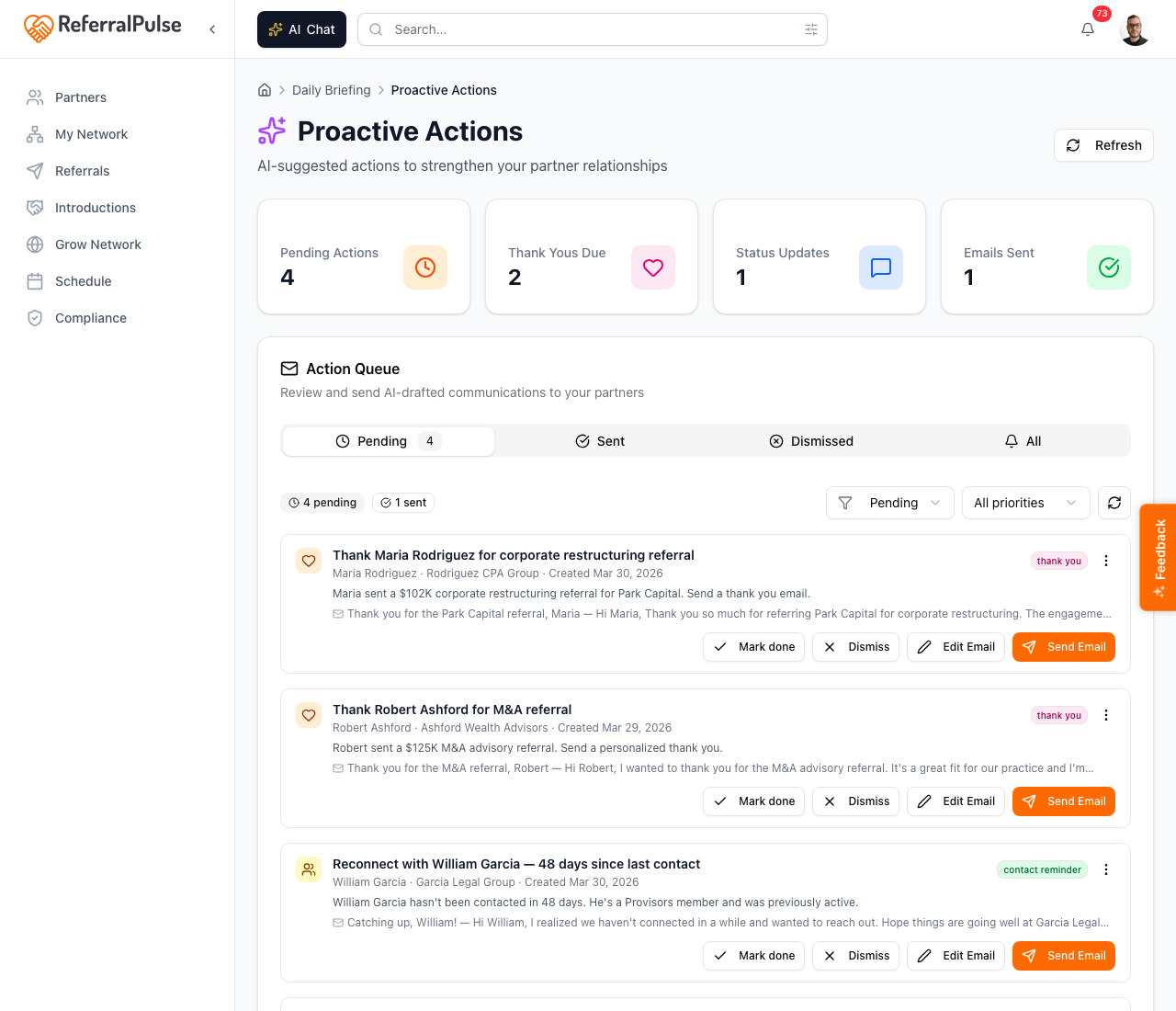
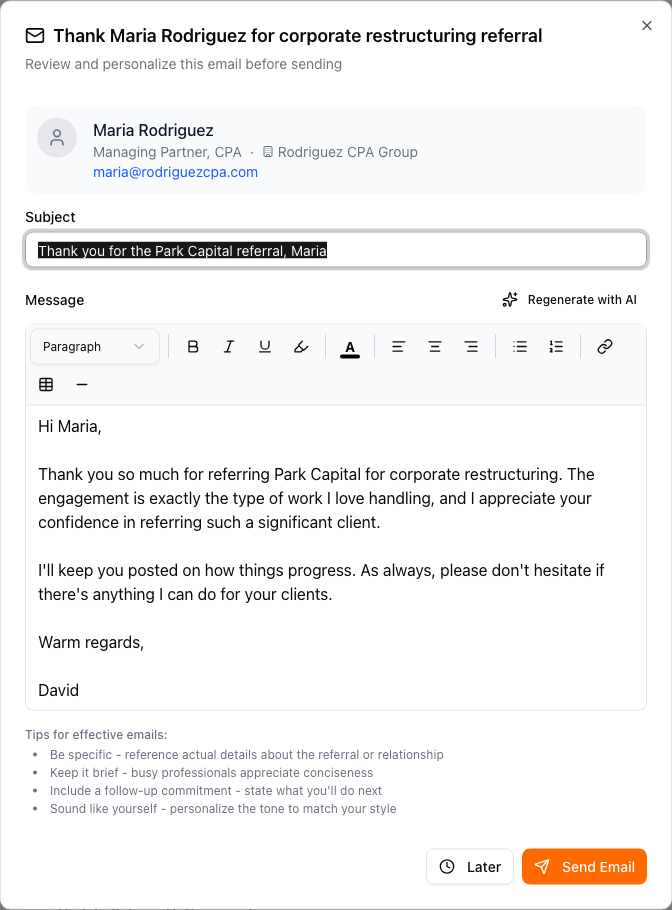
The queue is the only surface where drafts persist for as long as you want them to. Later snoozes the card so it stays in the list. Save Draft captures any edits you've made so the next time you open the card your version, not a fresh draft, is what you see. Drafts in the queue do not expire.
Telling your assistant what to change
At the bottom of the message itself, inside the same box as the text, there's a line reading Tell [your assistant] what to change, using whatever name you've given your assistant. Type what you want different, press Enter, and the draft updates in place: "shorter, and mention the Denver project", "warmer", "drop the last line", "say I'll call her Tuesday instead". Click into the line and three suggestions appear for the common ones: Shorter, Warmer, and Add a detail from our meeting on a draft that came out of a recorded call.
The important part is that it edits the message that is in front of you, so any wording you typed yourself is still there afterwards. It reads the draft as it stands, applies what you asked, and leaves the rest alone.
There is no separate Regenerate button any more. When the whole draft is wrong, say so in the same line ("start over, this is about the Hughes referral") and your assistant writes it again from the latest context about that partner.
You can do the same thing by asking: "make the note to Sandra shorter" in chat revises that card's draft and hands it back for you to read and send.
Inside the introduction composer
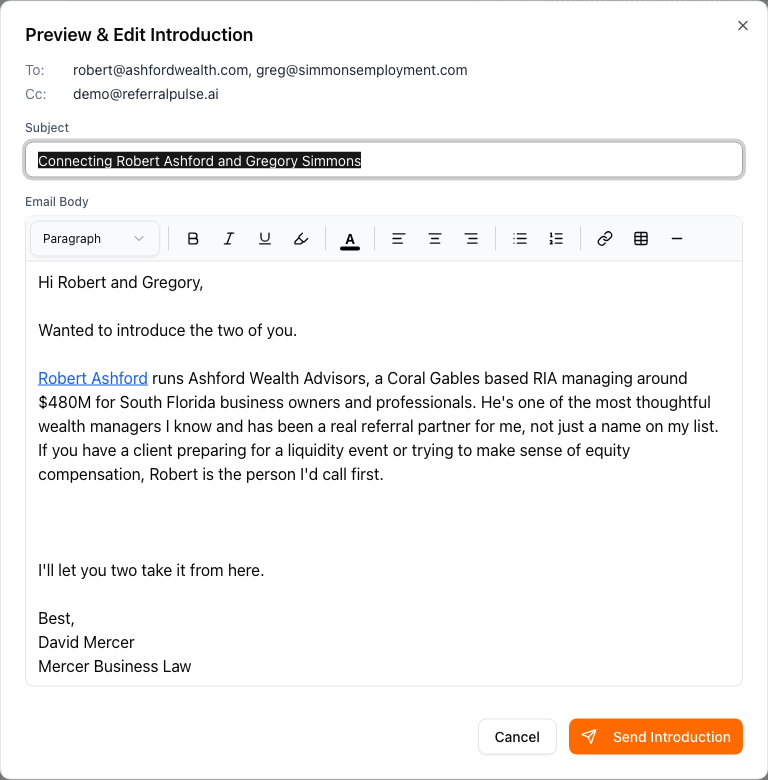
When you build an introduction between two partners (Introductions in the sidebar → Compose), you'll see a Preview Email button once both people are picked. Clicking it opens the Preview & Edit Introduction editor: the full email with both partners' intro paragraphs, the To line, and your Cc.
The intro composer is a one-shot draft, not a persistent one. Send Introduction sends it. Cancel closes the modal and the draft is lost. There is no save-for-later in this flow because introductions are typically composed in the same minute they're sent.
From your voice or chat assistant
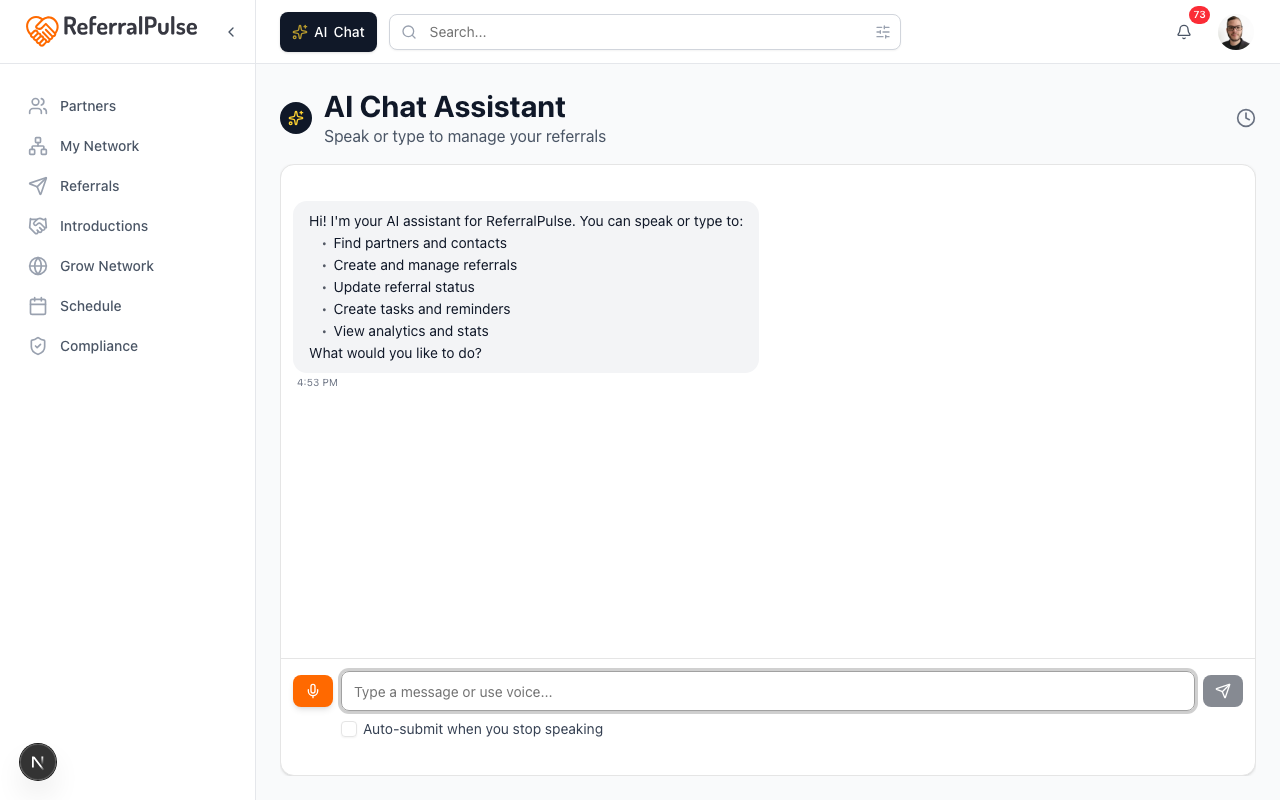
When you ask your assistant to send an email, by voice on iOS or by typing in the AI Chat panel, it doesn't send. It drafts, and the draft appears as a card right inside the chat. You'll see the subject, the body, the recipient, and three buttons: Edit, Cancel, Send.
Edit lets you tweak the subject or body. Cancel closes the card and discards the draft. Send actually sends.
If you ask "send Sarah a quick note thanking her for the Watts intro," the assistant writes the note, shows it to you in a card, and waits for you to click Send. It will not send on its own, even if you tell it to "send it for me." Sending requires your explicit click on the button.
You can also change a draft that is already waiting in Tasks without opening it: "make the thank-you for Maria shorter" or "warmer, and mention the Denver project" revises that card's draft and brings it back for you to read and send.
Attaching files and documents
Under the To and Cc rows, the Attach list shows everything the email can carry. Each line is a tick box and a file name. Ticked, it goes with the email. Unticked, it stays behind. Click any file name to open it and read it before you send.
Your own files
Click Add a file to attach something of your own, such as a checklist you promised or a document a partner asked for. The file appears as a new ticked line. Click Add another file for more.
- Files can be up to 5 MB each, and one email can carry up to five of them. If your connected mailbox is Outlook, the limit is 3 MB each. The limit is always shown beside the button.
- You can attach PDF, Word, Excel, PowerPoint, CSV, text and image files.
- A file that is too large is not attached, and the message tells you the limit. Share a link to it in the note instead, or attach a smaller copy.
- Files are attached to that one email. If you close the window without sending, add the file again when you come back.
Add a file is on the emails you send to one person at a time: drafts from Tasks and your brief, an email you write to a partner from their page, introductions and follow-ups on them, a meeting summary, Send My One-Pager, Send How We Can Help Each Other, and the note to a partner about a referral.
Your one-pager, How to Introduce Me and How We Can Help Each Other
When the email is to one of your partners, the same list offers your own documents:
- Your one-pager, with a note beside it saying whether this partner has already received it.
- How to Introduce Me, once you have written it. With the one-pager it goes as page 2. On its own, or with a one-pager you uploaded, it goes as a separate PDF.
- How We Can Help Each Other, on Producer and up, once there is enough on the partner's profile to write the page. Click the name to read the page, and edit it, before it goes. Ticking it also writes one line into your note, above your sign-off, ending in a gray box that reads our page · link added when you send. That box becomes the link to the page when the email goes. Reword the line as you like, or delete it and the page goes as the PDF attachment alone.
Your assistant ticks what fits the note, and you can change any of it:
| The email | What starts ticked |
|---|---|
| Thank-you after a meeting | The meeting summary and your one-pager the first time, and the other pages from your second meeting on |
| Follow-up on something you promised in a meeting | Your one-pager, if this partner has never received it |
| A reconnect or check-in | How We Can Help Each Other, when it has something new for this partner |
| A thank-you for a referral, a birthday or milestone note, or an email you write yourself | Nothing |
When a draft leaves room for a link or a file
When you promised to send something, your assistant's draft leaves a marker where it belongs: [link] where a link goes and [attached] where the note mentions a file. Paste the link over the marker, or add the file and delete the marker. Send Email waits while a marker is still in the note, and tells you which one, so a partner never receives a note that says "attached" with nothing on it.
What you can do with a draft
The buttons differ slightly across surfaces, but the available actions in each surface use these labels:
- Send Email or Send Introduction. Sends the draft as you've written it. The email leaves your account immediately. Replies come back to your inbox.
- Save Draft. Captures your edits without sending. Available on Tasks cards. The next time you open the same card, your saved version is what you see.
- Later. Closes the editor and leaves the draft in Tasks. Available on Tasks cards.
- Tell your assistant what to change. Edits the draft in front of you the way you describe, keeping the wording you kept. It sits inside the message on every email your assistant drafted: Tasks cards, introductions and check-first emails, partner emails, invitations and How We Can Help Each Other, on the web and on your phone.
- Edit / Cancel. On voice and chat draft cards: Edit lets you tweak the text inline, Cancel discards the draft.
- Skip. On the Notify Partner dialog after a given referral: closes the dialog without sending. The referral is still logged.
Whatever you send goes from your name with replies routed to your email address. Partners see the email as coming from you, not from a "noreply" account, and their replies land in your inbox.
Where drafts live (and where they don't)
| Where it came from | Persists if you close it? |
|---|---|
| Tasks card (thank-you, follow-up, status nudge) | Yes, stays in the queue until you send or dismiss |
| Notify Partner dialog (after Send Referral) | No, discarded if you skip or close |
| Introduction composer | No, discarded if you cancel |
| Voice or chat draft card | No, discarded if you navigate away |
| Bulk invite personal message | No, discarded if you don't send |
Tasks is your draft inbox. Anything you want to come back to later, leave it there with Later or Save Draft. The other surfaces are for in-the-moment drafts you're either sending now or letting go.
If you're not ready to send a referral notification or an introduction right now, save the work into Tasks by sending yourself a quick draft about it via the assistant. Voice command: "Remind me to email Sarah about the Watts intro tomorrow." The reminder goes into your queue with a draft you can edit and send when you come back to it.
What about system emails?
A small number of emails ReferralPulse sends are not person-to-person and don't go through the draft step. These are emails the app sends on its own behalf to operate, not on yours:
- The first welcome email when you create your account.
- Connect-your-account invitations to partners you've added (the partner sees a templated email from you with an optional personal note you wrote in advance).
- Password reset and account security emails.
- Onboarding reminders the app sends to nudge you back in.
These never include details about your partners, your referrals, or your relationships. Anything that does, anything where the message is from you to someone in your network, always goes through a draft you approve first.
On the iOS app
Where to find it: Bottom navigation → Chat tab for new drafts; your Tasks queue for drafts waiting from earlier.
The voice and chat draft flow on iOS works the same as the web. You ask your assistant for an email, the draft appears as a card in the chat feed, and you tap Edit, Cancel, or Send. Cards are full-width on a phone screen and the body field is scrollable, so even a long thank-you note is easy to read.
Drafts you left in your Tasks queue from earlier in the day show up in your Actions feed. Tap any card to open the same editor you'd see on the web, including the Tell [your assistant] what to change line at the bottom of the message, then send or save your edits.
Hands-free drafting is one of the most useful patterns on iOS. After a meeting in the car, dictate "thank Marcus for the Pham referral, mention I'll get back to him by Friday" and the assistant has the draft ready in your queue when you open the app at the next stop. Read it, edit if you need to, send.