My One-Pager
Your one-pager is the page partners use to introduce you: who you help, what a good referral looks like, and how to reach you. Your assistant builds one from your profile, and you can also upload your own PDFs, for example one written for CPAs and another for attorneys. When you send a one-pager, you pick which one goes.
Where to find it
Where to find it: Top right avatar → Profile → the My One-Pager tab. Direct URL: /v3/profile?tab=one-pager.
The tab opens on your default one-pager.
Your One-Pagers
Across the top of the tab is a row of cards, one for each one-pager you have:
- Your profile one-pager comes first, marked Built from your profile. Your assistant drafts it from your profile, and you can change any of it.
- Each PDF you upload gets its own card, with the file's name and size.
- The upload tile comes last.
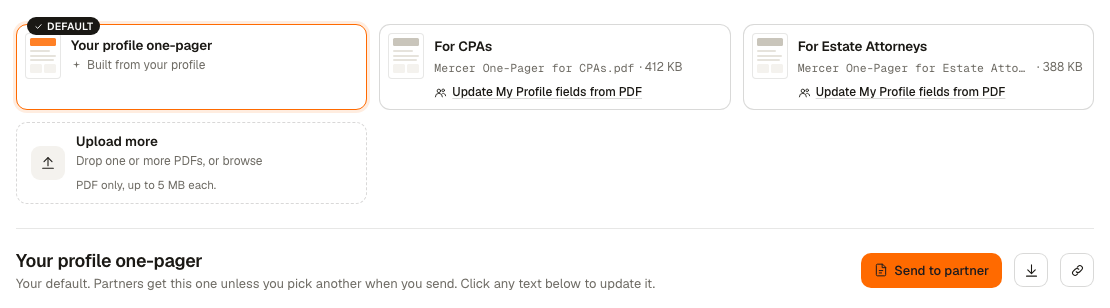
Click a card to show that one-pager below the row. Its name sits above it, with Send to partner, Download PDF and Copy link, which all act on the one you are looking at.
Your Default
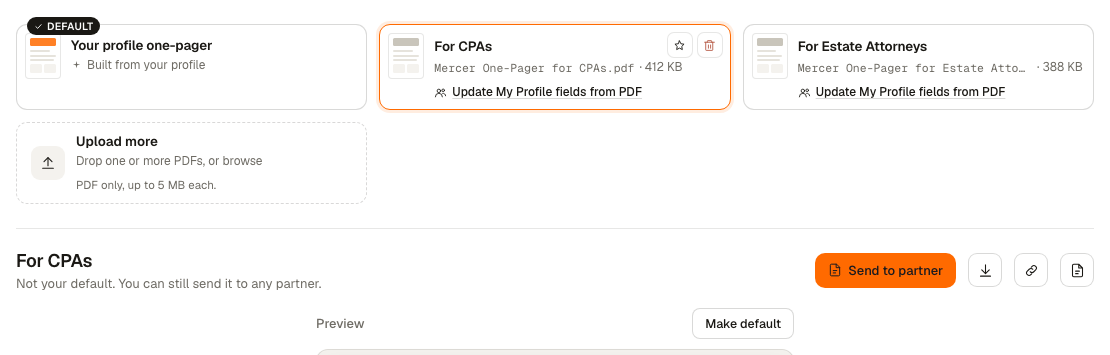
One one-pager carries the DEFAULT badge. Partners get the default unless you pick another when you send. Your profile one-pager is the default until you choose another.
To change it, hover a card (or tab to it) and click the star (Set as default), or click Make default next to the one you are looking at.
Upload Your Own
Drop one or more PDFs on the row of cards, or click the upload tile to browse. Each PDF can be up to 5 MB, and you can keep up to 12. If you made yours in Word, save it as a PDF first.
Uploading a PDF does not change your default. The one exception is when your profile does not yet have enough in it to build your profile one-pager: then the first PDF you upload becomes your default, so you have something to send.
Name Each One
A new upload takes its name from the file, and its name opens for editing so you can give it a better one, such as "For CPAs". To rename it later, click its name on the card. Names can be up to 60 characters. This is the name you pick from when you send.
When someone downloads one of your PDFs, the file keeps its own file name.
Delete One
Hover the card and click the trash can. You have a few seconds to click Undo before it is gone. If you delete your default, your profile one-pager becomes the default again. Your profile one-pager can't be deleted.
Update Your Profile From a PDF
On Producer and up, each uploaded card has Update My Profile fields from PDF. Your assistant reads the PDF and shows what it found next to what is in your profile now, under In your profile now and From this PDF. Details that already match your profile are left out. Tick the ones you want and click Update, for example Update 3 fields, to add them to your profile. Your profile one-pager uses them too.
Your Profile One-Pager
Select Your profile one-pager to edit it. Click any text to change it, and the preview beside it updates as you edit. Name, photo and contact details come from your profile.
- Page 1: My One-Pager is the page itself.
- Page 2: How to Introduce Me holds copy-ready emails and a talk track partners use to introduce you. Untick Include this page to leave it out, and partners get page one only.
- Redraft All has your assistant redraft both pages. Blocks you edited stay as you left them.
An uploaded PDF goes out exactly as you uploaded it. If you have How to Introduce Me turned on, it goes along as a separate PDF.
Sending a One-Pager
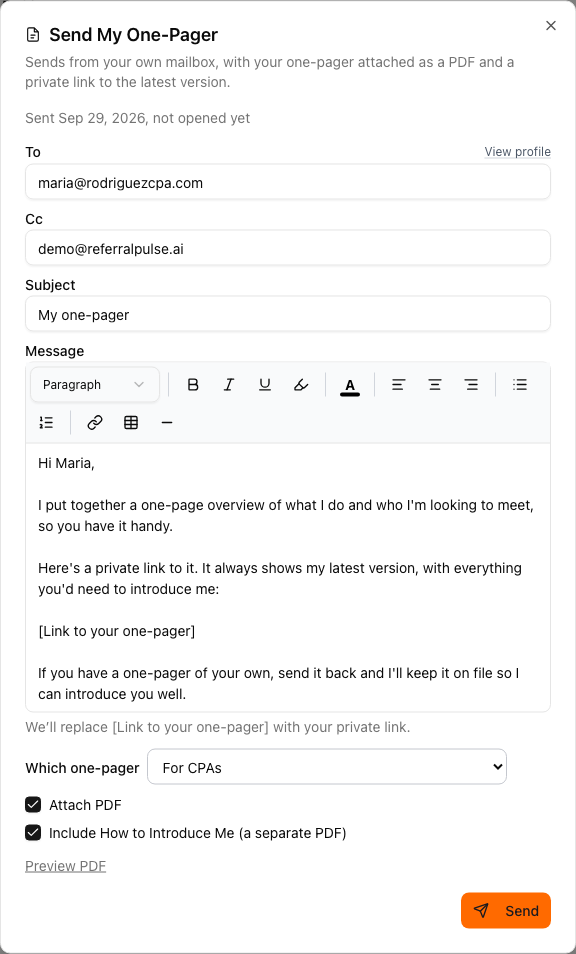
Every window that sends or attaches your one-pager shows Which one-pager when you have more than one. It starts on your default. Pick another and only that send changes. Your default stays the same.
Windows that can carry How to Introduce Me also show Include How to Introduce Me, ticked or not to match your setting on the tab. Untick it to leave it out of that one send. When the one-pager you picked is an uploaded PDF, the box reads Include How to Introduce Me (a separate PDF).
You can send a one-pager from:
- The My One-Pager tab: Send to partner sends the one you are looking at.
- A partner's page: Send My One-Pager.
- Partners: tick partners in the list and click Send My One-Pager to send one message to all of them, each with their own private link and "Prepared for" page.
- A meeting: Email summary, then tick Attach my one-pager.
- A meeting follow-up draft: tick Attach my one-pager.
Each send comes from your own mailbox, with the one-pager attached as a PDF and a private link to the latest version.
Common Questions
Can partners see all my one-pagers? No. A partner only gets the one you send them.
Which one goes out if I don't pick? Your default.
Can I send a Word file? No. Save it as a PDF and upload that.
Is the one-pager on every plan? Yes. Updating your profile from a PDF comes with Producer and up.