Inbox rules
Inbox rules are the things your assistant has learned to skip while reading your inbox. Every rule here came from a suggestion you dismissed on Inbox Review. Remove one and those suggestions start showing up again.
Where to find it
Where to find it: Top right avatar → Settings → Apps & accounts → the Inbox rules link at the bottom of the section. Direct URL: /dashboard/settings/inbox-rules.
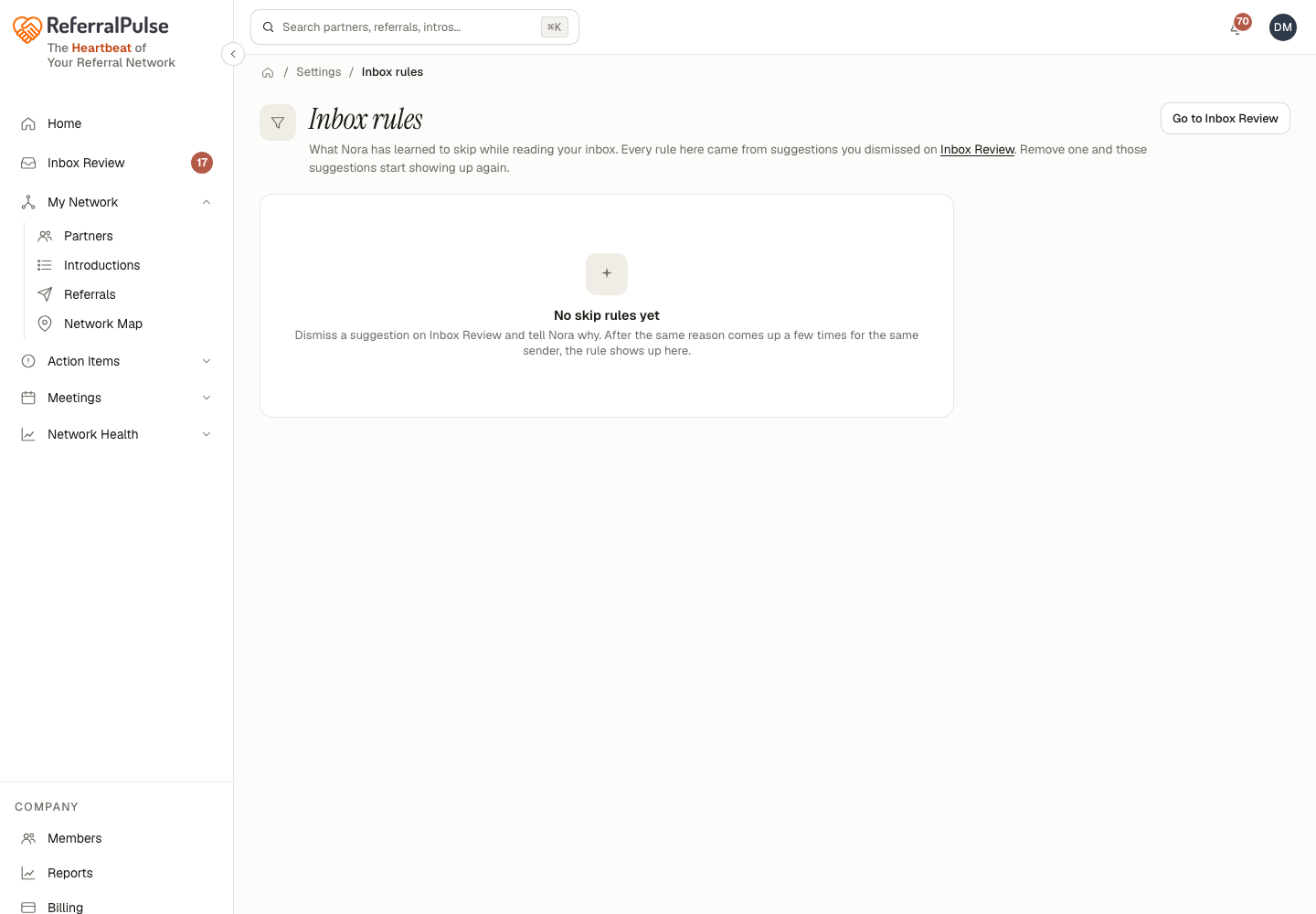
Each rule shows what is being skipped and where it came from:
- Learned from your dismissals. Your assistant noticed you turning down the same kind of suggestion repeatedly and stopped asking.
- Added by you. You told it to skip something explicitly while dismissing a card.
If you have not dismissed anything yet, the page says so rather than showing you an empty table. That is the normal state for a new account.
How rules get made
Where it happens: Sidebar → Inbox Review → dismiss a suggestion.
When you dismiss a card on Inbox Review, you get the option to say why. Choosing to skip that sender or that kind of message in future is what writes a rule. Dismissing without saying why just clears the one card.
This is how the queue gets quieter over time. Newsletters, vendors, the assistant at the title company who copies you on everything: dismiss each once with a reason, and they stop competing with the introductions that matter.
Be a little generous in the first week. Most of what clutters an inbox scan is the same twenty senders, and skipping them early is the difference between a review queue you work and one you avoid.
Undoing a rule
Removing a rule takes one click, and the suggestions it was suppressing come back from that point on. It does not replay the things that were skipped while the rule was in force, so if you think you lost something, look for it in the app rather than waiting for it to reappear.
Rules only affect what gets suggested to you. They never delete email, never change anything in Gmail or Outlook, and never stop a real partner's message from being tracked against their record.