Alerts and notifications
Alerts are how ReferralPulse pulls your attention to something that has changed in your network or on your account. A partner updated their profile and your record was kept in sync. A referral has sat open too long. A compliance threshold tripped. The bell in the header is where an alert first appears, and the Alerts chip on your queue is where you clear them.
Alerts are one of the three things that can be waiting on you. The other two, the emails your assistant has drafted and the tasks you set yourself, share the same list. See Alerts and tasks for the whole queue.
Where to find them
Two surfaces:
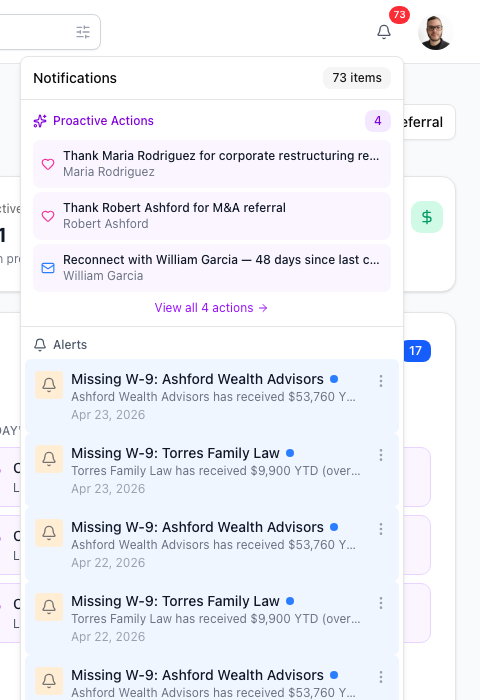
- The bell in the header. Top right of any page, next to your avatar. A badge shows how many items are waiting, alerts and drafted emails counted together.
- The Alerts chip. Sidebar → Tasks → the Alerts chip. The bell's own links land you in exactly this view.
What kinds of alerts you will see
A handful of types come up most:
- Partner updates. A partner updated their own profile, and your assistant kept your record of them in sync. Informational, because the change has already been applied.
- Referral updates. A referral came in, changed status, or has been sitting open for a while. The alert links to the referral.
- An introduction came in. Someone introduced you to a new contact, with a link to review and accept.
- Compliance thresholds. A measure like commissions outstanding or partners missing paperwork crossed your threshold. Only shown when commissions are part of your practice.
- Account and connection notices. A connected mailbox or calendar has stopped working and needs reconnecting before your assistant can keep reading it.
Each alert carries a severity and a state.
Triage from the bell
Where to find it: Top right of any page → bell icon.
The bell dropdown is the fastest way to see what is new without leaving the page you are on. It lists the most recent items, and clicking one takes you to whatever it is about rather than to a generic list. The links at the bottom of each section open the full queue with the right chip already selected.
The menu on each alert lets you mark it read or unread, or delete it. Mark all read and Delete all sit at the bottom of the alerts section.
The badge counts unread alerts and pending drafts together. If it looks high but your alerts are calm, the rest is drafted email waiting to be sent.
Work through them in the queue
Where to find it: Sidebar → Tasks → the Alerts chip.
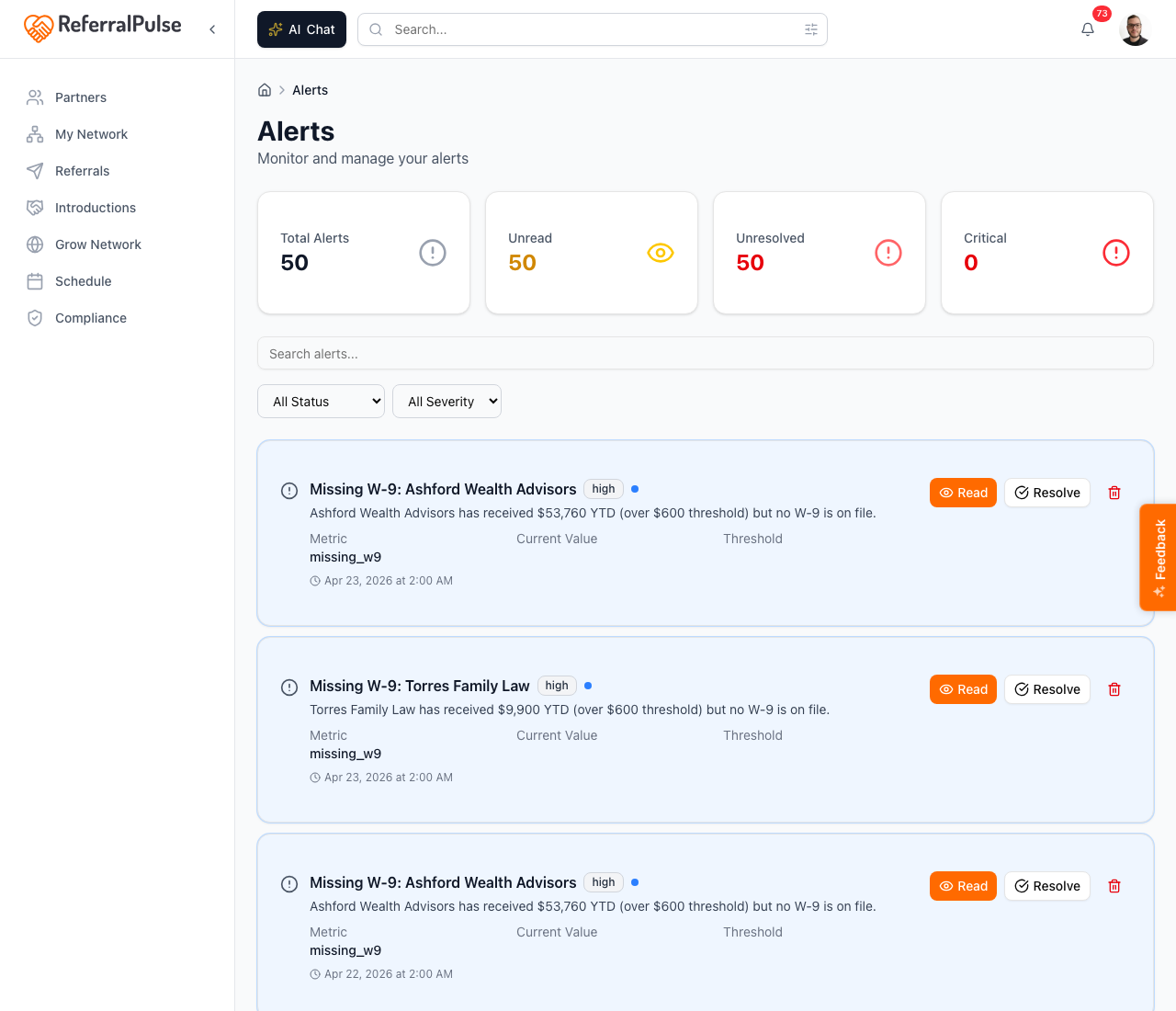
Picking the Alerts chip narrows the queue to alerts alone and gives you two more controls:
- State. All, Open, Unread, Read, Resolved. Open is the default.
- Severity. All severity, Critical, High, Medium, Low.
Each row shows the alert, what it is about, and when it landed. Resolve clears it once you have dealt with it, with a short undo in case you were too quick. Resolved alerts drop out of your working view but stay reachable under the Resolved state.
The search box in the card header searches alerts alongside everything else in the queue, so if you half-remember a partner name you can find the alert that way.
Group by Urgency to see what is overdue first, or by Type when you would rather clear all your alerts before touching anything else.
Some alerts are worked out fresh every time the page loads rather than stored. Those say Clears on its own, and they disappear as soon as the situation behind them resolves. There is nothing to tidy up.
When a partner updates their profile
Where to find it: The bell, or the Alerts chip.
When a partner updates their own ReferralPulse profile, your assistant applies the changed fields to your copy of their record automatically. There is nothing to approve. The alert is informational: it says whose profile changed and what was updated. Click it to open that partner if you want to see the new details.

Data syncs automatically between linked partners. Communications are the only thing that still goes through a draft you approve first. If the new details are not what you expected, you can always edit the partner record by hand.
By voice or in chat
Where to find it: The search box at the top of any page, or press ⌘K.
Your assistant can tell you what is open.
What alerts do I have?
Anything urgent today?
It reads back the open alerts grouped by severity with one-line summaries. Marking them read, resolving or deleting still happens in the queue or the bell dropdown.
Choose what reaches you
Where to change it: Top right avatar → Settings → Notifications. For your phone specifically, Settings → Push notifications, which also holds quiet hours.
A few settings shape which alerts exist at all:
- Notification preferences. Email, push and in-app can be toggled by type.
- Profile visibility. A Discoverable profile can receive partner-update alerts when other members link to you. A Private one will not.
- Commission practice. Decides whether compliance-threshold alerts appear at all. If commissions are not part of your practice, you will never see them.
If the bell never goes quiet, spend two minutes on the Alerts chip. Resolve what you have handled, delete what you do not need, and it will be calm by the end.
On the iOS app
Where to find it: The bell sits in the iOS header on every screen, in the same place as on desktop.
Push notifications are off by default. Turn them on by type, and set quiet hours, from your push notification settings. Critical alerts are good candidates for push. Informational ones usually are not.
Voice is good for asking what is open. "What alerts do I have?" gets you a read-out, and you can act from the mobile bell right after without opening a page.