Connecting Outlook to ReferralPulse
If you live in Outlook or Microsoft 365, connecting your mailbox lets your assistant keep your partner history current and surface the things worth acting on, so you don't have to retype anything or dig through your inbox to know what's new. A partner sends an intro, a client gets forwarded your way, a referral comes in over email, and it lands where you can act on it.
Outlook connects directly, the same full experience as Gmail. If you'd rather not link your account, forwarding is the lighter-touch alternative, covered at the end.
Connect your Outlook account
Where to find it: Top-right avatar menu → Settings → Integrations tab → the Email section → Microsoft Outlook row → Connect.
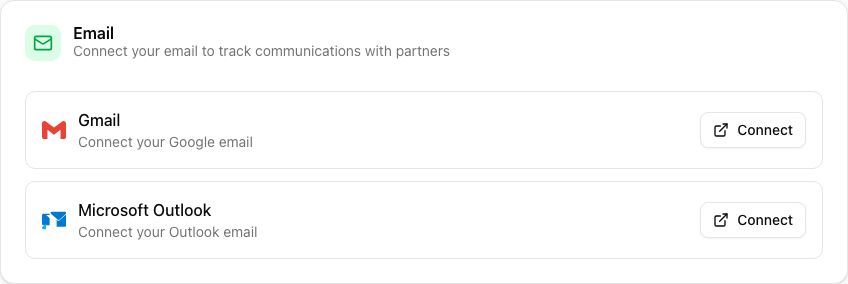
Click Connect and you'll be sent to Microsoft to sign in and approve access. When you come back, the Microsoft Outlook row shows a green Connected badge with the address you linked. That's it, you're set. Your assistant works in the background from there. You don't have to forward anything or set up a rule.
You connect one mailbox at a time. If Gmail is already connected, the Outlook Connect button is disabled and a note below the rows reminds you to disconnect the active mailbox before switching providers. Disconnect Gmail first, then connect Outlook.
Right after connecting, use Choose folders & scan on the Outlook row to pull in recent history. You pick which folders to scan, so you can include your main inbox and a referrals folder while leaving everything else out. The button reads Re-scan afterward if you ever want to run it again.
What to expect once connected
Connecting changes how much the app can do for you without being asked. Here's what fills in on its own.
- Your partner history stays current. Every email you exchange with a partner becomes part of their timeline, and the app keeps track of when you last talked and how often. Partners you've gone quiet on rise to the top of your follow-up reminders on their own.
- Partner activity turns into suggestions. New intros, referrals, and people worth adding as partners are pulled out of your mail and land on your Review page for a quick yes or no. Nothing is filed without you. See What shows up on the Review page.
- Reciprocity at a glance. Each partner's detail page shows your email give-and-take, how many you've sent versus received, right next to your referral history, so you see the whole relationship, not just referrals.
- Re-engagement nudges. If you reached out to a partner and heard nothing back for a while, or a long-quiet partner suddenly emails you, the app surfaces it so you can pick the thread back up at the right moment.
- Sharper drafts. When your assistant drafts a note to a partner, it reflects what the two of you last discussed, so the message picks up where your real conversation left off.
Every email your assistant drafts is still yours to review and edit before it sends. The app never sends a message to a partner on its own. See Every email is a draft until you approve it.
Sending from your Outlook address
Once Outlook is connected, the partner emails you send from ReferralPulse go out through your own Outlook mailbox, so they land in your Sent folder and replies come straight back to you. Before you connect, those messages send from the app's address instead.
Your privacy
Connecting reads your mail to do the work above, but the app keeps the takeaways (a short summary, who the message was with, and when), not a permanent copy of your message text. You stay in control:
- Disconnect anytime. The Disconnect button on the Microsoft Outlook row ends access immediately.
- You choose what gets scanned. The first-time scan only looks at the folders you pick.
- Nothing goes out without you. Every partner-facing email is a draft until you approve it.
Forwarding instead (no account access)
If you'd rather not link your Microsoft account, you can forward just the messages that matter instead. You set up a one-time server rule in Outlook that forwards messages matching a short list of intro and referral keywords to a special address at ReferralPulse. Anything matching is turned into a partner, an introduction, or a referral. Anything not matching stays in your inbox and never leaves your account.
Where to find it: The Auto-forward setup page at /dashboard/profile/auto-forward-setup (also reachable from the Set up email auto-forwarding card in the Build Out Your Network onboarding step) opens the same wizard. It has a tab for Outlook 365 with the exact rule steps, a Copy button for the keyword rule, and a test step that confirms when your first forward arrives. The forwarding address and the keyword rule are the same ones the Gmail setup uses.
Outlook 365 server rules forward on Microsoft's side, so the rule keeps running even when your computer is closed. That makes it a reliable always-on option if you choose forwarding over the direct connection.
On the iOS app
Connecting your account (the Microsoft sign-in) needs the web app, since the approval screen and folder picker aren't built for iPhone. Once you've connected on the web, everything works the same regardless of which device you read or send email on. A referral that lands in Outlook at 9am while you're driving shows up on your Referrals page by the time you check the iOS app at the next stop.
Ask your assistant by voice "did anyone send me a referral this morning," and it reads the day's received referrals straight from your account, including the ones that came in by email. You don't have to scroll your inbox to know what's new.