Network Map
The Network Map is the visual view of how your relationships actually flow. It plots every partner who has introduced someone to you, or to whom you have made an intro, draws lines for the intros and referrals that happened, and marks where revenue followed. It is the page to open when you want to see who in your network is doing the work, who has gone quiet, and where the gaps are.
Where to find it
Where to find it: Sidebar → My Network → Network Map. Direct URL: /dashboard/my-network.
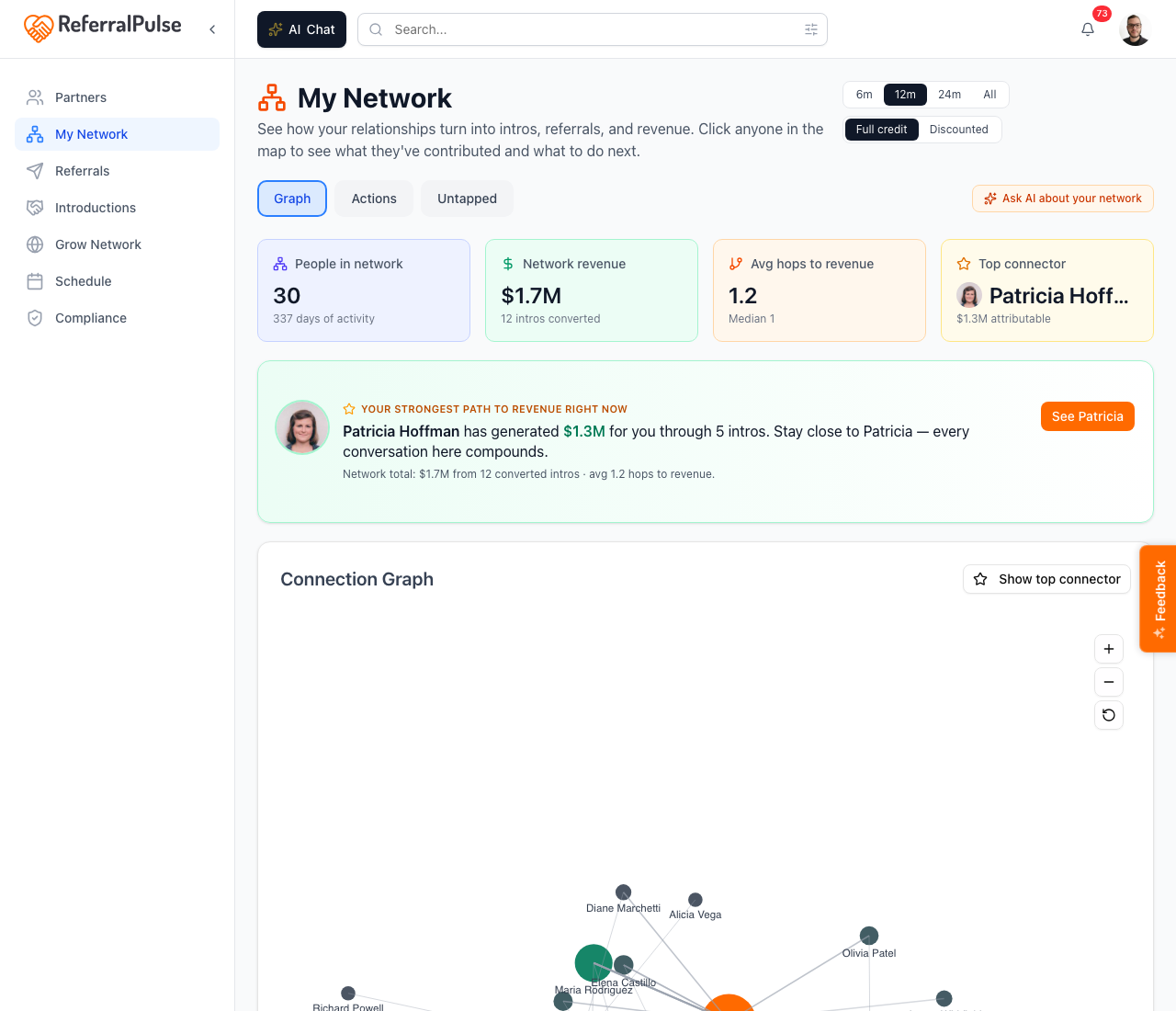
It is one scrolling page, not a set of tabs. From top to bottom: four figures (People in network, Network revenue, Avg hops to revenue, and your top connector), a headline insight calling out your strongest path to revenue, the Connection graph, and a Top connectors by network value table.
Your network health grade sits next to the page title, so you can see at a glance whether the picture below is healthy before you read a single number.
The controls in the top right
- Chat with your assistant about your map. Opens the assistant with your network already in context, so you can ask about it in plain English. The button carries whatever you have named your assistant.
- Time window. The buttons 6m, 12m, 24m and All filter the graph and the revenue to that window. The default is 12m.
- Attribution. Two options:
- Full credit. Every connection in a chain gets full credit for downstream revenue. If A introduced you to B, who introduced you to C, who closed a deal worth $50k, both A and B get credit for the full $50k.
- Discounted. Closer connections get more credit. The further away a connection sits, the less it counts.
The default is Full credit, which is the right view for celebrating who connected you to your best deals. Switch to Discounted when you want a single ranked list that does not double-count multi-hop introductions. The sentence under the page title changes with the toggle, so the explanation always matches the numbers below it.
Focus the graph
Where to find it: The Connection graph card header.
Five perspectives narrow the graph to one kind of relationship, and a Revenue only toggle sits beside them to hide anyone with no revenue attached. A line under the switch explains what you are looking at.
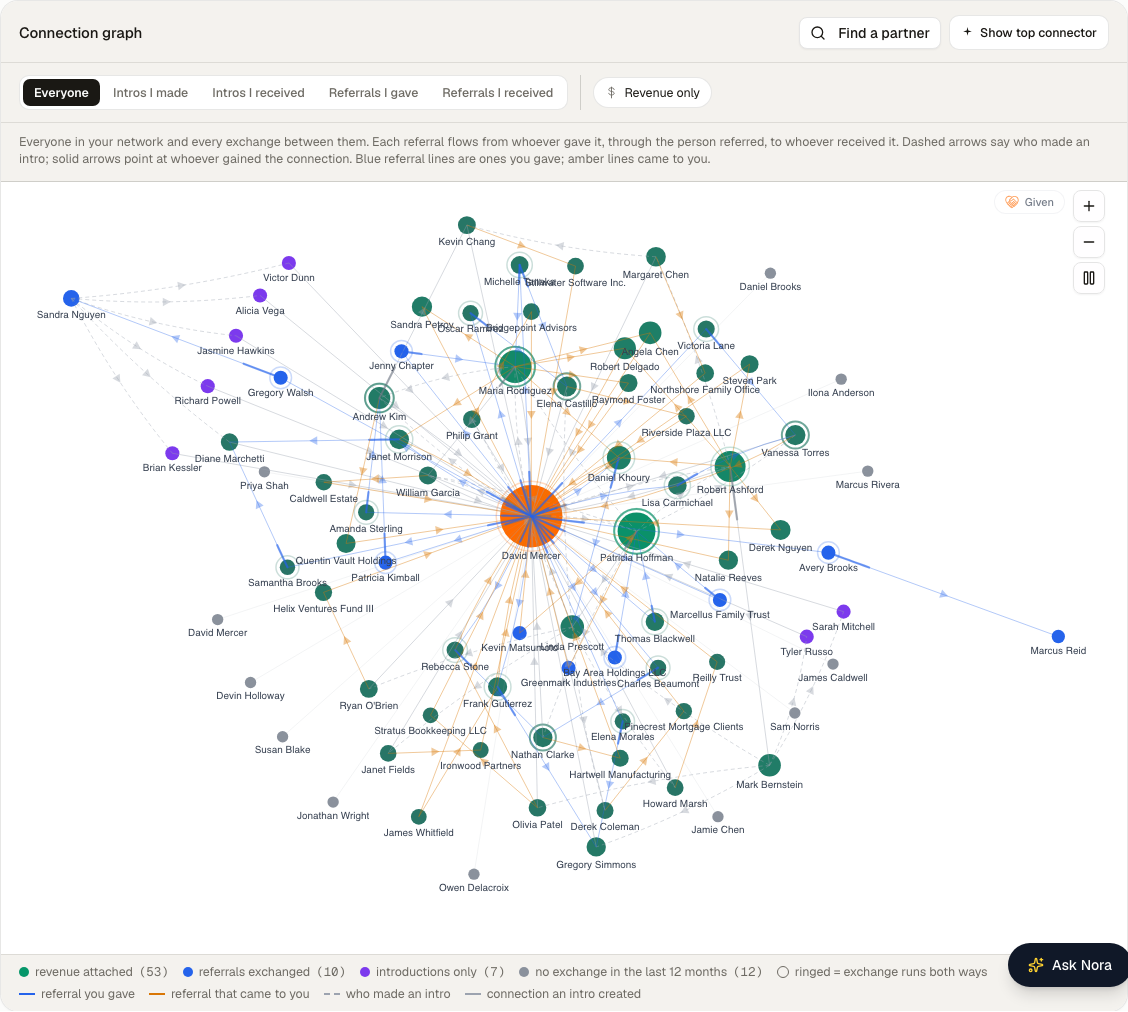
- Everyone. Your whole network of partners and the intros connecting them. Click a partner to see the clients they referred.
- Intros I made. Only the introductions you made, with the bond between each pair you connected.
- Intros I received. Introductions partners made for you, showing who connected you and to whom.
- Referrals I gave. Referrals you sent to partners, with each referred client next to the partner you sent them to.
- Referrals I received. Referrals partners sent you, with each referred client next to the partner who sent them.
Lines are colored by direction, so at a glance you can tell what you gave from what you got.
The most surprising number on this page is usually who your top connector is. Click Show top connector in the Connection graph header to highlight them. It is almost never the partner you would have guessed.
Explore the graph
Where to find it: The Connection graph card.
Click any node and the detail panel opens on the right. It shows:
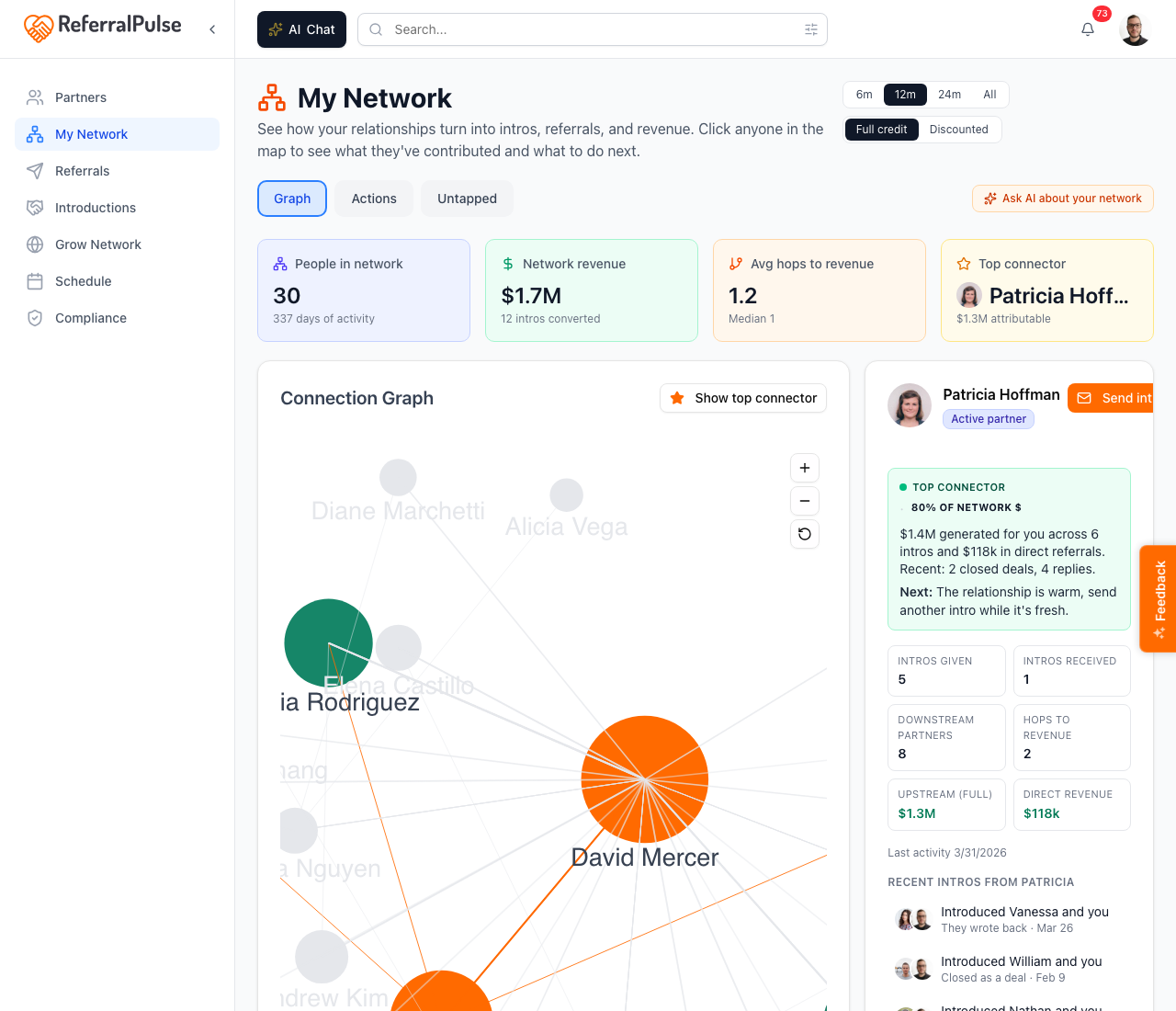
- Revenue contribution. How much downstream revenue is attributable to this partner, in whichever attribution mode is active.
- Intro count. How many intros they have made or been part of, given against received.
- Who they connected you to. The people who came through them, and what came of each.
With a partner selected, a story of every intro that ran through them appears below the graph, in order, so you can read the relationship as a sequence rather than a cloud of dots. Hovering a person in the map brings up a small card with the same story in miniature.
Click another node to switch. Press Escape, click empty space, or click the same node again to deselect. To jump straight to someone, use Find a partner in the Connection graph header.
Below the graph, Top connectors by network value ranks the partners contributing the most revenue. It shows a handful at first, with a button to show more, so you can compare the picture to a sortable list.
If the graph looks empty or has only you on it, you have not logged enough intros yet. Add a few past intros from the Introductions page or import them in bulk, and the map fills in.
Decide what to do about it
Where to find it: The See what to do link under the headline insight, which opens Pulse.
The map is for understanding your network. Pulse is for acting on it: it reads the same relationships and hands you a short, ranked list of moves, including which partner to ask for more intros, which stalled intro to unstick, and which quiet relationship is worth a personal note this week.
Look at the map monthly, work Pulse weekly. The map changes slowly, and staring at it more often than that rarely tells you anything new.
Get more out of your assistant
The map is only as good as the history behind it:
- Log past intros. The graph is built from your introduction history. The more you have logged, especially older ones with outcomes, the richer it gets.
- Mark intros as won when they convert. Without an outcome an intro is just a meeting. Add the dollar value when a deal closes.
- Keep partner profiles current. Type of business, expertise and the partner types you want to meet all shape the suggestions your assistant can make from this data. Stale profiles produce weak ones.
Ask your assistant things like "Who in my network has gone quiet?" or "Which partner has introduced me to the most attorneys?" and it answers from exactly the data the map is drawn from.
On the iOS app
Where to find it: Bottom navigation → Profile tab → My Network, or ask your assistant.
On iOS the graph stacks: the map on top, the detail panel below it once a partner is selected. Tapping a node selects it the same way clicking does.
For quick questions the chat path is faster. Try "Who's my top connector this year?" or "Show me partners who've gone quiet."
The map reads best on a tablet or a desktop. On a phone, Pulse is usually the better stop, because its cards are sized for a vertical screen.