Making and tracking introductions
An introduction is when you connect two of your partners by email so they can meet, refer business to each other, or just expand each other's networks. ReferralPulse drafts the email for you, sends it on your say-so, then tracks what happens after: did they reply, did they meet, did the meeting turn into a referral, and did the referral close as a deal. The conversion path from intro to closed deal is one of the most valuable threads to follow in a referral business, and the app is built to surface where each one is stuck.
Where to find Introductions: Sidebar → My Network → Introductions.
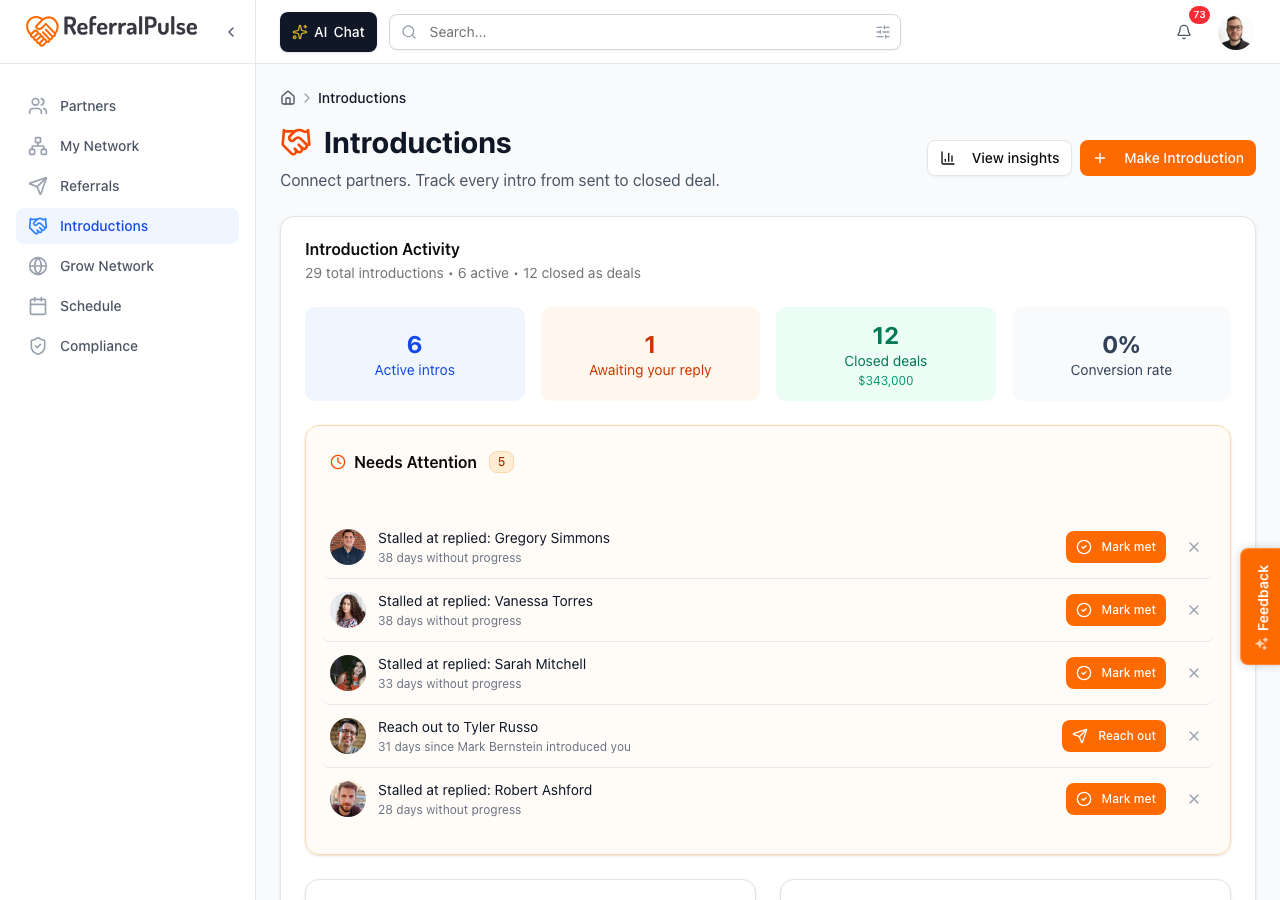
Everything you gave and everything you received is on one page, with where each one landed. Four actions sit in the header: Ask your network, Import introductions, Log a past introduction and Make an introduction.
A Needs attention card sits above the list when anything is stuck, holding up to five intros with the next step on each. Below it, the All introductions card carries the whole list, with a count reading how many are yours given against received.
Two views:
- List. Every introduction, newest first.
- By partner. The same introductions grouped under the partner involved, most introductions first.
Make an introduction
Where to find it: Sidebar → My Network → Introductions → Make an introduction (top right).
This is the primary path. Pick two partners, the assistant drafts the email connecting them, you review the draft, then send.
- Click Make an introduction. The page is titled Compose an introduction: pick two people, let your assistant draft the email, then read it over and send.
- Pick the First Partner from the search box. This is one of your existing partners.
- Pick the Second Person from the second search box. If they aren't in your network, click Send to External Contact above the box and enter their name and email directly.
- Each partner card shows their saved introduction paragraph (a short bio in your voice). If a partner doesn't have one yet the card shows a Generate button you can click to draft one.
- Once both partners have a paragraph, your assistant tailors them to this specific match. You'll see an AI Customize for This Match step run, then a Customized for this match confirmation. Use the Re-run link if you want it to try again.
- Under Check if Each Party Wants the Intro?, which sits above the two pickers, answer it. No, send it now is the default. Yes, check first is the next section.
- Click Preview Email to open the assembled draft in the Preview & Edit Introduction window. The subject defaults to "Connecting [partner 1] and [partner 2]" and the body weaves the two partners' intro paragraphs together.
- Edit anything you want in the window, then click Send Introduction.
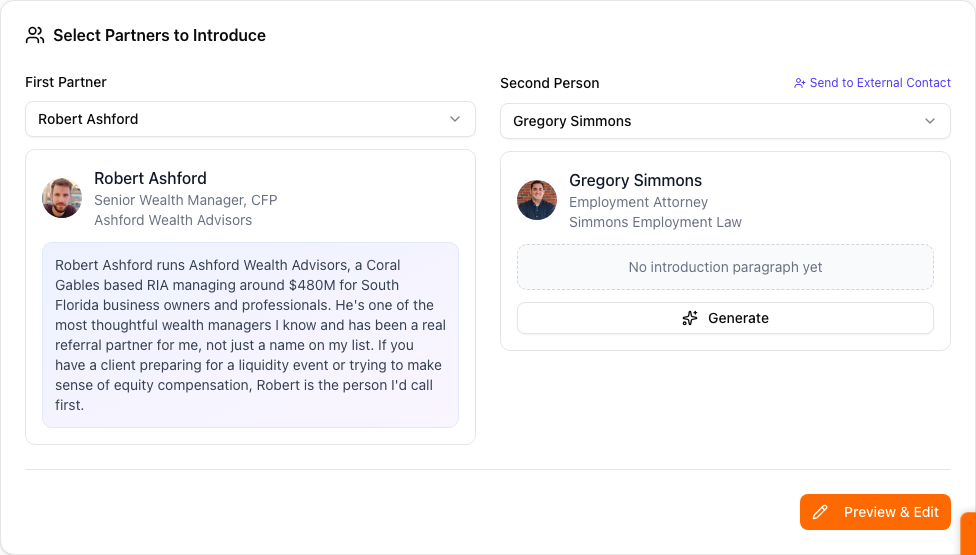
The draft is only as good as the partner profiles. If the email reads generically, fill in each partner's introduction paragraph (a few sentences in your own voice describing what they do, what makes them great, and who they help). The Generate button on each card writes a first draft you can edit. Once both paragraphs are good, the assembled email reads like you wrote it yourself.
Check with both first
Where to find it: Sidebar → My Network → Introductions → Make an introduction, then Check if Each Party Wants the Intro? at the top of the page.
Most people already do this by hand. Before sending "Sarah, meet Tom" they send two short notes asking each person whether they want the introduction, and only send the real thing once both have said yes. It protects the one thing you cannot get back, which is your standing with both of them.
Check with both first does that for you. Your assistant drafts both notes in your own words, you send them from your own mailbox, it watches for the answers, and it comes back to you when both people have said yes.
- Answer Yes, check first at the top of the compose page, then pick both people as usual. The order does not matter: the choice can be changed until you send.
- Click Review the two notes. The window carries one tab per person, each holding a short note of around sixty words. Read them, edit anything you want, change the subjects if you like.
- Click Send both notes. The two go out separately, one to each person. Neither is copied on the other's note, so each of them only ever sees the question you asked them.
Each note asks the question and nothing else:
Subject: Quick question, Tom
Hi Tom,
Would you want an introduction to Sarah Chen? She runs the estate practice at Bellamy Cole and works with the same families you do.
If yes, I will send you both a note. If the timing is not right, just say so, no problem either way.
While you wait
A Waiting on replies section appears at the top of the Introductions page, above everything else, with one row per check. Each row says where both people stand, by name:
- Checking with both, while neither has answered.
- Waiting on Tom Nguyen, once one of them has.
- Both said yes, when the introduction is ready for you.
- Tom Nguyen passed, when somebody would rather not.
Replies are read as they arrive and the answer is recorded for you. When a reply is too vague to call, your assistant does not guess. It raises a Did Sarah Chen say yes to an introduction to Tom Nguyen? card on your home page with the reply quoted, and you settle it in one click. You can also open the check and use Mark as yes or Mark as no yourself for as long as it is open, which is what you want when somebody answers you in person or over the phone.
When both say yes
The introduction is drafted for you and a Review the introduction card appears. Opening it takes you to the compose page with the draft already loaded, and you read it over and send it the way you would any other introduction. Nothing in this flow goes out on its own, the final introduction included.
From there it behaves like every other introduction: it joins the All introductions list and moves through replied, met, referred and closed.
If it stalls, or somebody passes
- At two days, if somebody has not answered, a nudge is drafted for you to read and send.
- At seven days the check runs out of time. You can ask again, send the introduction anyway if one person said yes, or close it out.
- At fourteen days, a cleared introduction you never got around to sending goes stale and comes off the list, on the grounds that "both said yes" two weeks ago is no longer a fresh yes.
- When somebody passes, use Close it out with Sarah Chen to send the person who said yes a short note. The person who passed hears nothing further, and nobody is told who declined.
- Cancel sits on the check for as long as it is open. Neither person hears anything when you use it.
Checks count nowhere in your numbers. Nothing reaches your introduction reporting until a real introduction goes out.
Making it your default
Whichever option you pick on the compose page becomes your default for next time, so the choice sticks without a trip to Settings. To set it directly: Sidebar → Settings → Notifications → Introductions → How an introduction starts. New accounts start on Send the introduction now.
If the two people already know each other, the compose page stays on No, send it now and says so, because there is nothing left to ask.
Your assistant learns how you word these. Every note you actually send becomes the example for the next one, your edits included, and the drafts you never sent are ignored. Cut the first draft down to two lines and the next one comes back short. Three or four of your own is usually enough for the drafts to sound like you.
Track what happened next
Where to find it: Sidebar → My Network → Introductions.
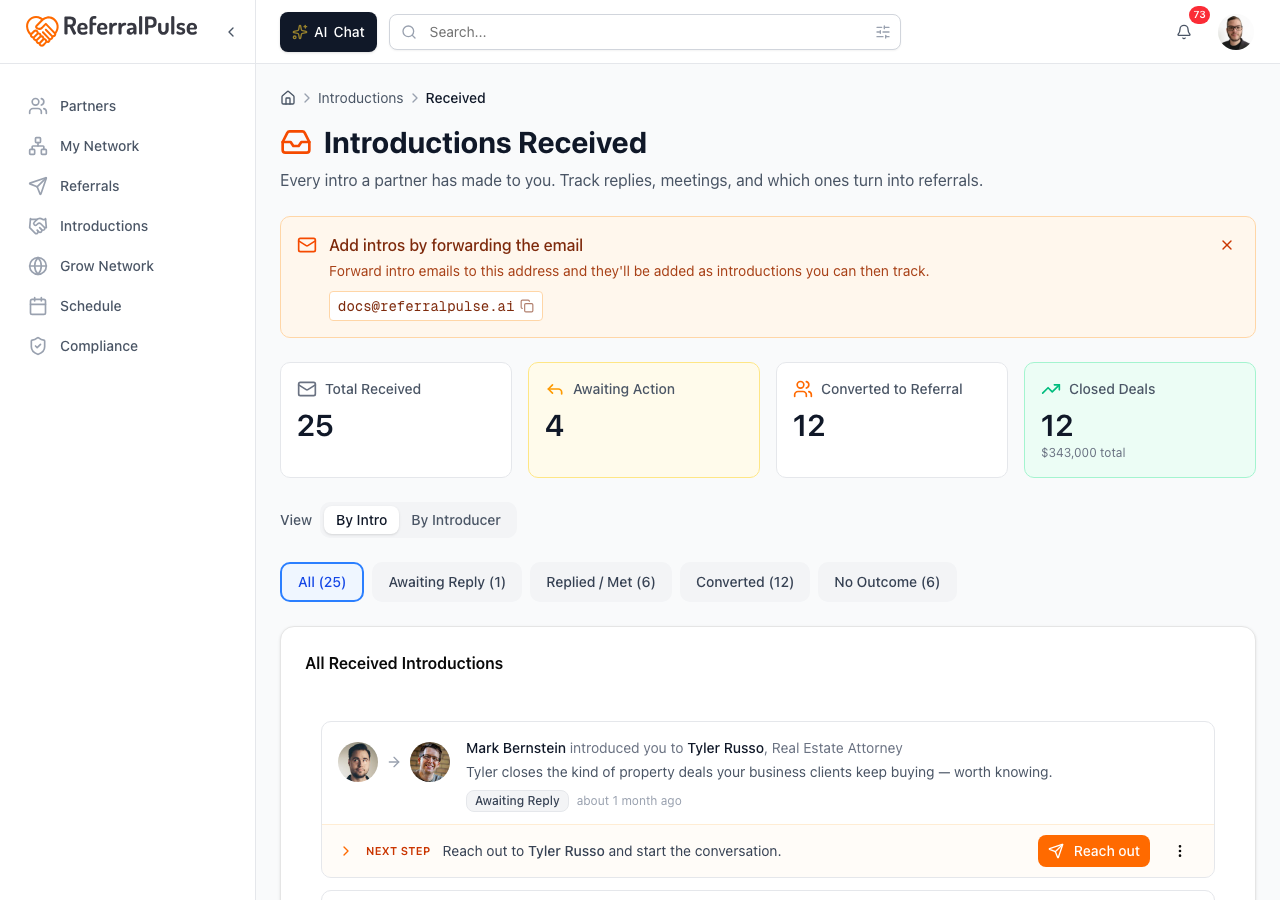
Each row in the list shows the two people, which direction the introduction ran, how long ago it went out, where it has got to, and the one next step that would move it along. Opening an introduction shows the whole chain, from sent through replied, met, referred and closed.
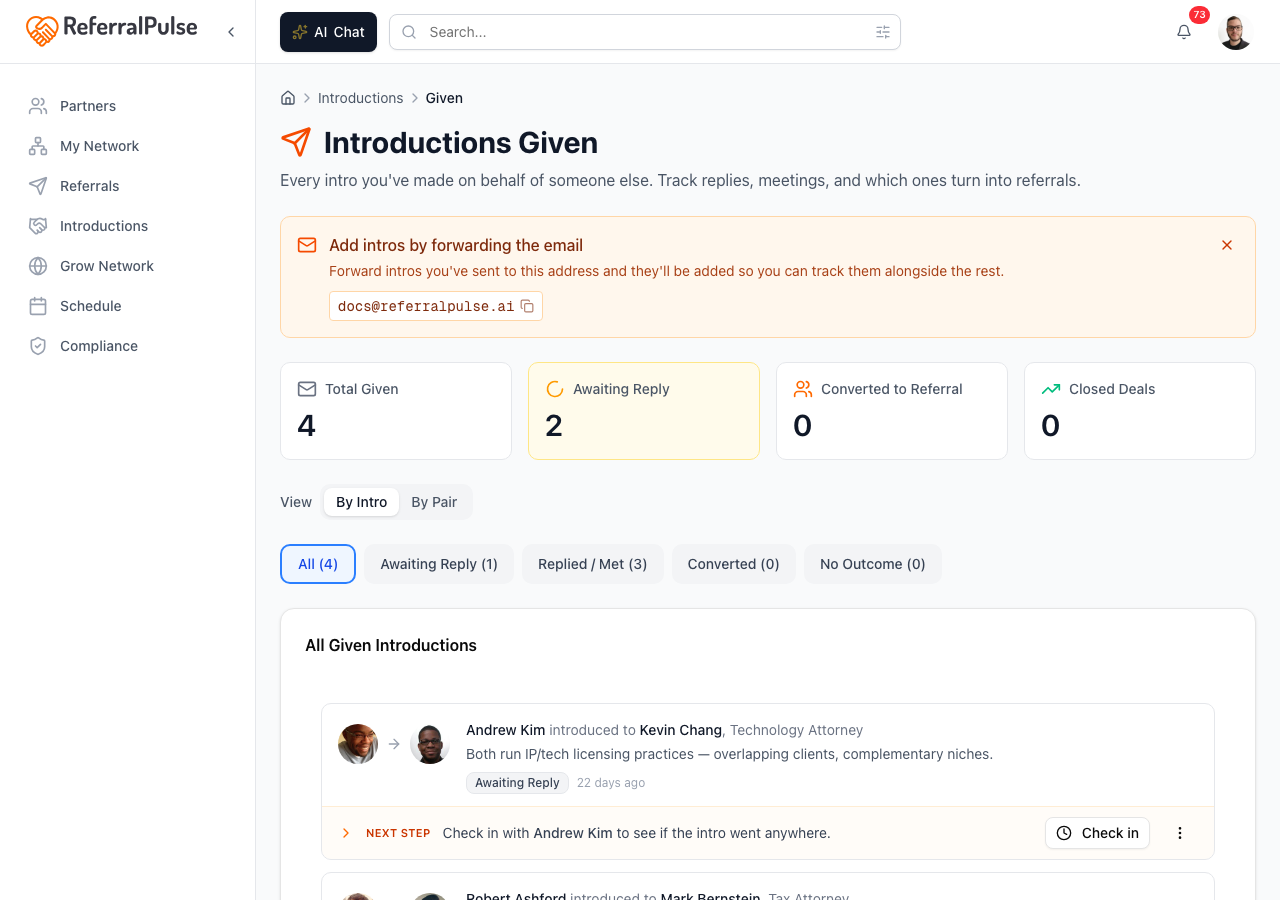
The next step depends on the introduction:
- For one you made, nudge the partner who has gone quiet, log that they met, mark it converted to a referral, or mark it as gone nowhere.
- For one made to you, reply to the introducer or the new contact, mark that you met, or mark it as gone nowhere so it stops nagging.
Switch to By partner to see every introduction grouped under the person involved, which is how you spot the partner who keeps making things happen and the one who has not made an intro since March.
Work the Needs attention card first and the list second. It pulls the intros that are genuinely stuck: the ones you have not replied to, the ones where a partner has gone quiet, and the ones where you met and owe a thank-you. Clearing it top to bottom beats scanning the whole list.
When an intro converts to a referral and that referral closes as won, the value flows back into your introduction numbers. Linking the referral to the intro it came from is what makes that math work, so pick the intro from the picker on the referral form when you log it.
Log one that already happened
Where to find it: Sidebar → My Network → Introductions → Log a past introduction (top right).
For the introductions you made or received before you started using the app, or over the phone, or in a room. Say who was involved, which direction it ran and roughly when, and it joins the same list and the same reporting as everything else.
Import introductions next to it brings a batch across at once.
See the numbers
Where to find it: Sidebar → Network Health → Reports → Introduction Reports.
The reporting view: Intros you made and Intros made to you as two funnels, How long each step takes with amber where something is running long, Introductions over time, Top connectors and Who you introduce most, where your intros come from, and how many of your partners you have because somebody introduced you.
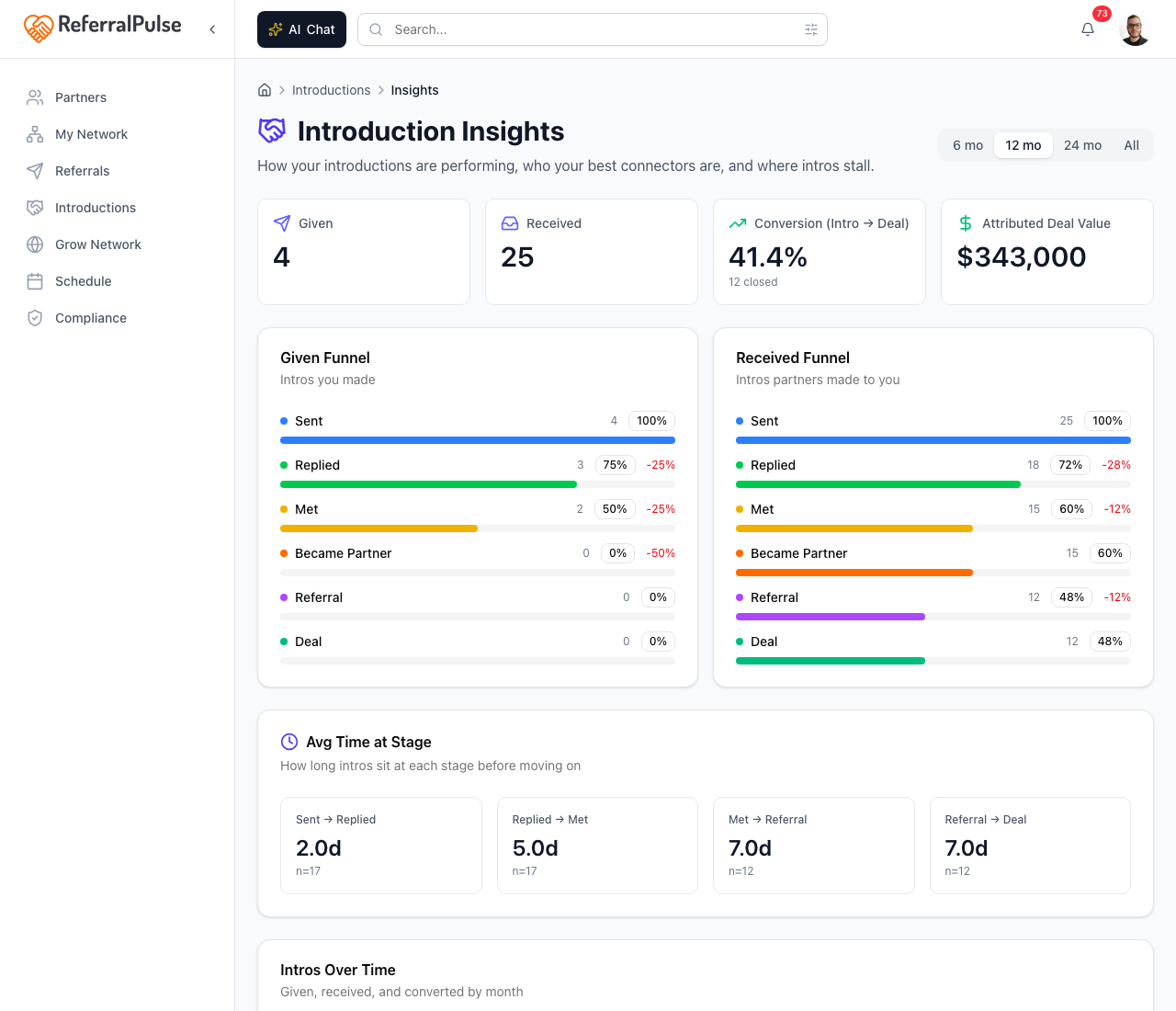
This page is most useful once you have ten or twenty intros logged. Before that the charts are sparse and the rankings aren't yet meaningful.
By voice or in chat
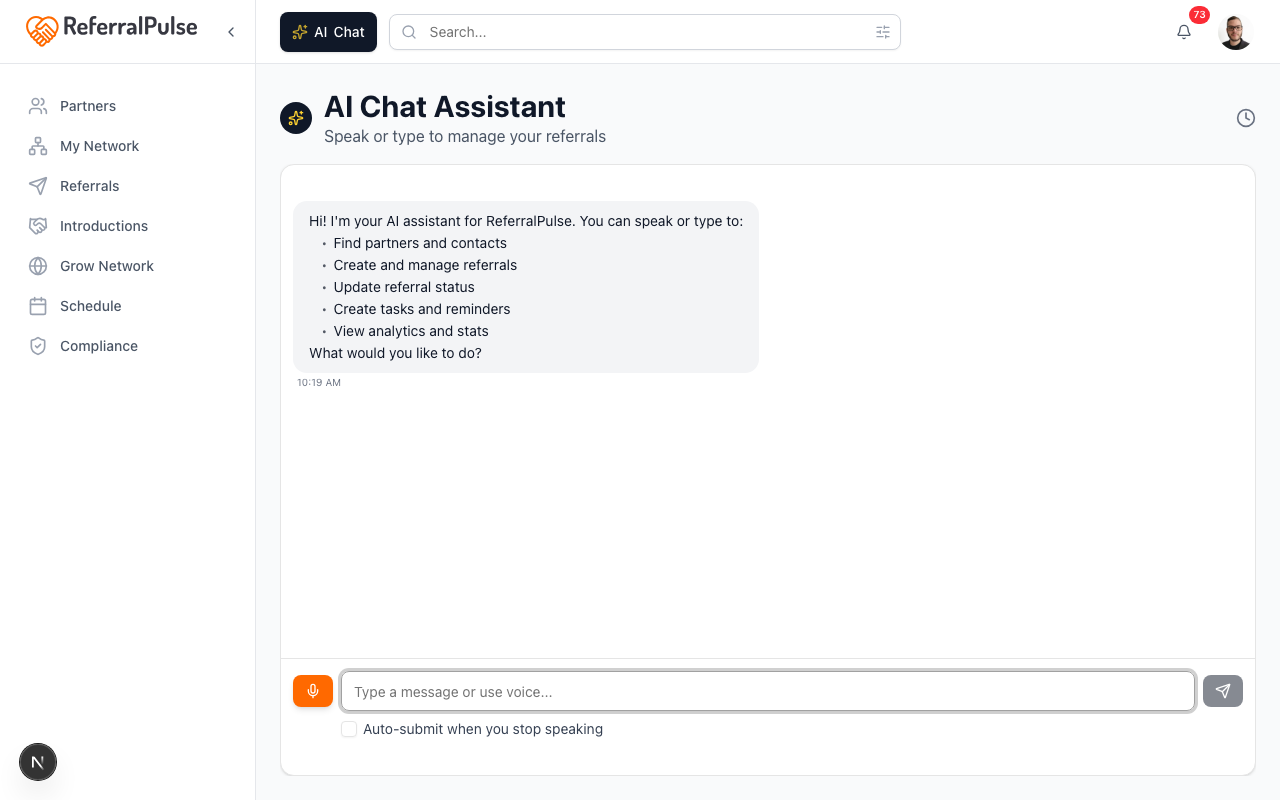
Where to find it: The Ask button in the bottom right of any page (it carries your assistant's name). On iOS, the same chat opens from the Chat tab in the bottom navigation.
You can describe an intro instead of opening the form.
Introduce Sarah Chen to Marcus Johnson. Sarah's a CPA, Marcus is a financial advisor, they should know each other.
The assistant pairs the two partners, drafts the email using each one's saved introduction paragraph, and shows you the draft to confirm before sending. If either partner has a thin profile (no introduction paragraph yet) the assistant tells you and offers to use a generic intro or wait while you fill it in.
If you would rather ask first, say so and the two notes are drafted instead: "introduce Sarah to Marcus, but check with them both first". You can follow a check the same way. "Did Marcus get back to me about Sarah?" reads back where it stands, and "Sarah said yes" records her answer, which drafts the introduction once the second yes lands.
You can also ask about your existing intros: "what's the status of the Chen and Johnson intro?" or "how many intros am I waiting on?" and the assistant answers from your data.
Get more out of your assistant
The single field that has the biggest effect on the quality of every intro draft is the Introduction paragraph on each partner's profile. It's a short, in-your-voice description of who the partner is, what they do, and who they help. The compose flow stitches the two partners' paragraphs together to build the body of the introduction email.
Two other things shape the quality of what your assistant produces in this section:
- Type of business on each partner. Drives the intro suggestions the assistant offers when you ask "who should I introduce?"
- Linking referrals to their originating intro. Lets the conversion-rate KPI and the Insights page tell you which of your introductions actually produce business.
Spend ten minutes on your top five partners' introduction paragraphs. The compose drafts go from generic to genuinely useful, the intro suggestions your assistant offers get smarter, and you stop having to rewrite the same boilerplate every time.
On the iOS app
Where to find it: Bottom navigation → Chat tab (microphone icon). Or open the Introductions tab from the hub.
On iOS, voice is the natural way to make an intro between meetings.
Connect James Doyle and Linda Tanaka. James handles commercial insurance, Linda is a wealth advisor for business owners. They'd be great for each other.
The assistant pairs them, drafts the email, and reads it back to you. The draft comes back as a card with a Send button on it, because nothing your assistant writes goes out until you send it yourself. Say "check with them both first" and you get the two notes instead, on the same kind of card.
You can also dictate updates after a meeting:
The Doyle and Tanaka intro went well, they met for coffee this morning, mark it as met.
The status updates without you ever opening the list page.
Voice is also good for catching up: "what intros am I behind on?" returns the same Needs Attention list as the hub, read out loud. You can act on each one (reply, mark met, mark gone nowhere) by voice without ever looking at the screen.