The partner detail page
Every partner has a detail page that's the single place you go to know everything about that relationship. Their profile fields, your private notes about them, the metrics for your referral history together, the activity timeline, and any compliance information if you exchange commissions. The page is also where you take action on a single relationship: invite them to connect, send them a referral, edit their details, or ask the assistant about them.
Where to find it
Where to find it: Sidebar → My Network → Partners → click any row in the partners list. Direct URL: /dashboard/partners/{partner id}. Also reachable from any partner card anywhere in the app (referrals, intros, meeting attendees, Alerts & Tasks).
The page opens with a breadcrumb back to Partners, with an actions menu (⋮) at the right end of the same line. The menu holds Edit partner, View referral history, Log an entry, Send a referral, Move to (another tier), Delete partner, and a switch to stop your assistant nudging you about this person.
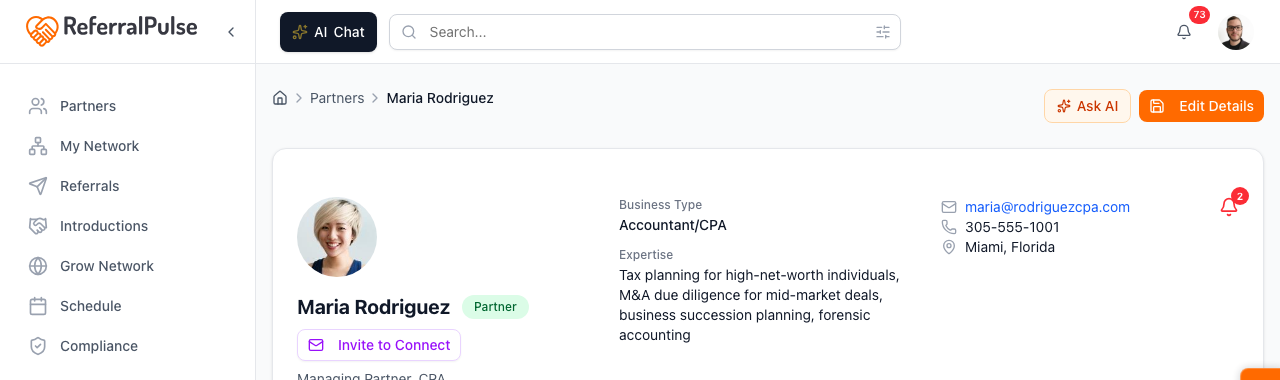
Below that, the partner card carries the photo, name, tier badge, contact details and the state of your connection:
- Invite to Connect. Shown when you have their email and they have not been invited. They claim their own profile and updates flow both ways from then on.
- Re-invite. Replaces it when an invitation is outstanding or has expired.
- On ReferralPulse or Profile shared. Shown once they are connected.
If your assistant has anything open for this partner, an Action Items for {their first name} section appears below the card, with a button on every item so you can act without leaving the page. See Action items on the partner page for what shows up there and what each button does.
The seven tabs
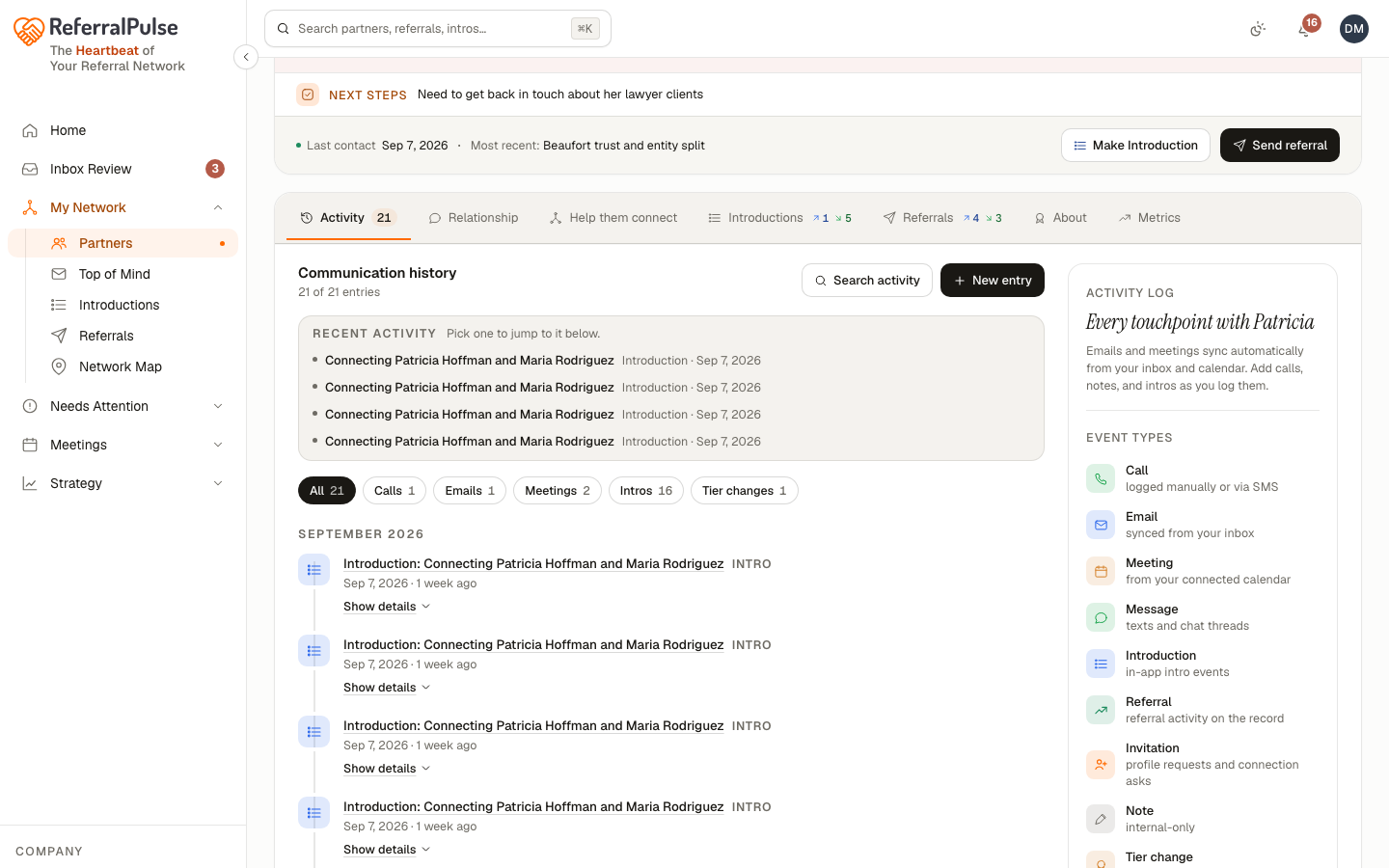
Left to right: Activity, Relationship, Help them connect, Introductions, Referrals, About, Metrics. Several carry a count so you can see where the substance is before clicking.
Edit their details
Where to find it: Sidebar → My Network → Partners → click a row, then click any value on the page: the drawer opens on that field. The ⋮ menu's Edit partner opens it at the top.
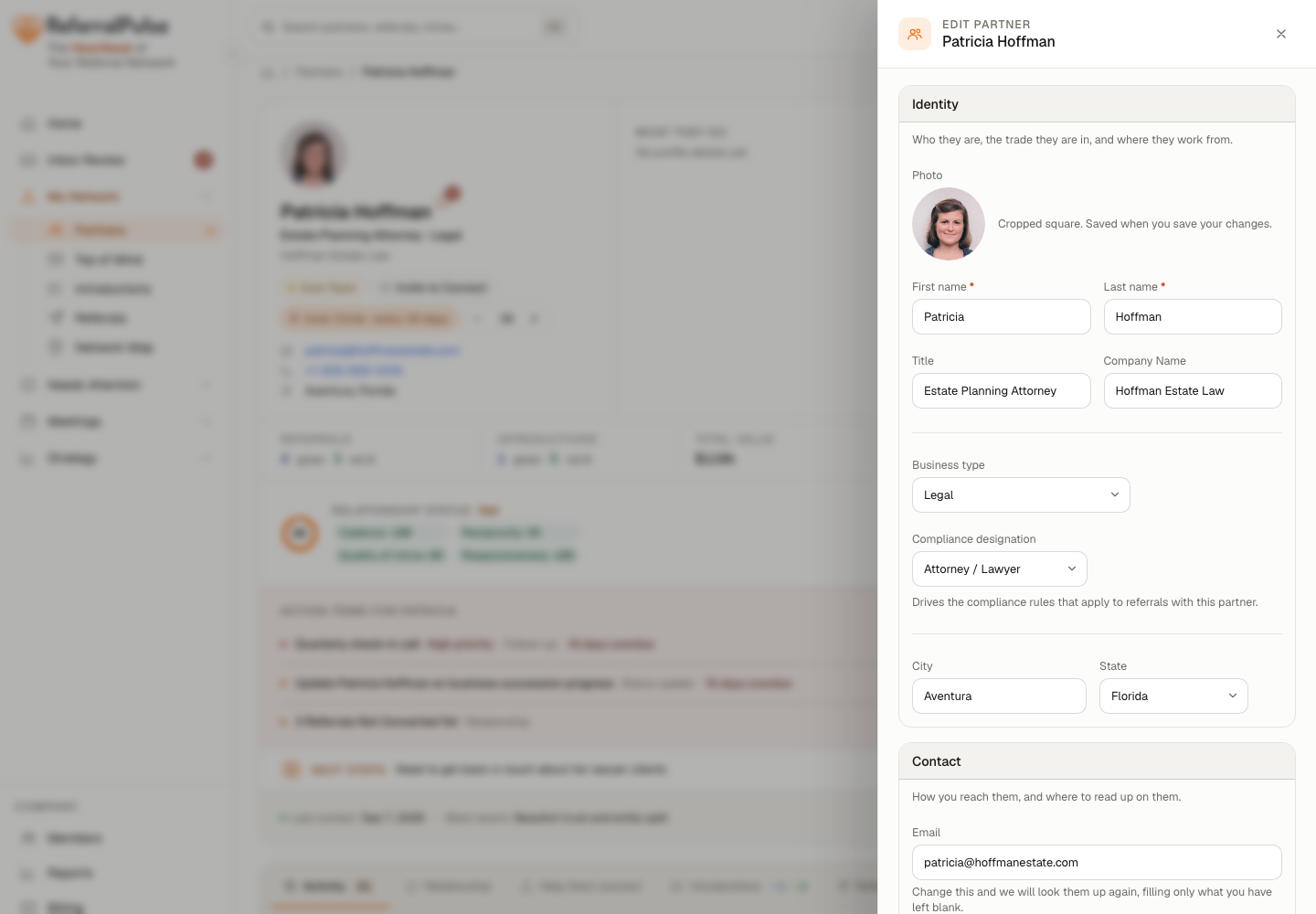
The drawer's sections mirror the tabs, so what you edit and what you read sit in the same order:
- Identity. Name, photo, title.
- Contact. Email, phone, website, LinkedIn.
- What they do. Type of business, expertise, specialties, who their ideal client is.
- Partners they want to meet. The kinds of partner they are looking for. This is the field that decides who the app suggests introducing them to.
- Affiliations & languages. Networking groups they belong to, and the languages they practise in.
- Your relationship. Tier, where you met, how you know them, and whether you have a fee arrangement.
- How you introduce them. The paragraph in your own words that every intro draft is built from.
- Your private notes. Birthday, family, preferences. Never visible to the partner.
Paste a LinkedIn URL into the contact section and any blank fields fill in from their public profile. Anything you have already typed stays exactly as you left it. Useful for the partners you added in a hurry with just a name and an email.
Activity
Where to find it: Sidebar → My Network → Partners → click a row → Activity tab.
Every touchpoint with this partner, grouped by month: emails, calls, meetings, texts, referrals, intros, notes and tier changes. An email exchange folds into one entry rather than printing five times, so a long thread reads as one conversation.
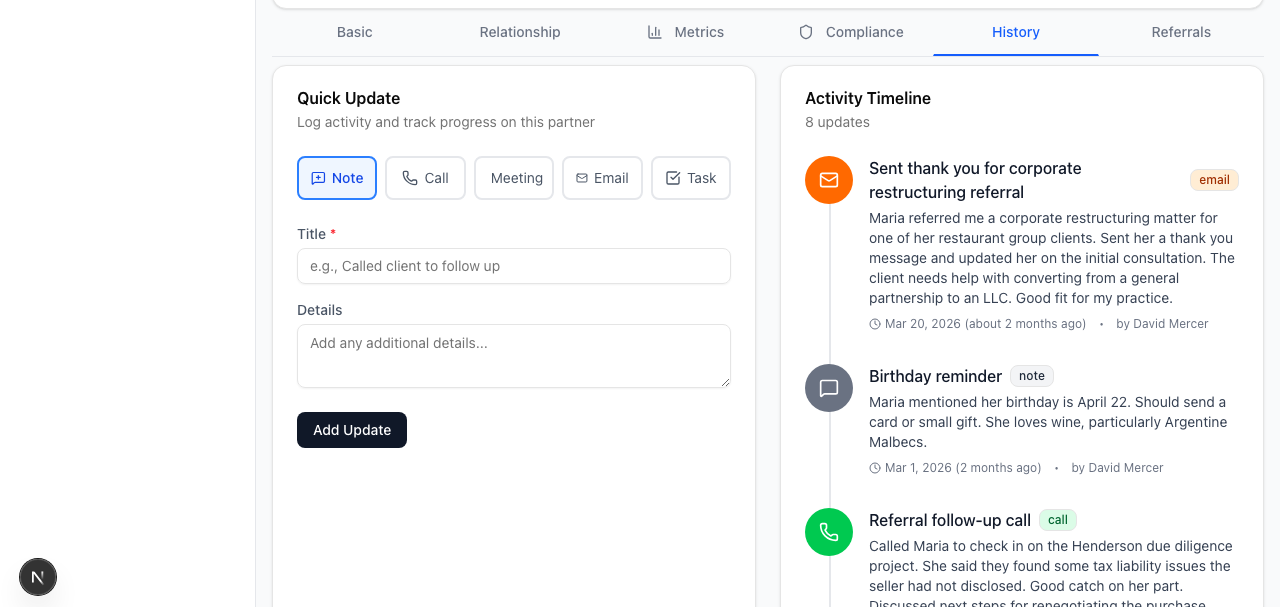
Log an entry from the actions menu adds a call, meeting, email or note by hand, and it appears in the timeline straight away.
Relationship
Where to find it: Sidebar → My Network → Partners → click a row → Relationship tab.
The private, in-your-voice context. Visible only to you, never to the partner: where you met, how you know them, their birthday, your personal notes, and the paragraph you use when you introduce them.
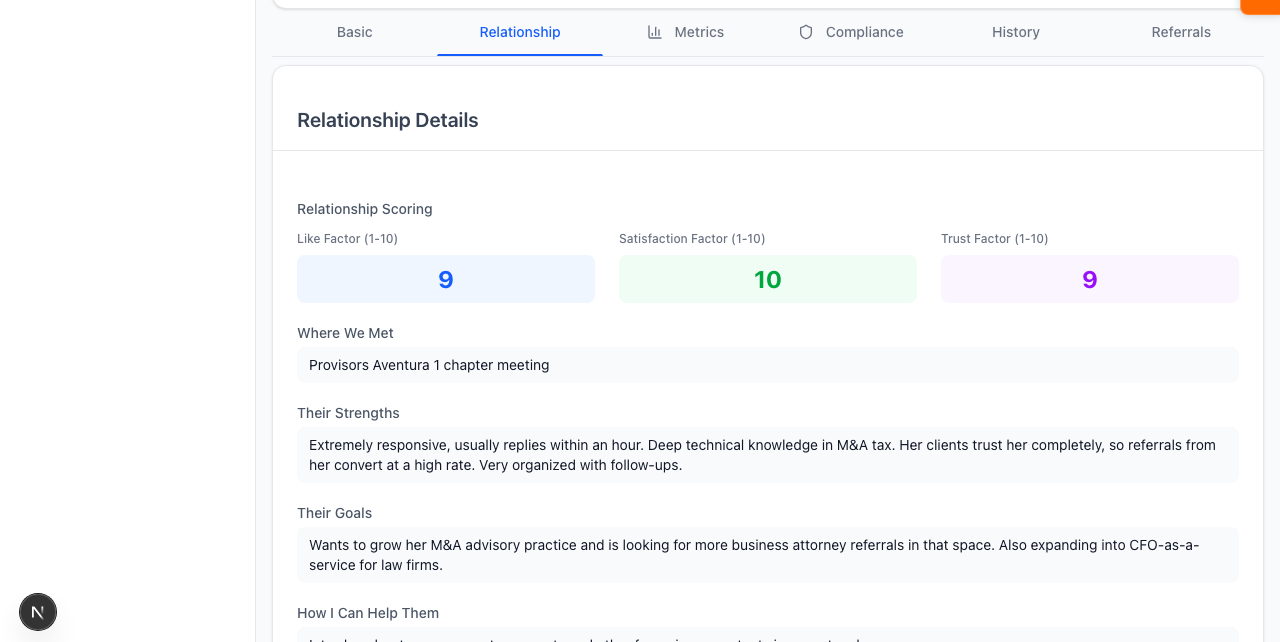
The highest-leverage field in the whole app is the paragraph you use when you introduce them. Spend two minutes on it for your top ten partners and the intro drafts stop sounding generic. There is a button to write a first version you can then edit.
Help them connect
Where to find it: Sidebar → My Network → Partners → click a row → Help them connect tab.
Who in your own network should meet this partner, matched against the kinds of partner they said they want to meet. Each suggestion has a button that opens the introduction already addressed to both of them.
This is the tab that turns a partner list into a network. Working it for one partner a week is the single cheapest way to become the person who makes things happen in your circle.
Introductions and Referrals
Where to find it: Sidebar → My Network → Partners → click a row → Introductions tab or Referrals tab.
The Introductions tab lists every intro involving this partner, with a badge splitting what they gave from what they received, and where each one landed.
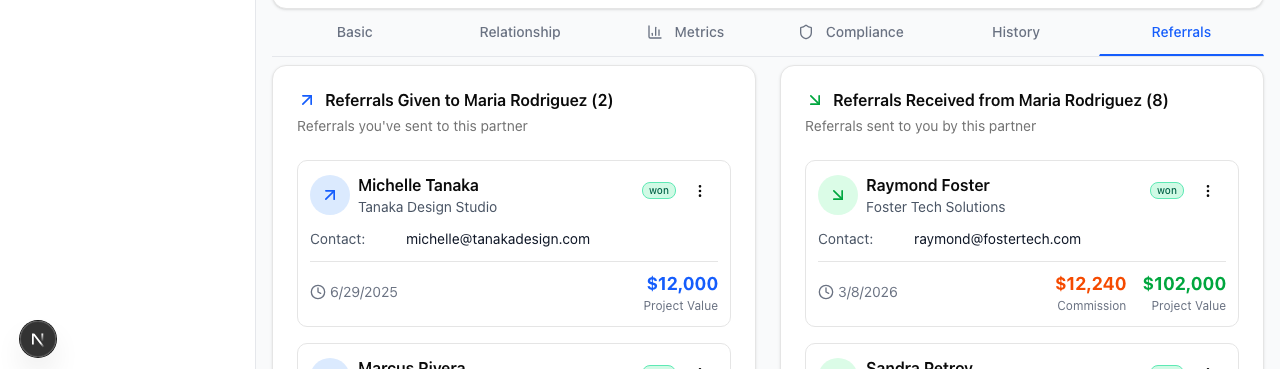
The Referrals tab lists every referral between you, in both directions, with status, value and a way into the referral itself.
About
Where to find it: Sidebar → My Network → Partners → click a row → About tab.
Everything factual about the partner rather than about your relationship with them.
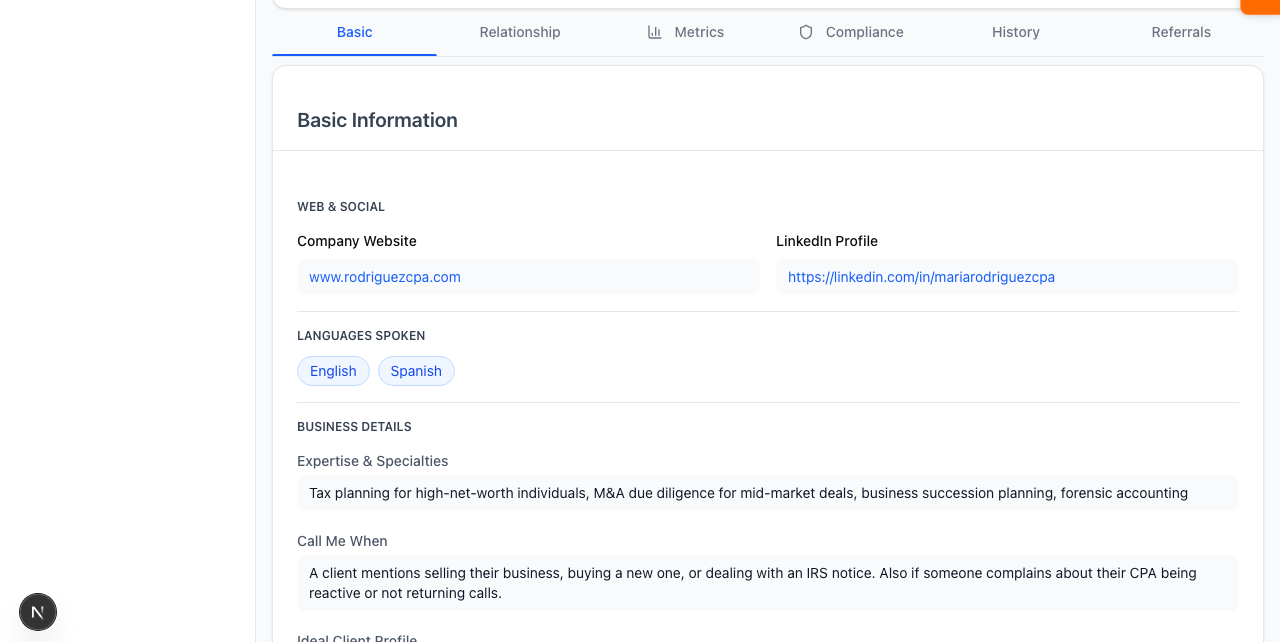
- Profile. Identity and contact.
- Affiliations & languages. Networking groups they are part of, and the languages they practise in.
- Practice details. What they do and who they do it for.
- Industries & referral fees. The industries they serve, and whether a fee arrangement exists between you.
- Company. Where they work.
Read the metrics
Where to find it: Sidebar → My Network → Partners → click a row → Metrics tab.
The data view of the relationship:
- Referral volume. Referrals routed via this partner over the last twelve months.
- Reciprocity. Given against received, which is the fastest tell for a one-sided relationship.
- Responsiveness. How fast they act, and how it lands.
- Service mix. What kind of work flows in each direction, split into what they send you and what you send them.
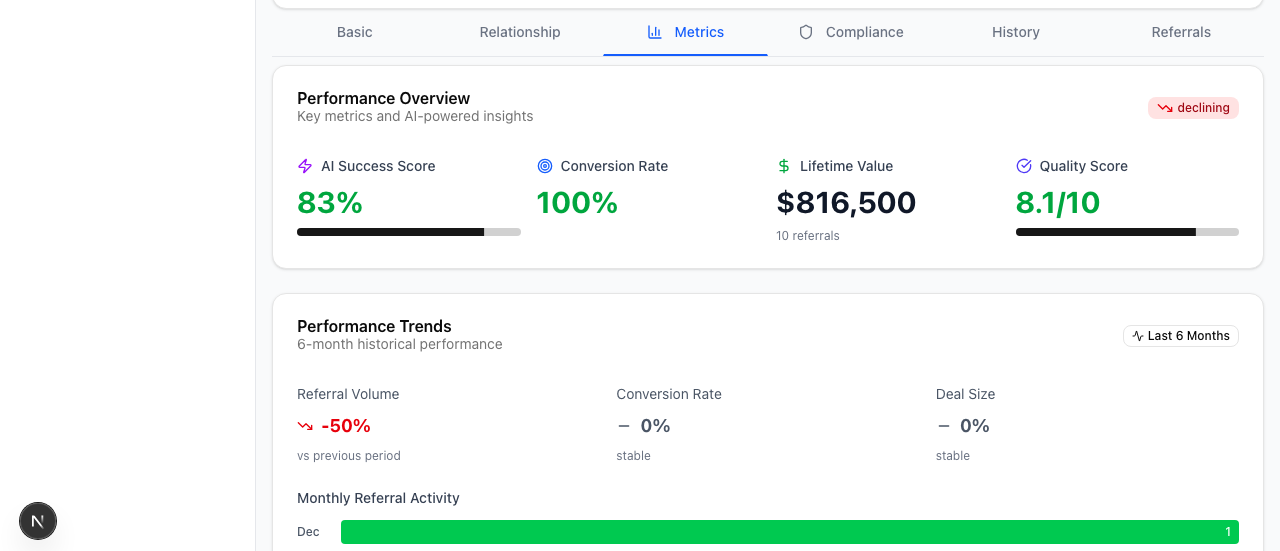
Reciprocity is the one to check before you invest more. If you have sent a partner several referrals and had none back, or the reverse, that is worth a conversation rather than another referral.
Compliance
If you exchange commissions or fees with this partner, their paperwork lives in the compliance workspace rather than on this page: agreements, disclosures, W-9s and payments. See Staying compliant with referral fees for the walkthrough.
The Industries & referral fees card on the About tab is where you record that an arrangement exists in the first place.
By voice or in chat
Where to find it: The Ask button in the bottom right of any page (it carries your assistant's name), or the search box at the top (⌘K).
The assistant can read and update most of what's on this page. It can also answer questions about what was discussed in recorded meetings with this partner.
Tell me about Sarah Chen.
What's the last thing I did with Marcus Johnson?
Set Patricia Hoffman's introduction paragraph to "Patricia is a commercial real estate attorney with twenty years of experience who only takes on clients she believes in."
Open Sarah Chen's profile.
What did Demetrio say about his law clients in our meeting yesterday?
The assistant pulls the relevant section, and for updates it makes the change after you confirm. For meeting content questions, the assistant reads the transcript from any recorded meeting to answer.
Get more out of your assistant
A few fields on the partner detail page do the most for the recommendations the assistant makes about this specific partner:
- Type of business, on the About tab. Drives partner suggestions, intro pairing and gap-finding.
- Partners they want to meet, in the edit drawer. Decides who the Help them connect tab suggests, and who you get nudged to refer to them.
- How you introduce them, on the Relationship tab. Drives the warmth and accuracy of every intro draft written for this partner.
- Activity logged. Every referral, intro, meeting, and email logged against this partner refines the assistant's read on the relationship. The more activity is in the timeline, the more specific the assistant's suggestions and the metrics on this page become.
When the partner is also a ReferralPulse user (you'll see a green dot on their avatar), the data flow is two-way. Updates they make to their own profile show up as a partner update alert in your bell, and you can sync the changes you want into the partner record on your side. See Alerts and notifications.
On the iOS app
Where to find it: Bottom navigation → Partners tab → tap any partner card.
The mobile detail page carries the same tabs, sized for a phone. Tap any field to edit it. The fastest path on a phone is usually to ask your assistant rather than scroll.
On iOS, the fastest way to update a partner's notes after a conversation is to ask the assistant: "add a note to Sarah Chen, met for coffee, she's expanding into commercial real estate and wants intros to commercial brokers." The assistant updates the personal notes and the desired referral types in one go.