Alerts and tasks
Tasks is one list for everything waiting on you. The emails your assistant has drafted for you to review, the tasks you set for yourself, and the alerts your account has raised all sit in the same queue, sorted by what is most overdue. It is the page to open when you want to clear the decks rather than hunt through three different screens.
You always review a draft before it goes out. The app never sends anything on your behalf without you clicking the send button.
Where to find it
Where to find it: Sidebar → Tasks.
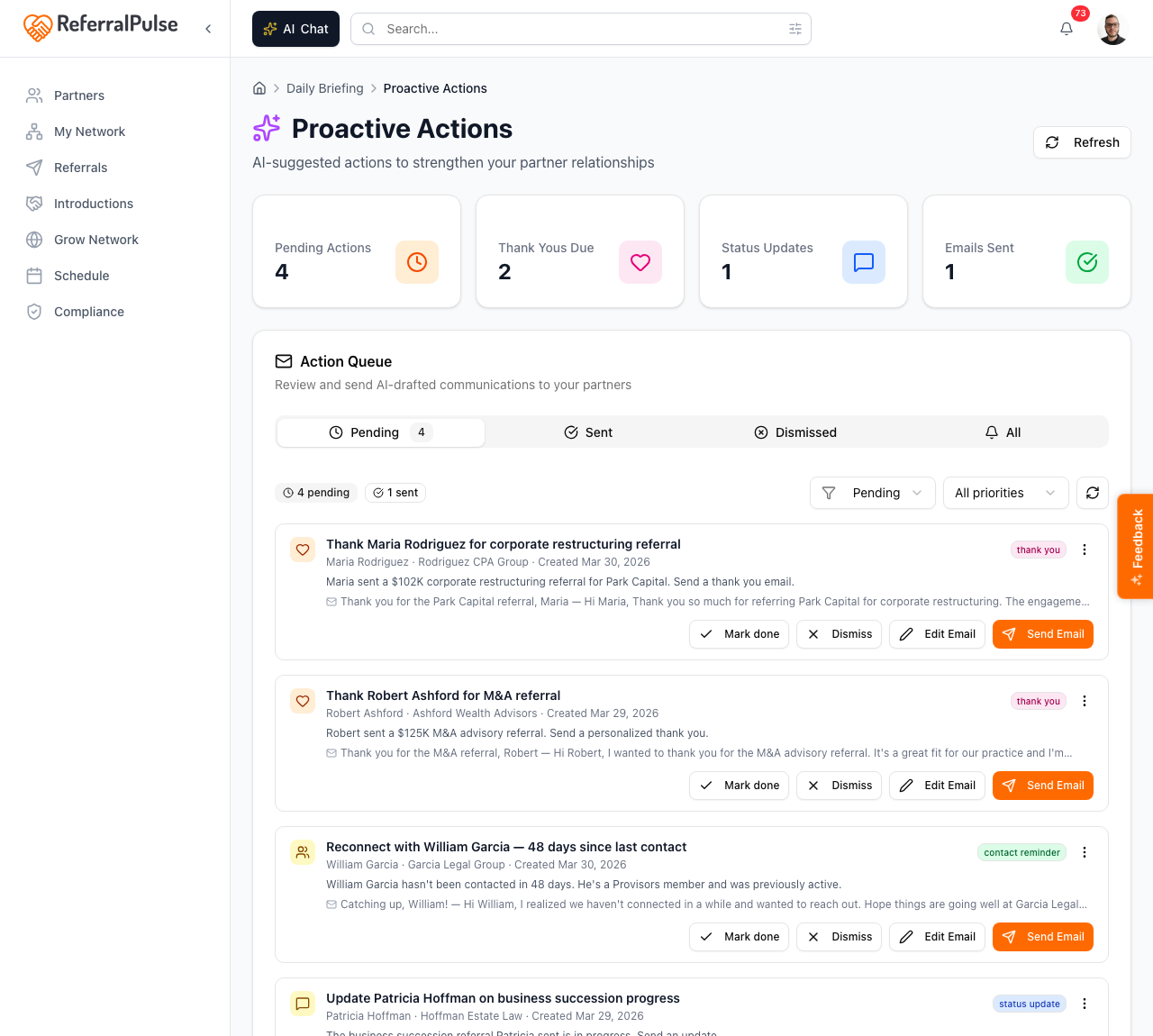
Under the title it says what it is: everything waiting on you, your assistant's actions, your own tasks and your account alerts, in one place. Refresh and New task sit in the top right.
The page is one card, labeled Queue, with a count of how many things are waiting. Its header holds a search box for actions, tasks and alerts, and an Urgency / Type switch that decides how the rows are stacked. To the right of the chips, three running figures: Open, Overdue and High priority.
The rows themselves are a table: the item, the partner it is about, when it is due, and the action.
You can also reach the same items from two other places:
- The Daily Brief on your home page, which pulls the drafts that are ready to send into the day's worklist so you can clear them without leaving home.
- The bell icon in the header. The dropdown shows the most recent items with a count badge on the bell, and clicking one takes you to it.
The four chips
Under the card header sit four chips, each with its own count:
- All. Everything, in one list. This is the default.
- Actions. Emails and decisions your assistant has prepared for you.
- Tasks. The to-dos you or a meeting created.
- Alerts. Things your account wants you to know about.
Picking a chip narrows the list, and a second row of chips appears with the states that make sense for that kind:
- Actions: All, Pending, Sent, Snoozed, Dismissed.
- Tasks: All, Open, Completed.
- Alerts: All, Open, Unread, Read, Resolved. The Alerts chip also gets a severity filter with Critical, High, Medium and Low.
The default view already shows you the right thing: pending actions, open tasks and open alerts. Reach for the state chips only when you are looking backwards, like checking what you sent a partner last week.
Grouping by urgency or by type
One switch in the card header decides how the rows are stacked.
- Urgency groups into Overdue, Due today, This week, Later and No date, each with its own count. Overdue is red, due today is amber. This is the view for working through a backlog.
- Type groups by Actions, Tasks and Alerts instead, with a small icon on each row. This is the view for doing all of one kind at once.
Each row carries a relative due label, so you read "3d overdue", "today", "tomorrow" or "in 4d" rather than doing date arithmetic.
Working a row
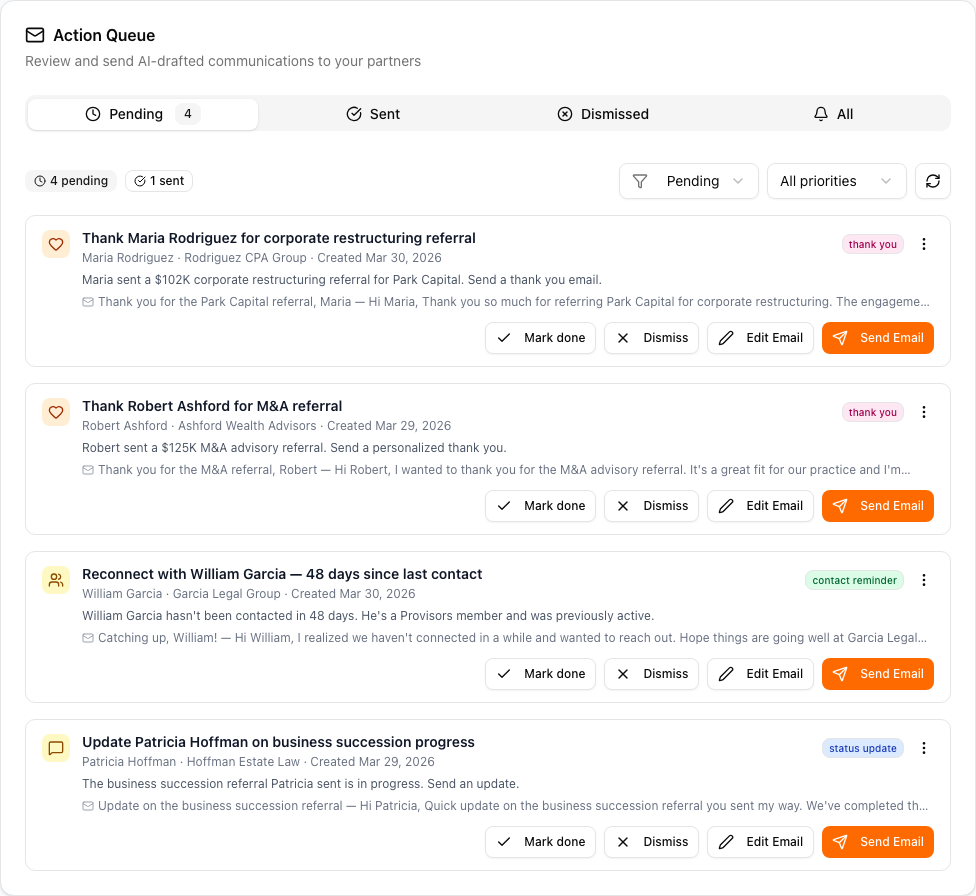
Every row shows what the item is, who it is about, and when it is due. The buttons on the right depend on the item:
- Review & send. Opens the draft editor. This is the main button on an action that already has an email written.
- Generate draft. Writes the email first, for an action that does not have one yet.
- Mark done. Clears the item without sending. Use it when you handled things another way, with a phone call or in person.
- Resolve. Closes an alert once you have dealt with it.
- The icon buttons at the end of the row dismiss or delete the item.
Dismissing or resolving something shows a short Undo so a misclick costs you nothing.
Row titles are links where there is somewhere useful to go. A task title opens that task. An alert title opens whatever it is about. Actions have no title link on purpose: their buttons are the whole point, and the partner name on the row covers "who is this about".
Some alerts are worked out fresh every time you load the page rather than stored. Those say Clears on its own, and they disappear once the underlying situation resolves.
What lands in Actions
- Thank yous for received referrals you have not acknowledged yet. The draft thanks the partner by name and references the client.
- Status updates for referrals where the partner has not heard what happened. If it closed as won, the draft shares the news. If it is still open, the draft gives an honest update so they are not left wondering.
- Stay-in-touch reach-outs to partners you have gone quiet with. Short, friendly, and no pretending there is a business reason if there is not one.
- Meeting prep briefs, which you read in place and mark done. Nothing gets sent.
- Introduction opportunities, which suggest two partners who should meet and open the composer.
- Introduction outcome checks, which ask whether an intro you made led to a meeting.
- Record a new meeting nudges, when you have a meeting with someone who is not a partner yet.
Review and send a draft
Where to find it: Sidebar → Tasks → Actions → Review & send on any row.
The draft editor opens with:
- To. Pre-filled with the partner's email address when there is one. You can edit it or add recipients separated by commas.
- Cc. If you do not have a mailbox connected, you are added here by default so you get a copy. When Gmail or Outlook is connected the message files itself in your Sent folder, so the Cc-self is skipped.
- Subject and Message. The drafted email in a rich text editor, ready to edit.
When it looks right, send it. The send is immediate, with no second confirmation. If you made edits but are not ready, saving keeps them for later.
The drafts are short on purpose. A two-sentence thank-you that goes out today is worth more than a three-paragraph one you keep meaning to write. Send first, edit only if something is off.
Add a task of your own
Where to find it: Sidebar → Tasks → New task (top right).
Give the task a title, a due date and, when it is about someone, a partner. It joins the same queue and sorts by its due date alongside everything else. Tasks also get created for you from meeting recordings, so the follow-ups you agreed to in a call show up here without you typing them.
Tasks you complete stay reachable under the Completed chip, and reopening one is a click.
Quick triage from the bell
Where to find it: Top right of any page → bell icon.
If you only want to peek at what is waiting without leaving the page you are on, click the bell. The dropdown lists the most recent items and links through to the full queue.
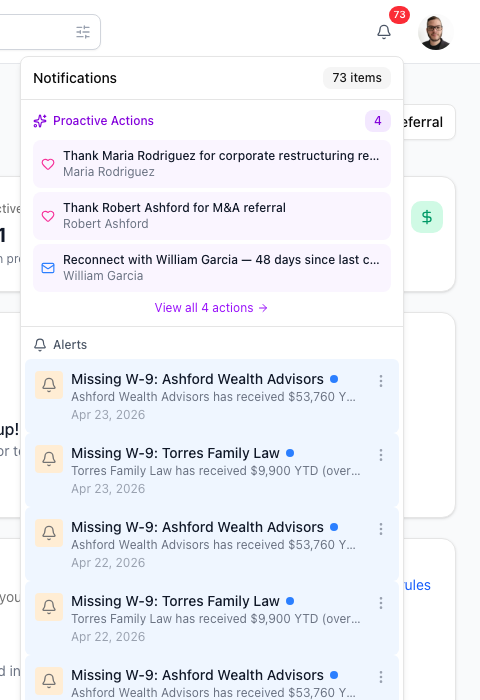
If the bell badge gets large, that usually means several days of unsent thank-yous and status updates have piled up. Five minutes in the queue once a week clears it, and your partners notice the consistency more than they notice any single message.
By voice or in chat
Where to find it: The search box at the top of any page opens your assistant, or press ⌘K.
You can ask about the queue or have new messages drafted outside it. You can also filter by partner tier.
What thank-yous do I owe?
Show me pending actions for my Inner Circle partners.
Draft a thank-you to Patricia for the Greenmark referral.
Send the pending thank-you to Sarah.
Your assistant pulls from the same queue and can send drafts on your confirmation. Anything sent that way shows up under the Sent chip.
Get more out of your assistant
The drafts are only as good as the context your assistant has on each partner and each referral. A few things shape them most:
- How you introduce them. A short, in-your-voice description on each partner. Drives the warmth of the drafts. Without one, the prose is generic.
- Referral status accuracy. Referrals stuck on Open from months ago produce stale status-update drafts. Marking things Won, Lost or Declined as they actually resolve keeps the queue clean.
- Last contact dates. Logging a referral, sending an intro or marking a meeting attended all update your assistant's sense of when you last touched a partner. The stay-in-touch reach-outs are built on those signals.
- Partner tiers. Once your partners are in tiers, you can ask for pending actions, referrals or analytics filtered to a tier and work your most important relationships first.
If a draft sounds wrong, the fastest fix is usually to edit it and send it anyway. What you send and what you dismiss both teach your assistant what you actually sound like.
CC yourself on sent emails
By default you are Cc'd on every email you send from the queue so you have a record in your own inbox.
Where to change it: Top right avatar → Settings → Notifications.
If you have connected a Gmail or Outlook mailbox, the message already files itself in your Sent folder, so the Cc-self is skipped to avoid a duplicate.
On the iOS app
Where to find it: Bottom navigation → Actions tab, or the bell icon in the iOS header.
On iOS the queue is a card feed. Tap a card to open the draft editor, review the email and send it. The "record a new meeting" nudges keep their Yes, record it and No thanks buttons right on the card. Pull down to refresh.
The mobile queue is where this pays off. Five minutes over morning coffee, or between meetings, clears the backlog faster than sitting at your desk. Voice-edit a draft if it needs a tweak, then send.