Push notifications
Push notifications are what buzzes your phone, and quiet hours are when it stays quiet. This page is where you decide which is which. Changes save as you make them.
Where to find it
Where to find it: Top right avatar → Settings → Notifications → Per-device push settings. Direct URL: /dashboard/settings/push.
These preferences follow your account. The alerts themselves go to the ReferralPulse app on your phone, not to the browser you are reading this in.
One alert can also reach your computer: "Your call is starting." When your assistant starts transcribing a call, it alerts your phone and any browser where you clicked Alert me on this computer when the call starts on a meeting page. It opens the meeting so you can put your list on top of the call. It comes through during quiet hours too, since you scheduled the call. To stop it, turn off Realtime meeting assistant. See Your calendar and tasks.
What you get pushed
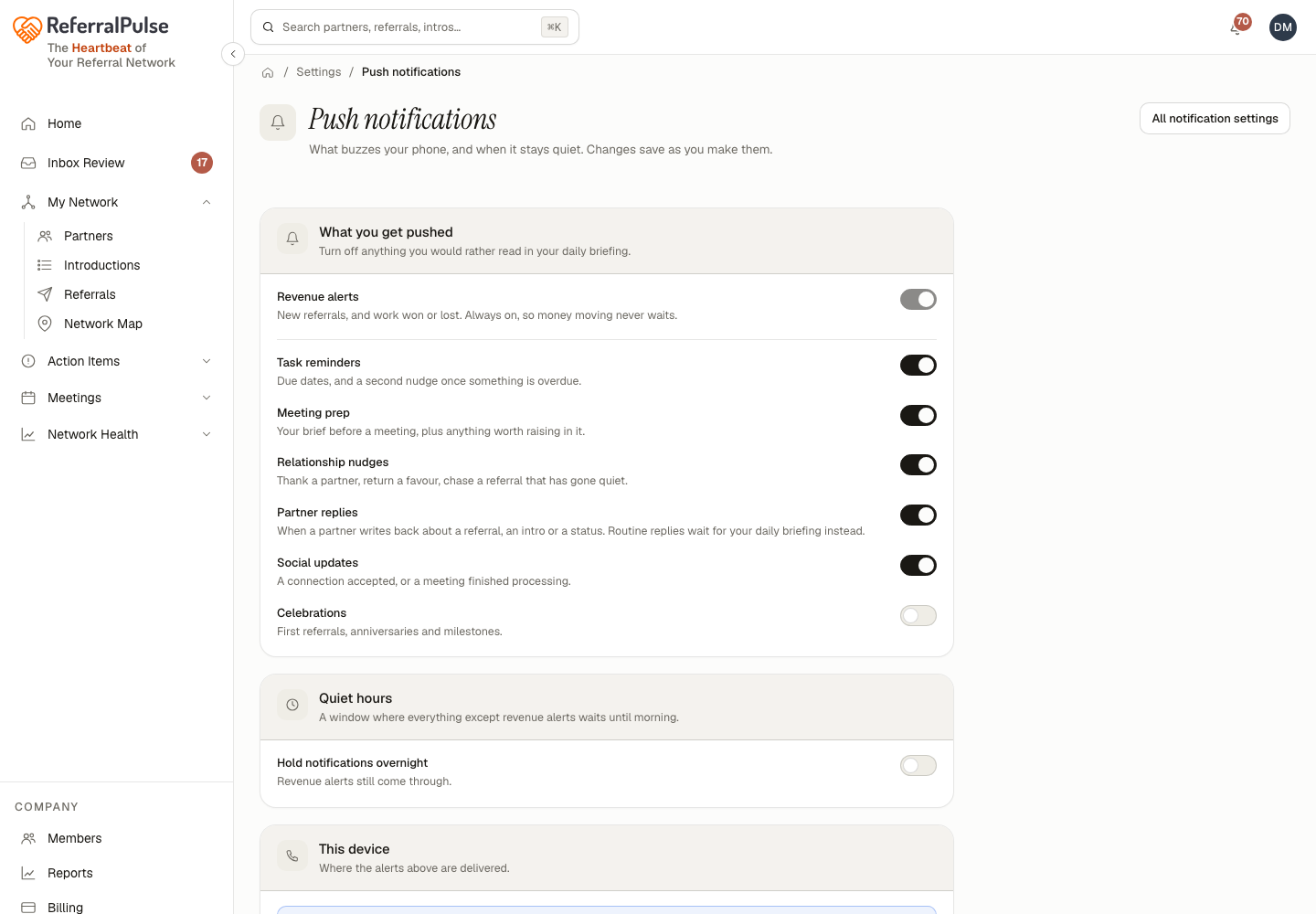
Revenue alerts are always on and cannot be turned off. New referrals, and work won or lost, so money moving never waits.
Everything else is yours to turn off:
- Task reminders. Due dates, and a second nudge once something is overdue.
- Meeting prep. Your brief before a meeting, plus anything worth raising in it.
- Relationship nudges. Thank a partner, return a favor, chase a referral that has gone quiet.
- Partner replies. When a partner writes back about a referral, an intro or a status. Routine replies wait for your daily briefing instead.
- Social updates. A connection accepted, or a meeting finished processing.
- Celebrations. First referrals, anniversaries and milestones.
If push feels noisy, turn off Celebrations first. It is the highest-volume category and the one most people dismiss without reading. Social updates is the second one to go.
Quiet hours
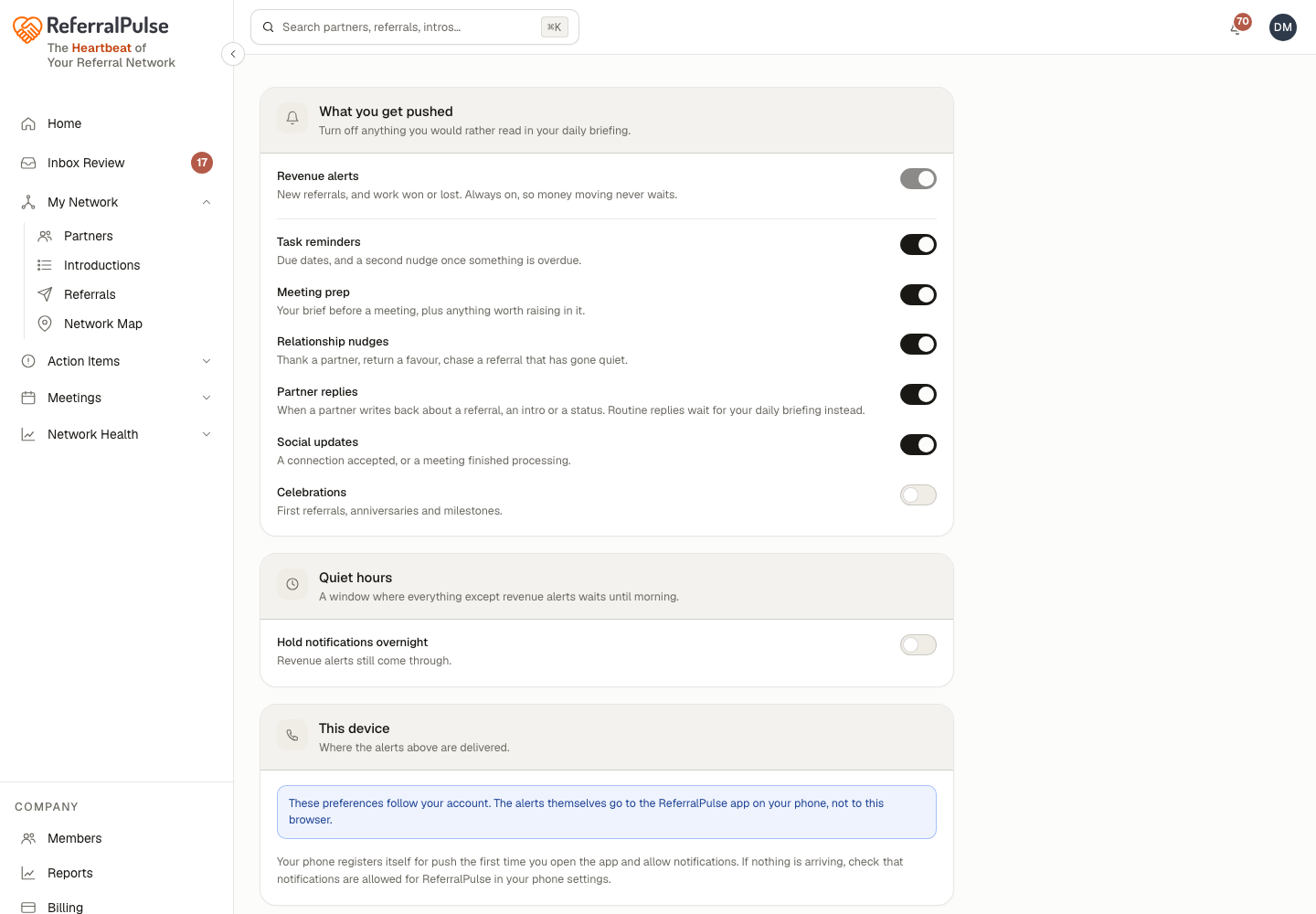
Turn on Hold notifications overnight and everything except revenue alerts waits until morning. Set the window with a start and an end time.
Revenue alerts still come through during quiet hours. That is deliberate: a new referral at 9pm is the one thing worth knowing about before the morning.
This device
The last card tells you whether the device you are reading on is one that can receive push at all. In a browser it will say so, and point you at your phone.
Turning a category on here is only half the job. Your phone's own settings have to allow notifications from ReferralPulse too. If nothing arrives after you have set these, check the operating system's notification settings for the app.
On the iOS app
Where to find it: Bottom navigation → Profile tab → push notification settings.
The same categories and the same quiet hours, on the device they actually apply to. Setting them on your phone changes them on desktop and the other way round, because they belong to your account rather than to one device.