Your profile
Your profile is what the rest of the app and your partners see about you. It's also the single biggest input into the quality of the recommendations your assistant makes for you. The profile editor is a multi-step wizard with a progress bar across the top. New users see four steps. Existing users editing their profile see two (the preferences and partners steps are hidden since they're already configured).
The fastest way to fill it in is to let ReferralPulse do it for you. Paste your LinkedIn URL and the editor pre-populates most of the fields in one click.
Where to find it
Where to find it: Top right avatar (your initials or photo) → Profile. Direct URL: /dashboard/profile?mode=edit. The header is Edit Your Profile with a "Step 1 of 2" badge in the top right (or "Step 1 of 4" the first time you sign up) and a progress bar underneath.
Auto-fill from a LinkedIn URL
Where to find it: Avatar → Profile → on Step 1, the card at the top of the form. It is titled Auto-fill missing fields from LinkedIn when you are editing an existing profile, and Prefill from LinkedIn the first time you sign up.
Paste your LinkedIn profile URL like https://linkedin.com/in/yourname and click Auto-fill. The editor pulls your name, headline, company, location, expertise, languages, and the rest of what's on your public profile. Anything you've already typed stays put.
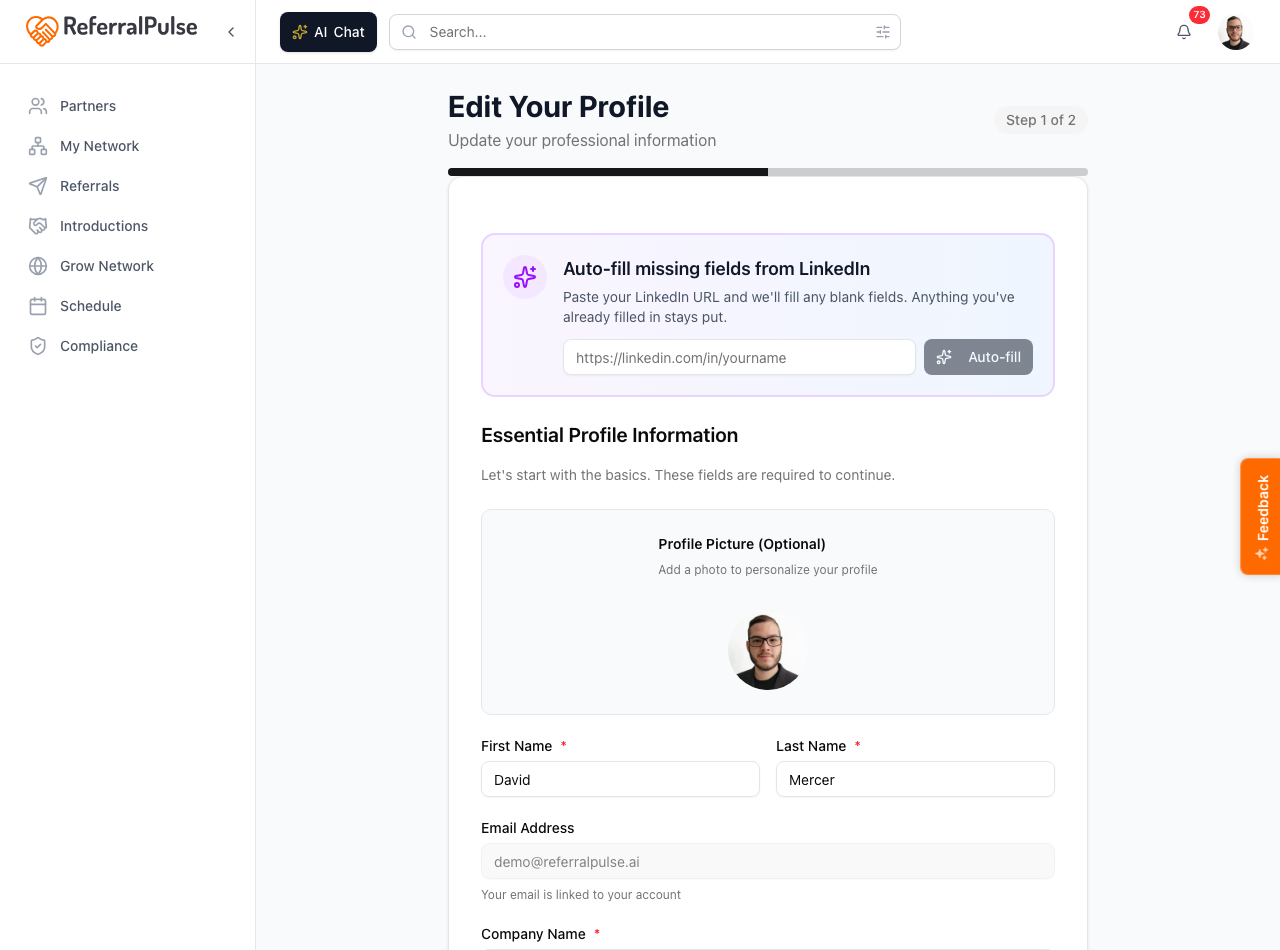
Re-running the LinkedIn auto-fill after you've added new sections to your LinkedIn profile is a one-click way to keep ReferralPulse in sync. The editor only fills in fields that are currently blank, so it's safe to re-run any time.
Edit by hand
Where to find it: Avatar → Profile. Walk the steps using the labeled next button (Next: Business, Next: Preferences, Save Changes) and the Back button at the bottom of each step.
The full wizard for new users has four steps. Editing an existing profile shows the first two:
- Profile. An optional profile picture, your first and last name, email, company name, job title, type of business, the Desired Referral Partner Types checkbox grid, a Compliance Designation (which the app pre-detects from your type of business), and mobile phone. Your email is linked to your account and can't be edited here. First name, last name, company, title, and type of business are required to continue. Type of business and Desired Referral Partner Types drive most of the recommendations your assistant makes about partners and gaps, so this step is the most important one for the quality of everything downstream.
- Business Details. Company website, LinkedIn profile URL, city and state, expertise and specialties, ideal customer profile, what clients NOT to send you, company overview, your differentiator, when partners should call you, member profile, industries served, service areas, networking groups, and languages spoken. All optional but each one sharpens the assistant's read on the kind of clients to send your way.
- Preferences. First-time signup only. Profile visibility (Discoverable, Network only or Private), email and push notification settings, referral preferences (commission practice, default referral terms), and assistant settings. After initial setup, you change these from the Settings page (Avatar → Settings), not this wizard.
- Partners. First-time signup only. Optional bulk import of your initial partner list. After signup, add partners from the Partners page; see How to add a referral partner for the full set of methods.
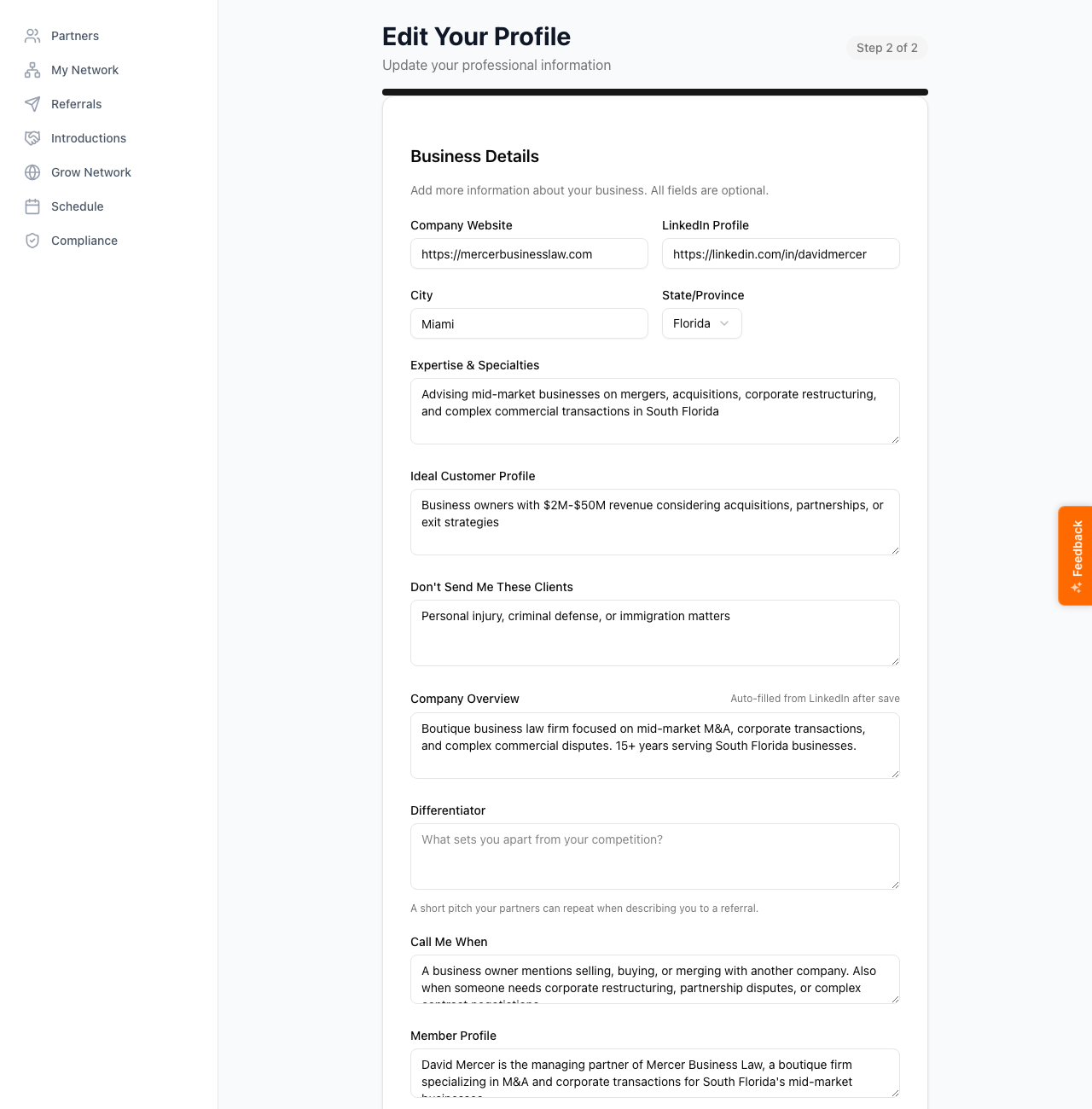
Scheduling Link sits under your LinkedIn URL. Paste your Calendly, Google booking page, or any link where people can pick a time. It shows as a Book a Time button on your profile page, and when you write an email you can press Add My Scheduling Link to put it in. It is never added to an email unless you press that button.
You can save partial progress and come back later. The wizard saves what you've entered when you click Continue, so closing the tab doesn't lose your work. The next time you open the editor it picks up where you left off.
Get more out of your assistant
A few fields on your own profile do most of the heavy lifting for the recommendations your assistant makes about your network. Worth filling in even if you skip the rest:
- Type of business on Step 1. Drives gap-finding (which professions your network is missing relative to people in your line of work) and the partner suggestions you see on the home dashboard.
- Desired Referral Partner Types on Step 1. The checkbox grid that says who you want partners to refer TO you. Drives the Grow Network recommendations and the partner suggestions on the dashboard.
- Expertise, ideal customer, and industries served on Step 2. Shape the intro drafts the assistant writes when you connect two partners, and the descriptions of you that show up on your partners' side when they look you up on ReferralPulse.
- Networking groups on Step 2. Lets the app suggest people you may have already met at the same chapter or event.
If the Grow Network recommendations or the partner suggestions on your dashboard ever feel generic, the fastest fix is to revisit Step 1, especially the Desired Referral Partner Types grid. Five minutes there changes the quality of every downstream recommendation.
On the iOS app
Where to find it: Bottom navigation → menu → Profile, or open the avatar in the iOS app's header.
The mobile editor is the same four-step wizard, optimized for a phone screen. The auto-fill card and prefill flow work the same way. Voice isn't a primary input here because the form is structured, but you can dictate any free-text field (expertise, ideal customer, company overview) by tapping the microphone in the keyboard.
The first time you sign in on iOS, run the LinkedIn auto-fill from the iOS profile editor. You don't have to switch back to the desktop. The mobile prefill flow is identical.