First-time setup
When you sign up for ReferralPulse, the first thing you see is a four-step profile wizard. The goal is to fill in enough about you and your business that your assistant can start being useful from the first day, then point you at three or four ways to bring in your existing partners. Most people finish this in under ten minutes, less if your profile prefills from LinkedIn.
Where to find it
Where to find it: First-time signup lands you here automatically. Direct URL: /dashboard/profile?mode=new. The page header reads Welcome to ReferralPulse and a step counter (Step 1 of 4) sits in the top right.
If you skipped the wizard the first time and want to come back, you can reach the same screens at any time from Avatar → Profile (which opens in edit mode rather than new-user mode). The structure is the same, just without the welcome framing.
What the four steps cover
The wizard is built so you can skim, take any prefill shortcut available, and edit only what looks wrong. The four steps are:
- Step 1: Your basic info. Name, email, company, job title, type of business, the partner types you want to work with, your compliance designation, mobile, and headshot.
- Step 2: Business details. Expertise, ideal customer, what to avoid, company overview, and what makes you different. Every field here is optional.
- Step 3: Preferences. Profile visibility and how often you want email updates. Skipped automatically if you're an existing user editing your profile.
- Step 4: Build Out Your Network. Connect your inbox, then bring in your first batch of partners through any combination of calendar, CRM, file upload, or manual entry, and backfill past referrals and introductions.
A progress bar across the top tracks how far you are. Save keeps your progress so you can come back later. The primary button moves you forward and its label changes per step (Next: Business Details, Next: Preferences, Next: Partners, then Complete Setup on the last step).
Take the LinkedIn shortcut on step 1
Where to find it: Step 1, the LinkedIn card above the form fields.
If your profile is on LinkedIn, the fastest way to fill out the wizard is to paste your LinkedIn URL once. Your assistant pulls in name, headline, company, location, and most of the business details for step 2. You spend the rest of the wizard reviewing rather than typing.
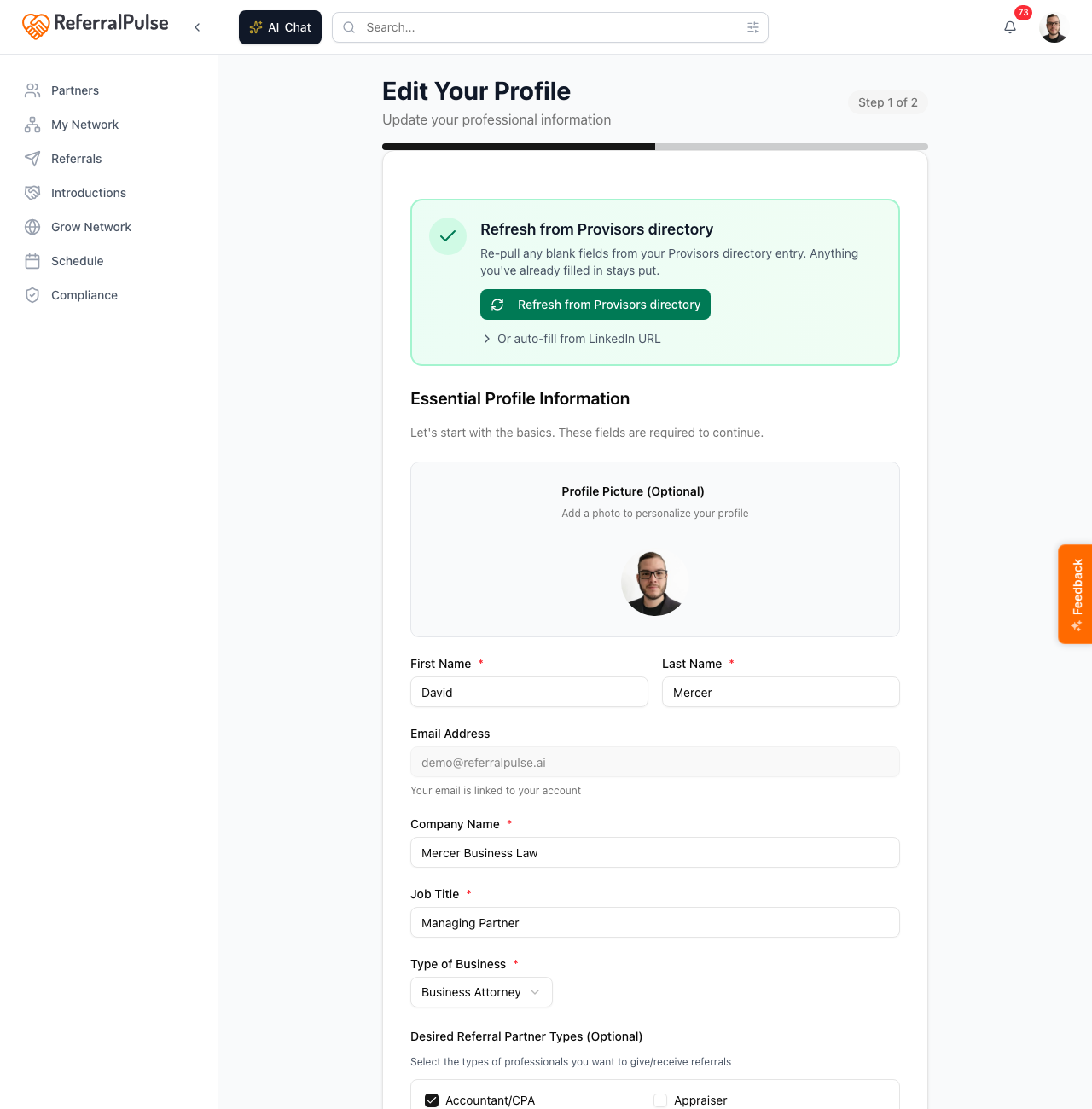
- If you signed up with a LinkedIn URL on file, the prefill happens automatically in the background. You'll see a blue Still finishing up from LinkedIn banner while it's working, and a green Prefilled from your LinkedIn profile banner once it's done. You can start filling in fields manually before it finishes, the prefill only fills blanks.
- If you didn't have a LinkedIn URL on file, the Prefill from LinkedIn card at the top of the form lets you paste one and click Auto-fill. It takes about 20 seconds.
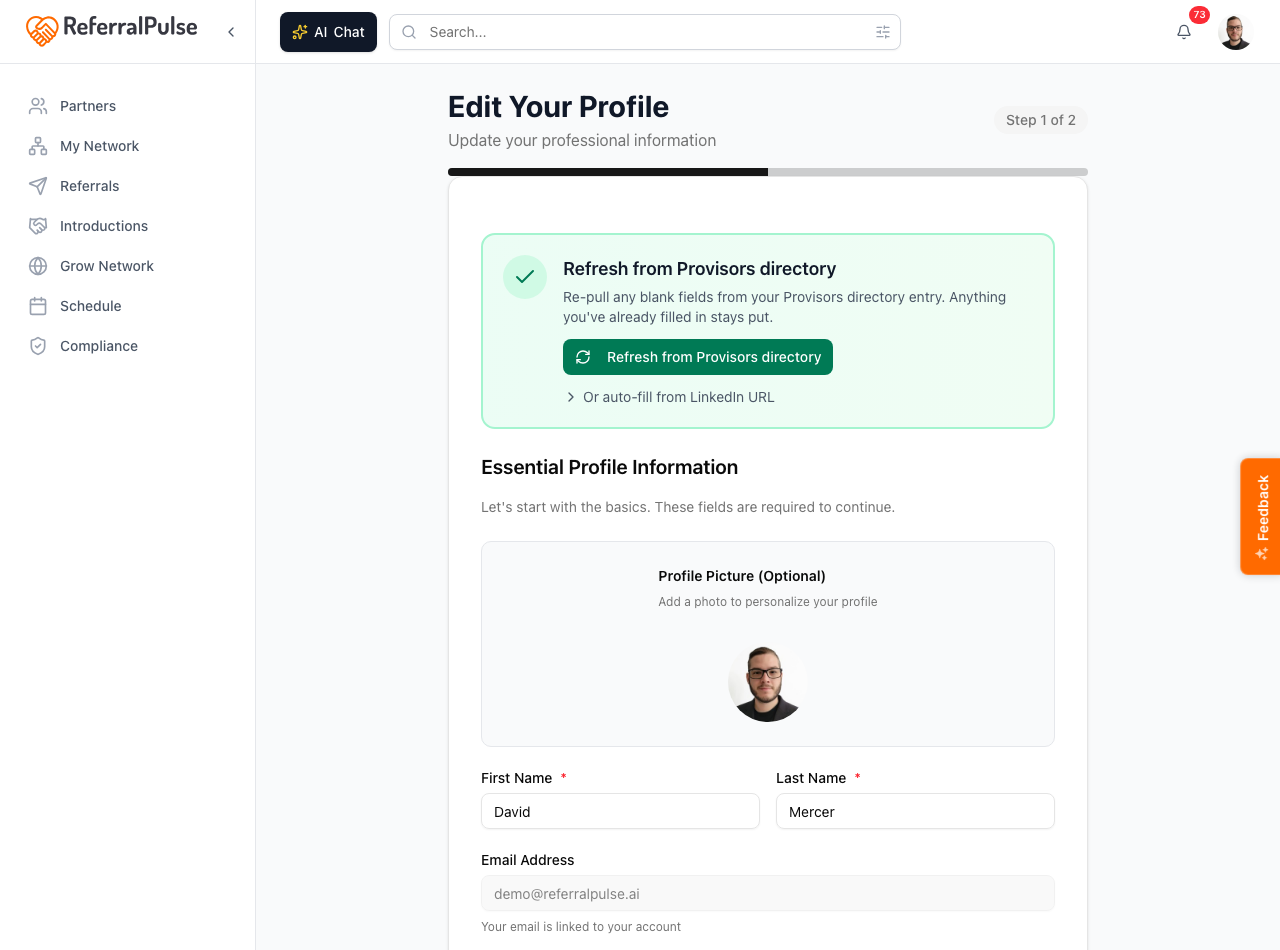
The prefill only fills blank fields. If you've started typing into a field and the prefill arrives later, your typing wins, so there is no reason to sit and wait for it.
The required fields on step 1 are First Name, Last Name, Company Name, Job Title, and Type of Business. Your email is locked to your account, and a profile picture and mobile phone are optional. When you pick a Type of Business, the wizard suggests a starting set of partner types and a compliance designation for you.
Pick the partner types you want (right here on step 1)
Step 1 also has the Desired Referral Partner Types checkbox grid, just below Type of Business. This is the highest-leverage choice in the whole wizard. It shapes everything your assistant does for your network: which professions it flags as gaps, the partners it recommends, the candidates it pulls from your calendar, and the intro pairings it suggests.
Most people undersell this section. If your ideal client is a founder selling their company, the partners you want in your network are M&A attorneys, valuation specialists, wealth managers, and tax CPAs. Pick 8 to 12 types that actually serve your clients, not just the obvious ones. The wizard pre-checks a sensible set when you choose your Type of Business, so you're usually editing a list rather than starting from scratch.
Below the grid is the Compliance Designation picker. Your assistant usually fills this in for you based on your Type of Business, but you can change it. It controls whether the Compliance section shows up later for you.
Fill in business details on step 2
Where to find it: Click Next: Preferences (or Save Changes in edit mode) at the bottom of step 1.
Step 2 is where you tell your assistant what you actually do and who you want to work with. Everything here is optional, but the more you fill in, the better your assistant can suggest partners, surface gaps in your network, and pre-write intro emails on your behalf. Several of these fields also fill in automatically when you take the LinkedIn shortcut on step 1.
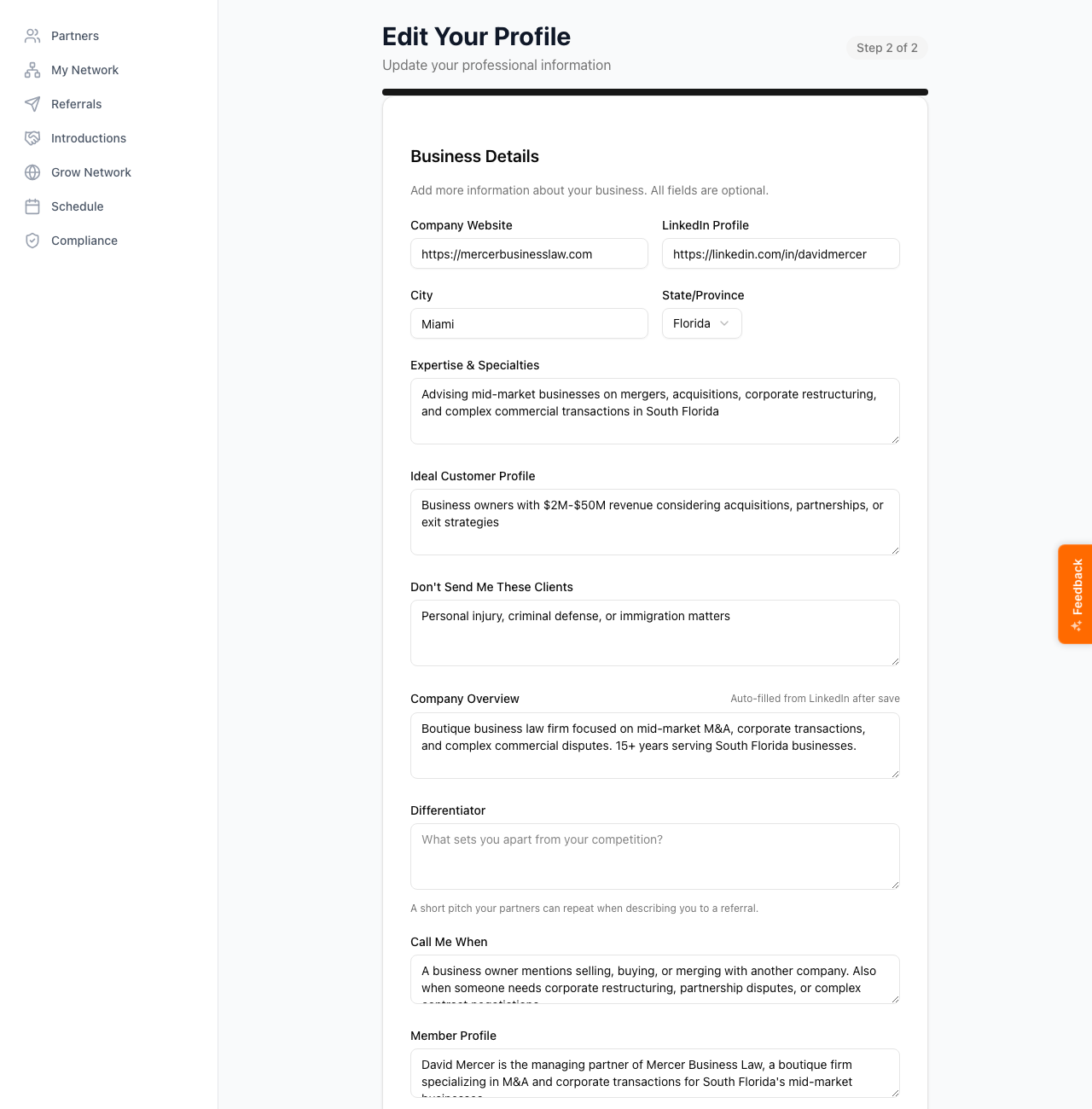
The fields, in order:
- Company Website and LinkedIn Profile. Your links.
- City and State/Province. Where you're based.
- Expertise & Specialties. A short paragraph on what you're known for.
- Ideal Customer Profile. Who's the best client for you. Include details (industry, deal size, life stage) so your assistant can recognize a match.
- Don't Send Me These Clients. Who you'd rather pass on. Just as important as your ideal client, because your assistant uses this to filter intros.
- Company Overview. Two or three sentences on your company. This one can also auto-fill from LinkedIn after you save.
- Differentiator. A short pitch your partners can repeat when describing you to a referral.
- Call Me When. Trigger phrases that mean someone needs you. Used in pre-meeting prep briefs.
- Member Profile and Industries Served. Background and the sectors you focus on.
- Service Areas. The geographic areas you serve, comma-separated.
- Networking Groups. Provisors, BNI, Chamber of Commerce, or Other.
- Languages Spoken. Every language you can do business in.
The partner mix that drives your recommendations and gap-finding (the Desired Referral Partner Types grid) lives back on step 1, right under Type of Business, not here. If you skipped it, jump back and fill it in. It's the single most useful thing you can set.
Set your preferences on step 3
Where to find it: Click Next: Partners at the bottom of step 2.
Step 3 is the shortest. Two sections:
- Profile Visibility. Discoverable (anyone using ReferralPulse can find you), Network Only (only your connected partners see you), or Private (only you see your profile). Default is Discoverable for new users, which is right if you want to grow.
- Email Notifications. A single choice for how often you want email updates: real-time, a daily digest, a weekly digest, or never.
You don't have to dwell on this step. Both choices, along with your assistant's tone and other notification settings, are available any time in Settings.
Don't agonize over step 3. The defaults are sensible, and every option is one click away in Settings if you want to change it later.
Bring in your first partners on step 4
Where to find it: Click Next: Partners at the bottom of step 3.
The last step is the network seed. The page is titled Build Out Your Network. The fastest single move sits right at the top: a card to connect your inbox, which is the highest-signal source because future referrals and intros flow in from your email automatically. Below it is an Additional Ways to Populate Your Network section with the rest of the buffet.
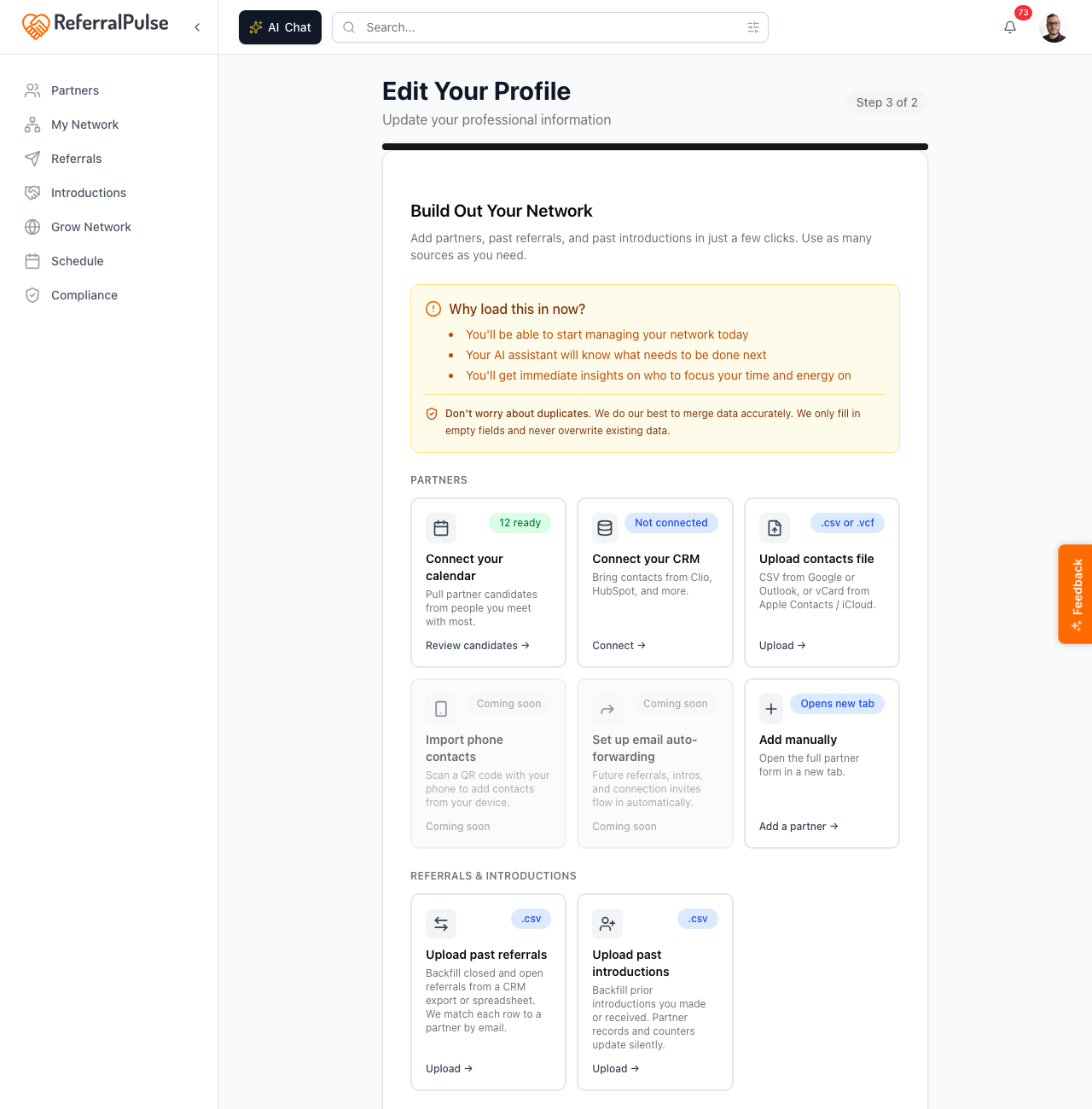
The buffet is grouped into two rows:
- Partners. Connect your calendar, Connect your CRM (Clio, HubSpot, GoHighLevel today), Upload contacts file (CSV or vCard), Import phone contacts (Coming soon), Set up email auto-forwarding, and Add manually.
- Referrals & Introductions. Upload past referrals and Upload past introductions, so your history comes along too.
You can stack any combination, the screen doesn't make you pick one. The most common path for someone with a busy calendar is Connect your calendar first (lots of high-quality candidates), then Upload contacts file to fill in anyone who isn't on your calendar but is still important.
For the full breakdown of every method, see the How to add a referral partner article.
You don't have to add everyone right now. Aim for 10 to 15 of your most important partners in this first session. The rest you'll add over the next month as you log meetings and referrals. Quality over quantity.
What success looks like
When you click Complete Setup on step 4, the app finishes your profile and drops you on your daily briefing. From here, three things will get you the most value out of your first week:
- Open the daily briefing each morning.
- Log your last few referrals (sent and received) so the dashboard has real numbers.
- Review the calendar candidates the app surfaces and add the ones who belong in your network.
For the full first-week tour, see Welcome to ReferralPulse.
On the iOS app
Where to find it: First-time signup on the iOS app routes you to the same wizard, in mobile layout.
The wizard is identical on phone, with a mobile-friendly stacked layout instead of side-by-side. The LinkedIn shortcut works the same way. The Build Out Your Network step is also where you'll connect your phone calendar permissions.
If you signed up on the iOS app, finish step 1 there but consider doing step 4 on a desktop. Connecting a calendar and reviewing candidates is faster on a bigger screen.