Global search
Global search is the one place to find anything: a partner, a referral, an introduction, or a new person to add to your network. It lives in the header on every page, so you never have to hunt for a page-specific search box. Click it, or press ⌘K, and a dialog opens with results appearing as you type, grouped into labeled sections.
Where to find it
Where to find it: The header on any page. The box reads Search partners, referrals, intros… with a ⌘K hint at its end, and the bell and your avatar sit to its right. On a phone the same search is a magnifying-glass icon that opens the dialog full-screen.

What you can search for
One query searches everything, and the dialog groups what it finds:
- In Your Network. Partners you've already added, matched on name, company, title, email, specialty, or city. Clicking a row opens the partner.
- Referrals. Client name, company, email, service type, and the partner attached. Both given and received.
- Introductions. Subject, the reason for the intro, the people on either side, and the introducer.
- On ReferralPulse. People who use the app but aren't in your network yet. Add them as a partner in one click or send an Invite to Connect.
Type two or three letters and the sections start filling in. Your own records appear first; the new-people sections load a moment later.
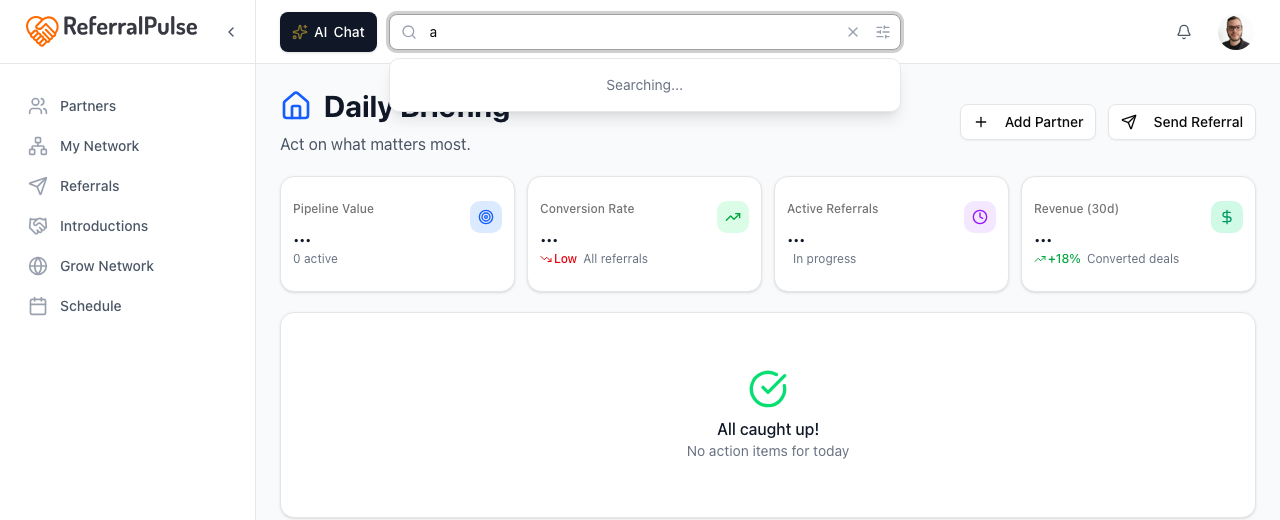
Search by name, email, or company
Where to find it: Header → search box, or press ⌘K.
Start typing the person or client's name, their company, or their email. Two or three letters is usually enough.
- Click the search box in the header. The dialog opens with the cursor ready.
- Type a few letters.
- Click any row to jump straight to that record. The dialog closes behind you.
Searching by company name is often faster than searching by person, because there are usually fewer companies than people. If you're looking for "the wealth manager at Northstar," typing northstar narrows the list to one or two rows.
Ask in plain English
Longer, conversational queries get smarter matching. Type something like "estate planning attorneys in Miami" or "find me a CPA who speaks Spanish" and your assistant interprets the request and matches partners by what they do and where they are, not just the literal words. The input highlights in blue when this mode kicks in, with a match count on the right.
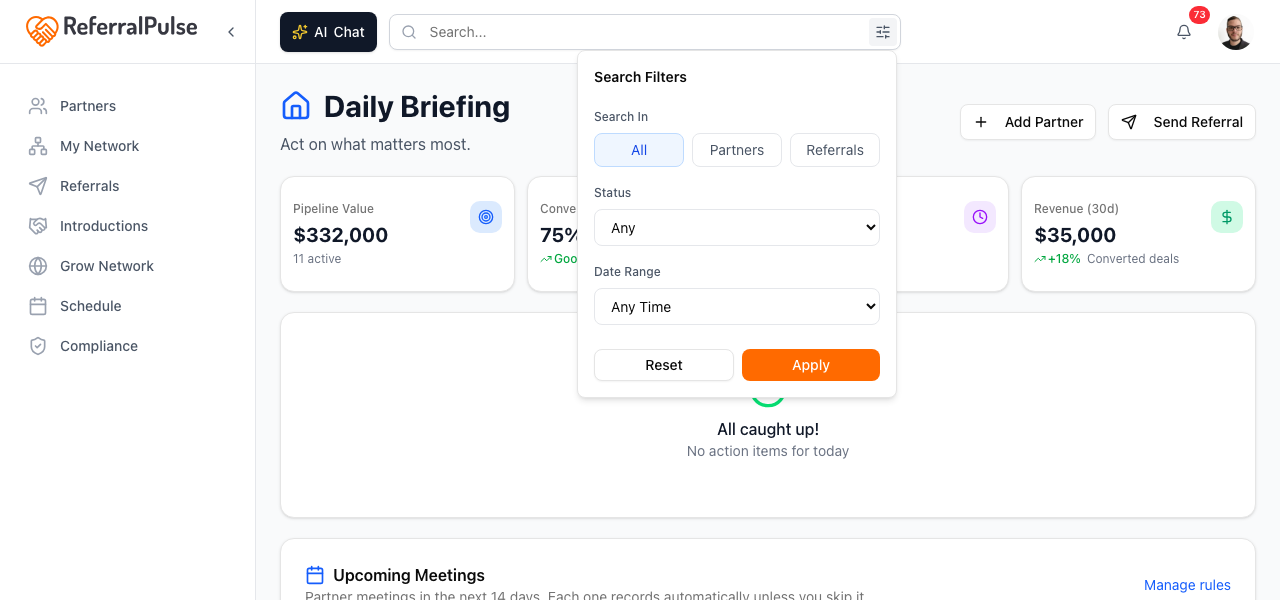
Filter by record type
Where to find it: The chips at the top of the search dialog.
If you only want one kind of result, click Partners, Referrals, or Introductions. The default is All. The new-people sections show under All and Partners.
Add someone who isn't there yet
If a search for a person comes up empty everywhere, the dialog offers Add <name> as a New Partner. Clicking it opens the add-partner form with their first and last name already filled in.
What you will see
Each row carries a small Partner, Referral, or Introduction badge so you can tell what kind of record it is at a glance, with a subtitle for context (the partner's company, or who an intro connected). If nothing matches, the dialog suggests adjusting your search and offers the add-new-partner shortcut.
Clicking a row opens that record's detail page. The dialog closes and clears, so you're ready to search again from wherever you land.
On the iOS app
Where to find it: Bottom navigation → Chat tab. Or tap the magnifying glass in the header.
On iOS the assistant is usually faster than typing into the search bar. Open the Chat tab and ask:
Show me Sarah Chen.
The assistant pulls Sarah's record up directly. You can also ask things the search bar can't answer, like "Which partners haven't I talked to in two months?" or "Show me referrals to Jordan that are still open." The assistant runs that as a query against your data and returns a list with links.
If you'd rather use the typing search, the magnifying glass in the header opens the same dialog you see on desktop, scaled to fit a phone screen.
When you can't remember the exact spelling of a name, voice search beats typing because the assistant handles fuzzy matches. Saying "Find me Catherine, I think it starts with a C or K" is enough.