Your first week on ReferralPulse
Your home page changes as you get going. In the first few days it shows you one thing to do at a time, and each card gives way to the next as you act. This article walks the sequence so you know what you are looking at and what comes next. On the iOS app, ask your assistant "What's on my plate today?" and it reads you the same next step.
Nothing here runs on a clock. The page moves on when you do something, so a busy week does not leave you behind.
Step 1: Your Assistant Reads Your Inbox
Where to find it: Sidebar → Home, the Reading Your Inbox card at the top.
As soon as you connect your email, your assistant starts reading the last six months of it for introductions, referrals and the people you work with. The card says how far it has got, for example "1,240 of about 13,000 messages read", with a progress bar under it. A LIVE tag stays on while the scan is running.
The first cards usually arrive within a few minutes. The moment there is one, the card says how many are ready and shows a Review button with the count, for example Review 12 cards. You do not have to wait for the scan to finish. More cards join the queue as your assistant finds them.
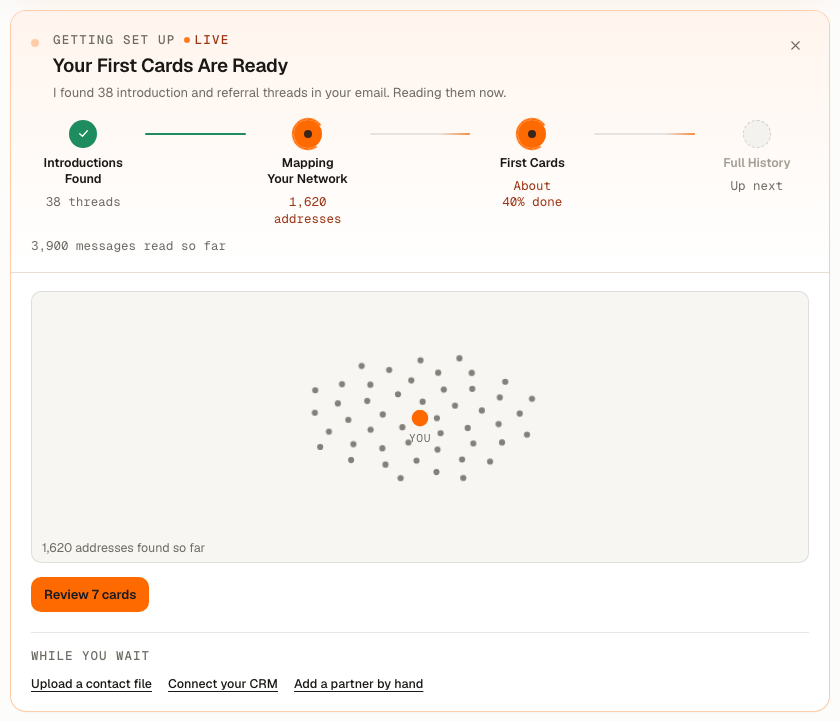
While the scan runs and you have not looked at any cards yet, the page is quiet on purpose. There is no daily brief and no health reading yet, because there is nothing honest to say about a network the app has just met.
You can leave the page. A big mailbox can take an hour or more to read, and the scan keeps going without you. Your assistant emails you when it is done, and nothing joins your network until you approve it.
Step 2: Your Inbox Review Is Ready
Where to find it: Sidebar → Home, the card now titled Your Inbox Review Is Ready.
If the scan finishes before you have looked at any cards, the card gets a DONE tag, a line naming what it found (for example "23 people and 4 introductions"), and one button, Review what I found.
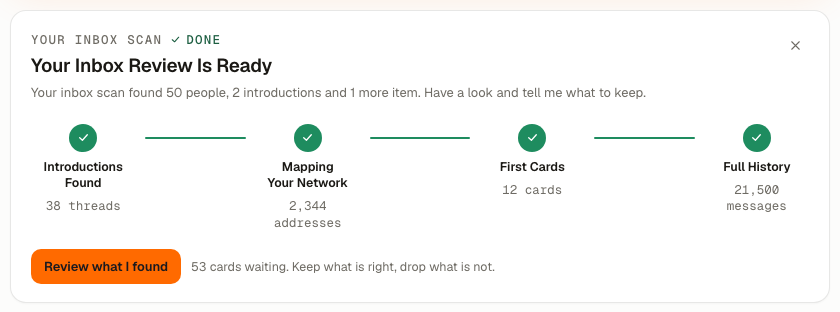
Each card on Inbox Review is a person, an introduction or a referral your assistant found in your mail. Keep what is right and drop what is not. If the scan found nothing that needs your approval, the card says so instead, and shows the other ways to bring your people in.
What Your Inbox Knows
Where to find it: Sidebar → Home, the What Your Inbox Knows card.
From the moment the scan starts, a second card collects the facts about your network that you may not know. Until the first ones are counted it says "Counting the introductions and referrals in your email now." Each finding leads with the discovery, then the evidence. Where there is a next step, the link under it opens on the people the finding names:
- Your Top Introducers. Who sends you the most introductions, and whether each of them is on your partner list yet. Every name gets its own link: their profile if they are a partner, or Add Partner with their name and email already filled in if they are not. When two or more of them are not partners yet, Add both (or Add all three) adds them all without leaving the page.
- Hidden Relationships. How many people trade real two-way email with you and how many of them are partners. Review New partner cards opens Inbox Review on the people your assistant suggests adding.
- Partners Confirmed. How many of your partners show live correspondence in your mailbox. This one is for reading, so it has no link.
- Gone Quiet. Someone you used to swap introductions with and have not heard from in a while. If they are already a partner, Reconnect with them opens their page with a short note already written for you, ready to edit and send. If they are not a partner yet, the link adds them first.
- BNI Connect or ProVisors, when your mail carries their notices. Review them opens Inbox Review on those referrals or introductions.
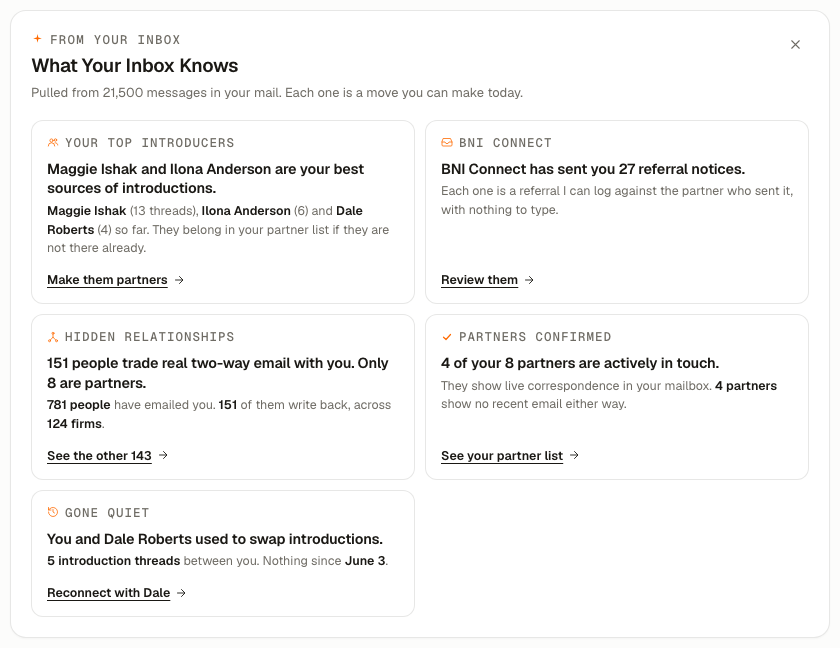
A finding that arrives while you are on the page gets a NEW tag. The card has its own ×, separate from the setup card: closing one leaves the other. It retires on its own once you have reached out to someone through the app, and your avatar menu → Setup guide brings it back.
If Add all three reports that someone "needs a full name", your mail only ever carried one word for them. Use their own Add link on the card, which opens the add form where you can type the rest of the name.
The "Only 8 are partners" line is the most useful one on the page. The gap between the people who write back to you and the people on your partner list is where your next referrals usually are.
Step 3: Your Daily Brief Comes Back
Where to find it: Sidebar → Home, under the chat box.
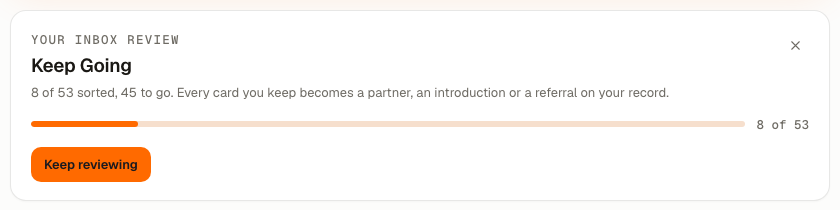
The moment you keep or drop your first card, your home page brings back your daily brief. You do not have to finish the queue: anything still waiting is the first row of the brief, "Review N items your assistant found in your email", every time you come back.
If your assistant is still reading your inbox at that point, a single line above the brief says so, with the count so far. It has no button, because the brief's Inbox Review row is where the new cards go, and it disappears when the scan is done.
Your Network Health sits in the header, inside the My Rhythm card once you have picked a rhythm (or on its own if you have not turned the rhythm on). Hover over it to see your score out of 100. A new network often reads Quiet. The number is real, and it climbs as you act. Click the reading to open Pulse.
Your Network Today
Where to find it: Sidebar → Home, the Your Network Today card. Once you have closed it, top right avatar → Your network today brings it back.
This card is a picture of the relationships you have on file today, with you in the middle, and under it a short list of Good Matches To Reach Out To: people on ReferralPulse who do the kind of work you asked to meet during setup and chose to be discoverable. Every match says why it is there, for example "Accountant/CPA is a type you asked to meet. You have no Accountant/CPA partners yet." Invite to Connect opens a note you review before it goes out.
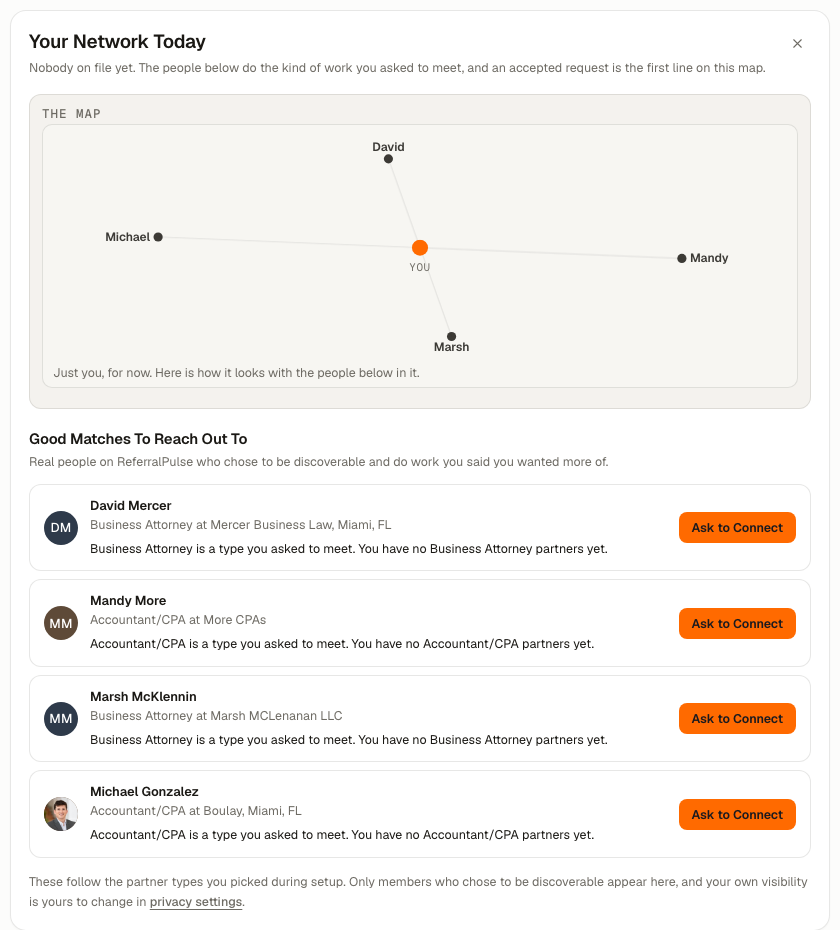
The card is for accounts that are still filling up. Once you have ten partners on file it retires on its own.
Step 4: Running
The first time you reach out to someone through the app, whether that is a connection request, an email you write from a draft, or an introduction or referral you log yourself, the setup cards retire and your home page becomes the ordinary one: the chat box and the daily brief. From here on the brief is where your assistant puts what needs you.
If the Scan Stops
Now and then a mailbox stops answering part way through. The card then says "Your inbox scan stopped early" with a Start the scan again button, and under it the other ways to bring your people in: upload a contact file, connect your CRM, or add a partner by hand.
If You Did Not Connect an Email
The same page works without a mailbox. Instead of a scan, the Getting Set Up card shows a checklist of the ways to bring your people in: connect your email, upload a contact file, connect your CRM, forward an email to your assistant, or add a few partners by hand. Each row ticks itself off as the app can see it has been done. Once you have a few partners on file, the card becomes a short recap of what is connected and what is still open, and the brief arrives underneath it.
On the iOS App
Where to find it: Bottom navigation → Briefing tab.
The mobile brief is the same worklist, sized for a phone, and while your account is in its first week it carries the same next step the home page shows. You can also just ask:
What's on my plate today?
Your assistant reads back what needs you. Once your cards are on Inbox Review, say "open Inbox Review" to go straight to them, and act on a finding by saying things like "record an introduction from Lorraine Beckett" or "send a connection request to David Mercer."
The scan keeps running whether or not the app is open. If you connected your email on your laptop, the phone shows the same progress when you pick it up.