Welcome to ReferralPulse
ReferralPulse is a personal assistant for managing your referral partner network. It keeps track of who you refer business to, who refers business to you, who you've gone quiet with, and what you should do today to keep relationships alive. You can talk to it the way you'd talk to a smart assistant, and on the iOS app it's voice-first.
This article is the orientation. Spend ten minutes here, then jump into the deeper articles for the parts you'll use most.
What you can do
- Keep one up-to-date list of every referral partner you work with, with their company, expertise, and your relationship history.
- Log every referral you give and every referral you receive, with status updates as deals close.
- See at a glance which relationships are active and which are going cold, with reminders to reach out before a partner drops off your radar.
- Track introductions you make between partners and the deals that come from them.
- Draft thank-you notes, intros, and follow-ups that you review and send. The app never auto-sends anything on your behalf.
Your home dashboard
Where to find it: Sidebar → Home. On the iOS app the same content is the Briefing tab in the bottom navigation.
Your home page greets you by name, offers a box you can ask anything in, and then gets on with YOUR DAILY BRIEF: a worklist of exactly what needs you today, with a button on every row so you can clear an item without leaving the page. It mirrors your daily briefing email, uncapped.
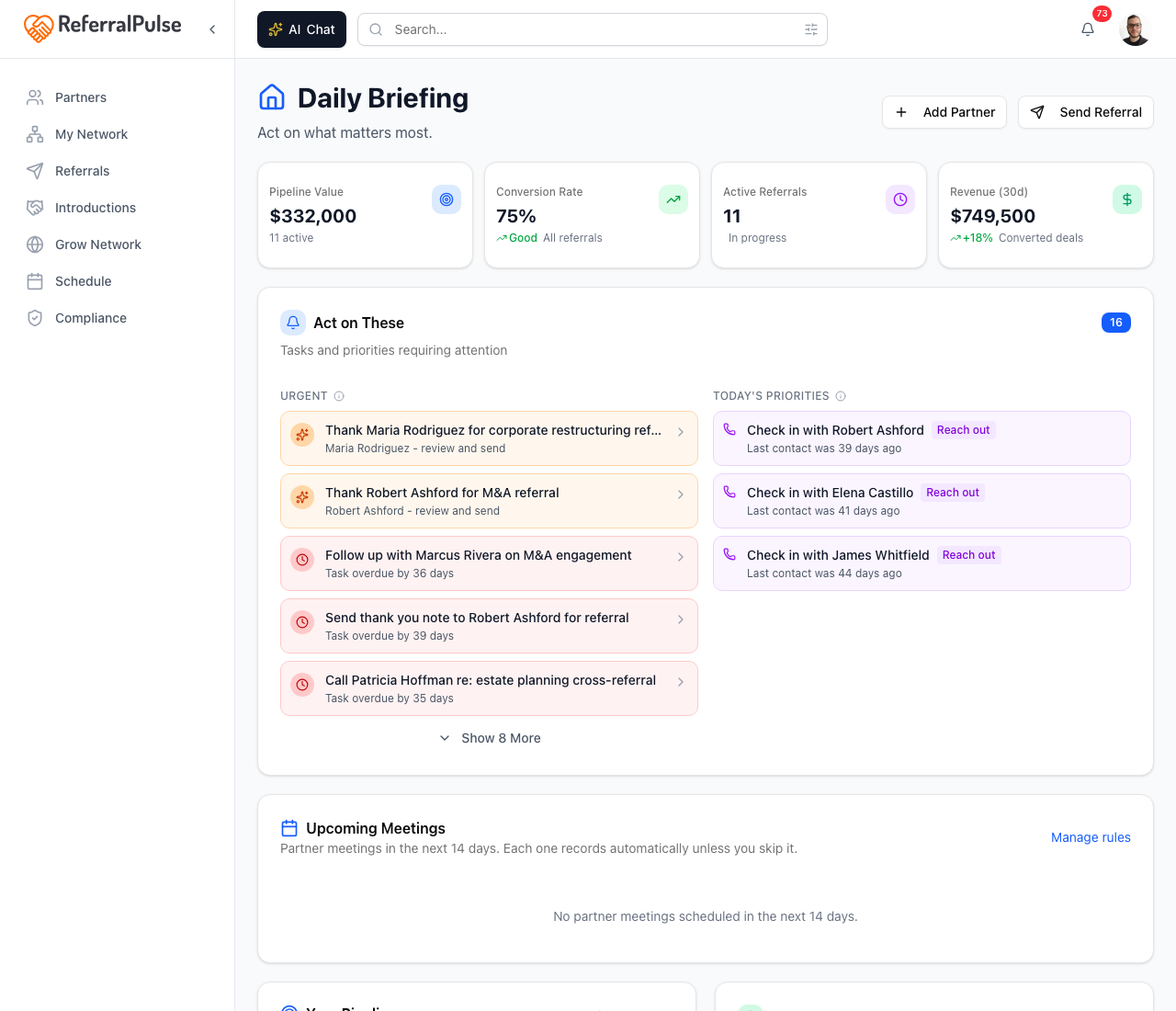
The sections appear only when they have something in them:
- Today's Schedule. Your meetings and tasks due today. Mark a task done right from the row.
- Needs Your Attention. Overdue tasks and referrals that have gone quiet or urgent. Use the Group by toggle to sort these by urgency or by type. Each referral has a Log update button so you can jot what happened without opening it.
- Drafts Ready to Send. Emails your assistant has drafted for you. Review & send opens the editor, and nothing goes out until you approve it.
- Meeting Prep. Short briefings before your upcoming meetings. Expand to read, then tap Got it.
- Revenue at risk. A banner totaling the dollars tied up in stuck referrals, linking straight to your open ones.
- While You Were Away. Replies and overnight notifications you can open or mark read.
When there's nothing pending, you'll see You're all caught up instead. For the full tour of every section, see Daily briefing.
Your pipeline numbers
The numbers live one click away: sidebar → Network Health → Reports. The top of that page carries live cards for Revenue by month, Commissions outstanding, Pipeline health, Top referral partners and Work by service, before you click into any of the ten deeper reports.

Your first week
If this is your first time signing in, three things will get you the most value.
1. Add your top 10 to 15 partners
These are the people who actually move your business: the partners you refer clients to most, the partners who refer clients to you, and the relationships you don't want to let lapse. Don't try to add every contact. Quality over quantity.
If you connect a calendar, the app pulls candidates straight from the people you meet with most often, so you can pick from a list instead of typing names. Voice works too.
See How to add a referral partner for the six methods, including calendar, CRM, file upload, manual, and voice.
2. Log your last few referrals
Log a handful of referrals from the last six to twelve months, sent and received. You don't need every one. Even a dozen is enough to give the dashboard a real sense of who's active in your network and who you might want to follow up with.
See Logging and tracking referrals for both the form and the voice path.
3. Open the dashboard each morning
For the first week, open the home dashboard for two minutes when you sit down. Skim Today's Schedule, work through Needs Your Attention, and clear any Drafts Ready to Send. Most days there will be one or two things worth doing in less than a minute, like sending a thank-you note or logging an update on a deal that moved.
The dashboard is where the work surfaces. Once you build the habit, the app does the work of remembering for you.
How to get around
The app has three navigation surfaces.
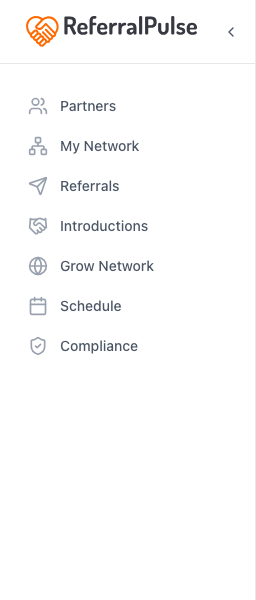
Sidebar (left edge). Home and Inbox Review sit at the top, then four groups:
- My Network: Partners, Introductions, Referrals, Network Map.
- Action Items: Alerts & Tasks, Daily Briefing.
- Meetings: Calendar, Meetings, Past Meetings.
- Network Health: Pulse, Reports.
Inbox Review only appears once you have connected a mailbox, and a Company section appears if you own a company account.
Header (top of every page). A search box runs across the middle, reading Search partners, referrals, intros… with a ⌘K hint. The bell on the right holds your notifications, and your avatar opens the account menu: Profile, Settings, Help Center, Setup guide, Chat History, and Log out, plus Invite Rewards, ProVisors and Compliance when those apply to you.

Your assistant (bottom right of every page). The Ask button is the fastest way to do most things. Ask "how many open referrals do I have?", say "add Sarah Chen as a partner, she's a CPA in Tampa," or "mark the Watts referral as won, project came in at 25 thousand." It finds partners, logs referrals, updates statuses, drafts emails, sets tasks, and answers questions about your network in plain English. You can also start from the search box, which offers to ask your assistant whatever you typed.
On the iOS app
The iOS app is voice-first. The assistant lives in the Chat tab in the bottom navigation, and that's how most users add partners, log referrals, and update status while they're between meetings.
Tap the microphone, talk the way you'd describe the situation to a colleague, and the assistant fills in the details and saves the record. If something is missing (usually an email), it asks before saving.
The voice flow is hands-free. After a coffee with a partner you can dictate "add Marcus Johnson as a partner, financial advisor at Northstar Wealth, met him at the chamber breakfast Thursday" while you walk to the car. The record is in your network before you start the engine.
Getting help
Every screen has a Help Center link in the account menu (top right avatar → Help Center). The public help library is also at referralpulse.ai/help and is open to anyone, signed in or not.
If something is broken or you can't find an answer in the articles, the support team is one click away from any article via the feedback footer.